
Enhanced Alarm Configuration (EAC) allows a user to create a condition for each configurable bit that either allows or prevents that bit from being set based on logical expressions defined using the Enhanced Alarm Settings dialog box. The Enhanced Alarm Settings dialog box is accessed by clicking the Enhanced alarm settings button on the PNT Editor's Alarm Settings (Analog, Digital, Enumeration, String) pages:
An enhanced alarm condition can contain up to 20 distinct expressions, which can be grouped together to determine evaluation order. Within an expression group, ANDed together expressions are evaluated before ORed together expressions . A NOT operator can also be applied to the result of an expression group.
Specific Enhanced Alarm Settings dialog box behaviors and allowable actions for each permission level associated with the configurable bits are bound by the enhanced alarm security events that are configured in PNT Security. See Point Service (PNT) Security for more information.
| Authorization Level | Enhanced Alarm Settings Dialog Box Behavior |
|---|---|
|
0-None |
Hides the status bit entry from the configurable bit (left-side) list. |
|
1-Read |
Displays the status bit in the configurable bit (left-side) list but prevents modifications to the condition or expressions. If "1-Read" access exists for all defined status bits, the Export button is enabled. Import and Clear All buttons are disabled if any one status bit is assigned "1-Read" permissions. |
|
2-Update |
Displays the status bit in the configurable bit (left-side) list and allows modification only to the comparison values within the expressions. If "1-Read" access exists for all defined status bits, the Export button is enabled. Import and Clear All buttons are disabled if any one status bit is assigned "1-Read" permissions. |
|
3-Add |
Displays the status bit in the configurable bit (left-side) list. Allows modification only to the comparison values within the expressions. Allows conditions to be enabled or disabled. If "1-Read" access exists for all defined status bits, the Export button is enabled. Import and Clear All buttons are disabled if any one status bit is assigned "1-Read" permissions. |
|
4-Delete |
Displays the status bit in the configurable bit (left-side) list. Allows full expression tree modification. Allows conditions to be enabled or disabled. Allows the Prevent SET /Allow SET drop-down menu to be modified. If "1-Read" access exists for all defined status bits, the Export button is enabled. If "4-Delete" access exists for all defined status bits, the Import and Clear All buttons are enabled. |
|
5-Admin |
Inclusive. |
The Enhanced Alarm Settings dialog box provides the ability to view and edit conditions and expressions, depending on security access, for existing configurable bits of a point. An example of the Enhanced Alarm Settings dialog box is displayed below.
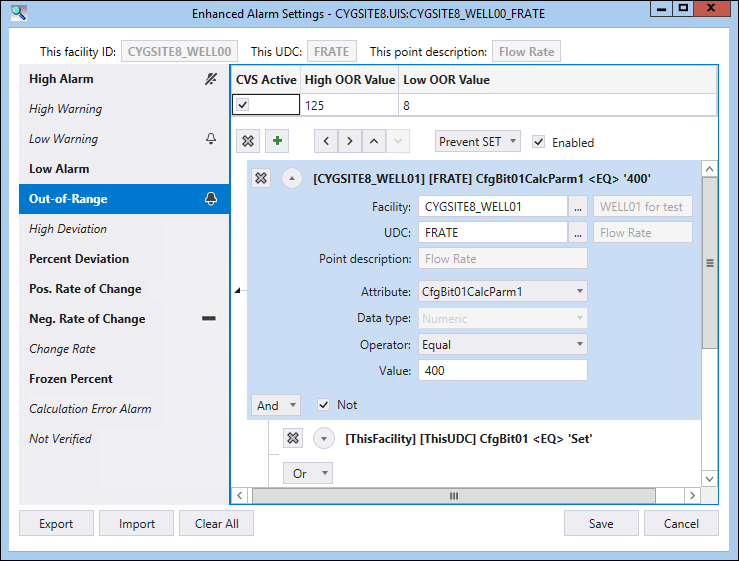
These are the properties displayed on the Enhanced Alarm Settings dialog box.
| Property | Description |
|---|---|
|
This facility ID |
Displays the facility ID of the point being configured. |
|
This UDC |
Displays the UDC of the point being configured. |
|
This point description |
Displays the description of the point being configured. |
|
Configurable Bit list |
Lists the configurable bits (e.g., High Alarm, Out-of-Range) for the current point similar to the list on the Alarm Settings page. See Alarm Calculation Types and the various point types in the Point Editor topic for more information. Config Bits that are active in the CVS are bolded. Those that are inactive in the CVS are shown in italics.
|
|
CVS Active |
This box is checked when CVS calculations are enabled for the configurable bit on the applicable Alarm Settings page. |
|
calcparm1 field |
Displays the name and value of the Calculation Parameter 1 (calcparm1) alarm calculation for the selected Alarm Calculation Type. Displayed on the Alarm Settings page in the Calc. Value 1 column. |
|
calcparm2 field |
Displays the name and value of the Calculation Parameter 2 (calcparm2) alarm calculation for the selected Alarm Calculation Type. Displayed on the Alarm Settings page in the Calc. Value 2 column. |
| Filter Pane | |
|
|
From the condition toolbar, click to delete all the expressions for the selected condition. When shown next to each expression, click to delete an individual expression. |
|
|
Click to add a new expression. |
|
|
Click to move filter positions. |
|
Prevent SET /Allow SET |
Choose a selection from the drop-down menu. |
|
Enabled |
Check this box to enable the conditions you set. |
|
And/Or |
Options And and Or add filters to the conditions for the configurable bit settings. • If you use the And operator, the results are narrowed to items that match all conditions specified. • If you use the Or operator, the results are broadened to include items that match any of the conditions specified. Default value is Or. |
|
Not |
When selected, applies a NOT operation to the following group of expressions. |
|
Export |
Click to export all conditions and expressions to an xml file. |
|
Import |
Click to import all conditions and expressions from an xml file. Note: The xml file must have been exported from a point with the same point scheme and point data type as the target point. |
|
Clear All |
Click to clear all conditions and expressions for the point. |
|
Edit |
When clicked, edit mode is enabled and the button changes to Save. |
|
Save |
Click to save changes. |
|
Cancel |
Click to cancel edit mode. If unsaved changes exist, a prompt to save or discard changes is presented. |
Each expression must define comparison criteria that is shown when the expression is expanded.
| Property | Description |
|---|---|
|
Facility |
Click ... to select the facility of the point for the expression. |
|
UDC |
Click ... to select the UDC of the point for the expression. |
|
Point description |
Displays the description for the resolved point. |
|
Attribute |
Select an attribute option from the drop-down menu. |
|
Data type |
Select an option when applicable from the drop-down menu. |
|
Operator |
Select a logical from the drop-down menu. Options available change according to the selected Attribute. |
|
Value |
Input a value or select an option from the drop-down menu to be used for the expression comparison. Options available change according to the selected Attribute. |

More:
 Understanding the CvsMetadata File
|
|
|
 - Conditions active in the CVS and enabled
 - Conditions inactive in the CVS but enabled
 - Conditions active in the CVS but disabled
 - Conditions inactive in the CVS and disabled


