File Management Using BSS Explorer
The following sections describe the most common file management functions available with BSS Explorer.
Note: You can use Ctrl+Click and Shift+Click to multiselect files whenever necessary.
To View BLOB Service Files
- Open the BSS Explorer.
- Click Service and then Connect…, or click the connection icon
 , to access the Select Service dialog box.
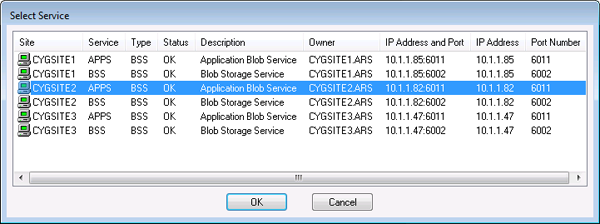
- In order to connect to a BLOB Storage Service, it must be running. Verify that the desired service is running and then click the service name to select it.
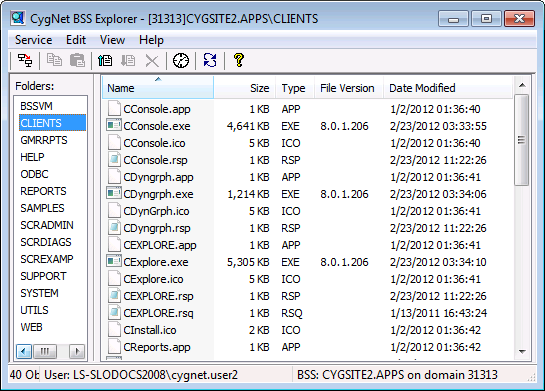
- Click OK to display folders from the selected service in the left pane.
- Click on a folder name in the left pane to display its contents in the right pane.
To Upload File(s) to the BLOB Service
- Follow the procedure to view BLOB Service files.
- Click a folder name in the left pane to select it and then click the upload icon
 to access the Open dialog box, or right-click the folder name to access the context menu, and then select Upload Files… to access the Select Blob Folder dialog box.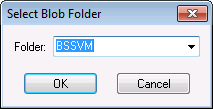
- Select the desired folder from the drop-down menu, or type a new folder name if necessary.
- Click OK to access the Upload Files to Blob Folder dialog box.

- Browse to the file(s) desired and select it (them).
- Click Upload to upload the selected files to the previously selected Blob folder.
Note: You can also drag one or more files from the desktop or other file system location into a folder.
To Download File(s) from the BLOB Service
- Follow the procedure to view BLOB Service files.
- Right-click a file name in the right pane to access the context menu, and select Download….
- Browse to the directory where you want to put the file and select it.
- If necessary, click Make New Folder to make a new folder in which to place the file.
- Click OK.
Note: You can also drag one or more files from a folder to the desktop or other file system location.
To Delete Files from the BLOB Service
- Follow the procedure to view BLOB Service files.
- Select the file(s) you want to delete and click the delete button
 , or right-click and select Delete.
- Click Yes to confirm the deletion as shown below. There is NO "undo" for this action.
Note: To delete a folder, select all of the files it contains and delete them.
To Rename a File
- Select the file you want to rename and right-click and select Rename.
- Type the new file name.
Note: You can only rename one file at a time.
To Update Rsp and Rsq File Timestamps
- To update all .rsp and .rsq file times in the currently viewed service, click Update File Times.
- Click Yes to confirm the update. This will update the Modified Date timestamp for all .rsp and .rsq files to the current date/time on your computer.
Note: See Timestamps in the Data section for more information about timestamps.
To Move a File from One Folder to Another
- Right-click on the file you want to move and select Properties.
- In the Properties for Entry <file name> dialog box select the Folder in the BLOB File Settings field where you want to move the file.
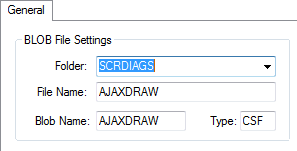
- Click OK.
Notes:
To copy a file from one folder to another, drag the file(s) from folder X to folder Y. A copy of the file will be made in folder Y.
Click Refresh to see the copied file(s).
To Move a File to a New Folder
- Right-click on the file you want to move and select Properties.
- In the Properties for Entry <file name> dialog box type the new folder name in the Folder list box.
- The new folder will be created when you click OK.
Note: Click Refresh to see the new folder name in the Folders pane.
To Check Out Files for Editing
- Right-click the desired folder in the left pane and select Enable Librarian to allow file check in and check out. See Librarian Mode.
- Right-click the file you want to edit and select Check Out. Your User ID and the check out time are displayed in columns in the right pane.
- Edit and save the file as necessary.
- When ready, check in the file by selecting Check In from the right-click menu.
- To turn off librarian mode, select the folder again and right-click Enable Librarian.
Note: CygNet Administrators can undo another user's check out by selecting Undo Check Out from the right-click menu.
To Change Security Settings for a Folder and File(s)
- Right-click the desired folder or file(s) and select Set File Level Security.
- Select the desired Application and Event in the Choose Security Setting dialog box as shown below.
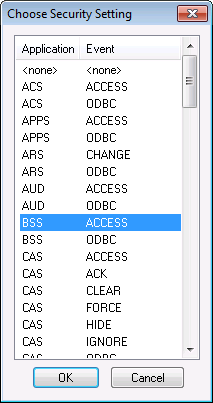
- Click OK.
To Configure Client Settings for BSS Explorer
- Select Help > About CygNet BSS Explorer.
- Click Client Settings on the About CygNet BSS Explorer dialog box to view the Client Settings dialog box.
- From this dialog box you can view network traffic and configure Application Log Settings and/or Network (DCL) Log Settings.
- Once the desired log settings are selected you can choose one or both of the following options:
- Click Use New Settings to apply your selections.
- Click Restore to Default to return to the default settings for the utility.
- Click Close.


