BLOB Storage Service > File Management Using CygNet Explorer

File Management Using CygNet Explorer

The following sections describe the most common file management functions available with CygNet Explorer.

To Upload (or Add) a Single File or Multiple Files

  1. Click on the BSS in the service hierarchy.
  2. Right-click in the service pane and click New.
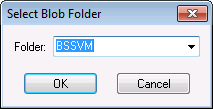
  3. Select the folder from the Folder box or if adding a new folder type a new folder name and click OK.

Select Blob Folder

  1. Browse to the file name(s) and click Upload. If adding multiple files, all the files have to be in the same folder or else you will have to repeat the process for each folder.

To Replace (or Update) a Single File

  1. Click on the BSS in the service hierarchy.
  2. Browse to the file name and click Replace File.
  3. Browse to the file name and click Replace.

To Replace (or Update) Multiple Files

Use the Replace File option to update only a single file in CygNet Explorer. To update multiple files use the New option. You can multi-select with New.

Note: Use BSS Explorer to update multiple files.

To Download (or Copy) a Single File

  1. Click on the BSS in the service hierarchy.
  2. Browse to the file name and click Download File.
  3. Browse to the directory where you want to place the file and click OK.

To Download (or Copy) Multiple Files

You cannot download multiple files in CygNet Explorer. You must download them individually.

Note: Use BSS Explorer to download multiple files.

To Delete a Single File

  1. Click on the BSS in the service hierarchy.
  2. Browse to the file name and click Delete.
  3. Click OK and Yes to confirm the permanent deletion.

To Delete Multiple Files

You cannot delete multiple files from a BSS using CygNet Explorer. You must delete them individually.

Note: Use BSS Explorer to delete multiple files.

Back to top

Let us know how we can improve this topic.

CygNet at weatherford.com

© 2020 Weatherford. All rights reserved.