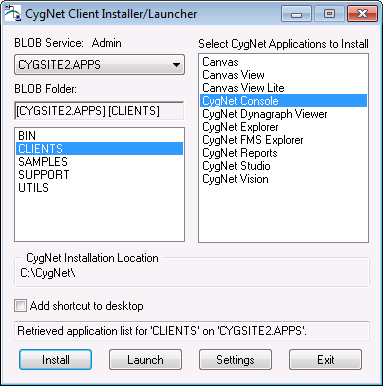
Use the CygNet Client Installer (CInstall.exe) to install the CygNet Console application. The CygNet Client Installer sets up integrated version management to ensure that you have the latest version of the application files. See CygNet Client Installer for more information.
To Install CygNet Console Using the CygNet Client Installer
Open the CygNet Client Installer (Start Menu > All Programs > CygNet > CygNet Client Installer). The CygNet Client Installer/Launcher dialog box will be displayed.
Note: If UAC is enabled, CygNet Client Installer must be run as an administrator in order to install CygNet Console. See CygNet Client Installer for more information.
To Start CygNet Console
Once CygNet Console has been installed using the CygNet Client Installer, you can open the application using one of the following methods. These methods provide version management for the CygNet Console application.
.Alternatively, you can open the application using one of the following methods. These methods do not provide version management.
Start the application from a command line. In the command window, specify the location of the CygNet Console application:
C:CygNet\Clients\CConsole> CConsole <Site.Service>
where <Site.Service> specifies the site and service you want to view.
The following tables list and define command options accessed using the menu and toolbar. See the following sections below for more information:
The following table lists and describes Service menu options.
| Option | Description | Toolbar Icon | Shortcut |
|---|---|---|---|
|
Open |
Select Open to access the Select Service dialog box. See Selecting or Changing a CygNet Console Service above. |
|
Ctrl+O |
|
|
Select Print to access the Print dialog box. |
|
Ctrl+P |
|
Print Preview |
Select to see what the print output will look like. |
||
|
Print Setup |
Select to access the Print Setup dialog box. |
||
|
Exit |
Select to quit the CygNet Console. |
The following table lists and describes View menu options.
| Option | Description | Toolbar Icon | Shortcut |
|---|---|---|---|
|
Select Font |
Select Select Font to access the Select Font dialog box. |
Ctrl+F |
|
|
Toolbar |
Hide or Show the toolbar. |
||
|
Status Bar |
Hide or Show the status bar. The status bar displays the following information:
|
The following table lists and describes Tools menu options.
| Option | Description | Toolbar Icon | Shortcut |
|---|---|---|---|
|
Options |
See Configuring CygNet Console Options for more information. |
||
|
Server Details |
Opens the CygNet Service Information dialog box for the current service. See Viewing Service Details for more information. |
The following table lists and describes Help menu options.
| Option | Description | Toolbar Icon | Shortcut |
|---|---|---|---|
|
Help |
Opens the Online Help. |
||
|
About CConsole |
Displays an About CygNet Console Viewer Application dialog box to view application information. Available information includes the following:
In addition to information about the application, the About box includes the following buttons:
|
|