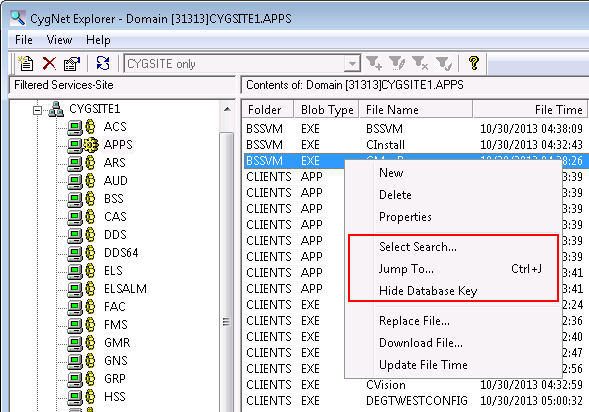
You have some control over how you search for a record in DBS-based services.
Open CygNet Explorer and double-click the Site name in the service hierarchy to view the services contained in your site. Click a Service name in the service hierarchy (or double-click a Service name in the service pane) to view its contents in the service pane, and then right-click in the service pane to access the context menu.
From the context menu, you can choose Select Search to select a search index, or you can choose Jump To to search the service database based on particular data items and search values you supply. You can also select Hide Database Key to not display database key values in your results.
See DBS-Based Services in the Services section for more information about services that are considered DBS-based.
Note: This record search mechanism does not apply to the Access Control Service (ACS) and the Master Scheduling Service (MSS), which have set record display formats. The Device Definition Service (DDS) uses a different method for searching its records, see Using the Field Chooser in the DDS View for more information.
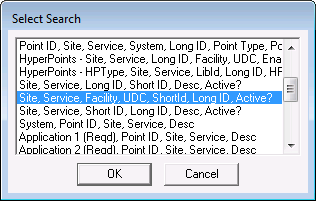
You can select the search index for record searches in DBS-based services (except the ACS, DDS, and MSS) using the following procedure. The index determines the hierarchy of data items by which to view the service records. Database records are then displayed in CygNet Explorer according to the selected index.
Note: Search index selection does not apply to the Device Definition Service (DDS), which has a set search index sequence.
To Select or Change the Search Index
Also see Indexes as Views for tips on optimizing ODBC queries using index tables.
Once the index is selected, you can search for records in the database of any DBS-based service (except the DDS and MSS) using the following procedure. Records are then displayed in CygNet Explorer based on your specified search values, and using the specified search index.
To Search the Database for Records
In CygNet Explorer, right-click in the service pane to access the context menu and then click Jump To (or press Ctrl+J) to access the Jump to Key dialog box.
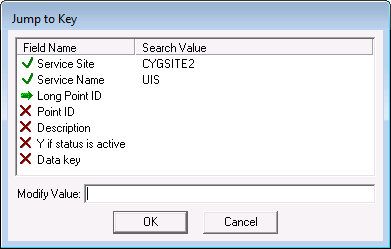
The fields in the Jump To Key dialog box are listed sequentially, based on the selected index. Icons indicate one of the following statuses for each field name listed.
 indicates the search item field name that is currently selected. By default, even for subsequent selections, this icon always appears next to the first item in the list. When you make subsequent search item selections, the arrow will move to the currently selected item.
  indicates search item field names that have previously had search values assigned.
  indicates search item field names that have not yet had search values assigned.
 Note: If you initially want to search based on an item other than the first item listed, first change the index.
Select the Field Name to search. Begin with the first field name listed for which the search value is undefined, and continue sequentially.
Note: The fields are hierarchical in the order listed. If you skip a field in the Field Name list, the field’s value will be assumed to be null. A red 'X' icon remains next to the skipped item to indicate that it has no search value assigned.

|
|
|

