
Use the Gas Analysis data view to view, and edit* imported gas analysis records for a single selected gas device Node (gas meter, station meter, or chromatograph). Gas analysis data is displayed for one Gas Device Node at a time (liquid device Nodes are not supported). Because each Node is associated with a variety of gas analysis values that impact the calculation of its measurement data (depending on the Node type and its specific circumstances), any changes made to these gas analysis details are tracked and audited by the FMS service. See CygNet Measurement Data Calculation for more information about recalculation implications of editing base condition values (base temperature or base pressure) or heating value basis.
*Note: Editing functionality is only available in systems licensed for FULL mode.
The records are always filtered by date, with the oldest record shown first. You can filter the type of gas analysis records viewed in the control by selecting to configure and use a filter via the control toolbar. See Configure filter on the control toolbar for more information.
Each row of the grid displays a single gas analysis record. Each column represents a category of data. The control toolbar and the context menu provide additional options to manage files and edit or view associated gas analysis entries.
When there are multiple entries in the gas analysis grid, the top row displays the last record prior to the current time window. In that case, the top row is locked and cannot be edited. You can double-click any editable cell to edit gas analysis item values directly from the control, or you can right-click an entry row to access options to view or edit gas analysis entries for the selected record.
A variety of data fields are available to be viewed in the grid columns of the gas analysis view. When you open a new Gas analysis view in the Configuration control, a default set of column headers is displayed. You can modify the default set by adding/removing desired data fields, and by reorganizing the column locations.
Columns can be reorganized for the most efficient viewing of data in the following ways.
The Effective Date/Time column is always displayed, and cannot be removed. It is the column used for sorting, which is indicated by an up arrow in the column header box.
The following columns are displayed by default when you create a new Configuration control and select the Gas analysis view.
| Default Gas Analysis Column | Description |
|---|---|
|
Effective Date/Time (t) |
Lists the effective date and time for the selected gas analysis record, followed by the time format (t) indicated as (D) Device, (C) Contract, or (L) Local. Note: The grid is always sorted by date and time, therefore the Effective Date/Time (t) column cannot be removed. It can be repositioned within the grid however. |
|
Sample Date |
Lists the sample date |
|
Data Source |
Lists the data source for the selected gas analysis entry. Possible values are as follows.
|
|
Lists the status of the gas quality data send action. Possible values are as follows.
*Notes: The "Review" state appears when gas analysis samples fail validation thereby generating exceptions. Analyst review and action is then required before the sample data can be used. In Review state, when all exceptions are ignored or fixed to promote the record, the system automatically updates the record's Status value from Review to Pending so that the data is available for use. See Using the Exceptions Control for more information about handling exceptions. |
|
|
Water Content |
Water vapor content - per volume unit |
|
Base Temperature |
Base temperature |
|
Base Pressure |
Base pressure |
|
Sample Temperature |
Sample temperature |
|
Sample Pressure |
Sample pressure |
|
Heating Value Volume (wet) |
Heating Value Volume (HVV) value - Wet |
|
Heating Value Volume (dry) |
Heating Value Volume (HVV) value - Dry |
|
Heating Value Volume (As delivered) |
Heating Value Volume (HVV) value - As delivered |
|
Heating Value Basis |
Heating Value Basis |
|
Relative Density |
Configuration value for relative density |
|
Ethane Liquid Content |
Ethane - liquid content |
|
Propane Liquid Content |
Propane - liquid content |
|
n-Butane Liquid Content |
n-Butane - liquid content |
|
Isopentane Liquid Content |
Isopentane - liquid content |
|
n-Pentane Liquid Content |
n-Pentane - liquid content |
|
n-Hexane Liquid Content |
n-Hexane - liquid content |
|
n-Heptane Liquid Content |
n-Heptane - liquid content |
|
Condensate Liquid Content |
Condensate - liquid content |
The following columns can optionally be added to the gas analysis grid view from the field chooser. See FMS Configuration Items for more information.
| Additional Gas Analysis Column | Description |
|---|---|
|
Hydrogen Sulfide PPM |
Hydrogen sulfide - parts per million |
|
Carbonyl Sulfide PPM |
Carbonyl sulfide - parts per million |
|
Methanethiol PPM |
Methanethiol - parts per million |
|
Ethanethiol PPM |
Ethanethiol - parts per million |
|
Dimethyl Sulfide PPM |
Dimethyl sulfide - parts per million |
|
Total Hydrogen Sulfide PPM |
Total hydrogen sulfide - parts per million |
|
Sample Count |
Sample count |
|
Instrument Number |
Instrument number for the sample |
|
Sample Technician |
Lists the name of the technician for the sample |
|
Sample Comments |
Lists comments entered for the sample |
|
Analysis Technician |
Lists the name of the technician for the analysis |
|
Analysis Comments |
Lists comments entered for the analysis |
|
Hexane+ |
Hexane plus (C6+) |
|
Sample Type |
Sample type |
|
Sample Rate |
Sample rate |
|
Methane |
Methane (C1) |
|
Ethane |
Ethane (C2) |
|
Propane |
Propane (C3) |
|
Isobutane |
Isobutane (isoC4) |
|
n-Butane |
n-Butane (C4) |
|
Isopentane |
Isopentane (isoC5) |
|
n-Pentane |
n-Pentane (C5) |
|
Neopentane |
Neopentane (neoC5) |
|
n-Hexane |
n-Hexane (C6) |
|
n-Heptane |
n-Heptane (C7) |
|
n-Octane |
n-Octane (C8) |
|
n-Nonane |
n-Nonane (C9) |
|
n-Decane |
n-Decane (C10) |
|
Nitrogen |
Nitrogen (N2) |
|
Carbon Dioxide |
Carbon dioxide (CO2) |
|
Water |
Water (H2O) |
|
Hydrogen Sulfide |
Hydrogen sulfide (H2S) |
|
Hydrogen |
Hydrogen (H2) |
|
Carbon Monoxide |
Carbon monoxide (CO) |
|
Oxygen |
Oxygen (O2) |
|
Helium |
Helium (He) |
|
Argon |
Argon (Ar) |
|
Shows the gas analysis total composition, to provide a quick visual check of the sum of the component mole percent values, as percent or fraction (can also be seen in the gas analysis entry on the Composition page of the device-specific property page). See Gas Analysis Properties for more information. |
|
|
Compressibility |
Compressibility |
|
Dew Point |
Dew Point |
|
Source Node Name |
Lists the name of the Node serving as the gas analysis data source for the selected entry |
|
Source Node Description |
Lists the description of the Node serving as the gas analysis data source for the selected entry |
|
Isobutane Liquid Content |
Isobutane - liquid content |
|
n-Octane Liquid Content |
n-Octane - liquid content |
|
n-Nonane Liquid Content |
n-Nonane - liquid content |
|
n-Decane Liquid Content |
n-Decane - liquid content |
|
[Custom - Any valid FMS gas analysis numerical-value item] |
Up to 5 custom gas analysis columns , Custom Number 1 - Custom Number 5, can be defined for any valid supported item containing only numerical values. For an extensive list of data items available for display using these custom columns, see the FMS Configuration Items table, Gas Analysis items, in the Devices section of this Help. The FMS Explorer Description column lists the column headers as they are displayed in this control. |
|
[Custom - Any valid FMS gas analysis string-value item] |
Up to 10 custom gas analysis columns, Custom 1 - Custom 10, can be defined for any valid supported item containing string values. For an extensive list of data items available for display using these custom columns, see the FMS Configuration Items table, Gas Analysis items, in the Devices section of this Help. The FMS Explorer Description column lists the column headers as they appear in this control. |
Right-click in the column header row to access the option to display/hide the Field Chooser so that you can customize which columns to display in the grid. See Using the Field Chooser for more information.
Right-click in the gas analysis view grid to access the following options.
| Option | Description |
|---|---|
|
Edit |
Make single edits. Right-click on a selected record to access the context menu, and then click Edit to change the selected gas analysis record via the Edit Gas Analysis Entry dialog box. Note: You can also double-click the row header to display the detailed dialog box to make edits. See Viewing or Editing Gas Analysis Entries for more information. |
|
Define shading behavior. Right-click in the white space of the grid to access the context menu, and then click Shading to access display options. The selection determines which of the specified elements will have shading colors applied. Options are as follows.
Default value is Both Use the Shading colors option to select what colors to apply to the selected elements. |
|
|
Define shading colors. Right-click in the white space of the grid to access the context menu, and then click Shading colors to access the Shading Colors dialog box to select Foreground (text) and Background (cell) colors, from the drop-down menus, to apply to the grid. Options are as follows.
A preview of the selected shading colors appears on the dialog box, so you can review your selections prior to clicking OK. Use the Shading option to select what grid elements will have the selected color(s) applied. See Customizing Shading Colors below this table for more information. |
|
|
Decimal precision |
Define how many decimals to display in the grid. Right-click anywhere in the grid to access the context menu, and then click Decimal precision to access options for the grid display. Click the desired option, from 0 - 10 decimal places. Default value is 7 |
|
Approve |
Approves the selected gas analysis record. This option is made available only when the Status value for the selected record equals "Review" (sample failed validation). Right-click on a selected record with a "Review" status value to access the context menu, and then click Approve to accept the sample record . This changes the status value to "Pending" and clears any associated exceptions. Taking this action also accesses the Save Changes dialog box to generate a record of the change. See Viewing or Editing Gas Analysis Entries for more information. *Notes: Be certain of an Approve action, as it permanently retains the sample record to become available for use in your system. There is NO "undo" for this action. Approved records can be edited, causing data recalculations to occur when the Save action is taken. |
|
Reject |
Reject the selected gas analysis record. This option is made available only when the Status value for the selected record equals "Review" (sample failed validation). Right-click on a selected record with a "Review" status value to access the context menu, and then click Reject to reject the sample record and remove the entry from the list. *Notes: Be certain of a Reject action, as it permanently removes the sample record from availability for use in your system. There is NO "undo" for this action. Rejected records are retained in the database or archives and can only be retrieved via FMS reports. Associated exceptions are cleared automatically when the gas analysis record that generated them is rejected. |
|
Send gas quality to device |
Run a Send Gas Quality command to send updated gas quality data based on the selected gas analysis record. Right-click on a selected record to access the context menu, and then click Send gas quality to device to run a Send Gas Quality command for the selected Node. A dialog box will appear, to verify that you want to send GQ data from the selected gas analysis record directly to the device. Click Yes to execute the command. See Send Gas Quality for more information about the command. |
Customize or edit the color shading shown in the grid as follows. Right-click within the grid to access the context menu options, and then select Shading Colors to adjust your selections.
To Configure Shading Colors
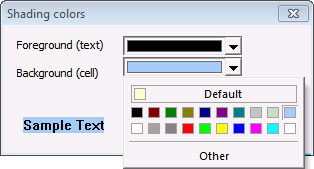
For each shading option you have selected to use, Foreground (text) and/or Background (cell), click the selector arrow to access a drop-down menu of color options that you can apply to the grid. Shading color options are as follows.
Note: Shading color selections will be applied as determined by the value of the Shading option selected via the context menu.
More:
 Sending Gas Quality to a Device
|
|
|

