 Use the Options button on the Admin menu to access the following configuration screens.
Use the Options button on the Admin menu to access the following configuration screens.
You must have proper security authorization to perform these actions. See FMS Security (and ACCESS security event) for information about configuring security access to administrative options.
If two or more users (both of whom have sufficient security access to configure FMS Explorer Administrative Options) attempt to modify Administrative Options at the same time, the first user is granted a lock and the second user is prompted with the following warning.
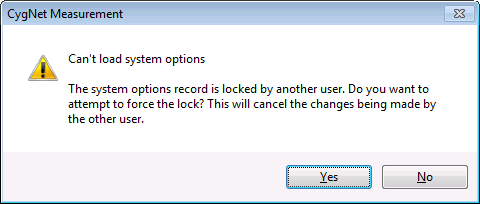
The second user has the option to override the first user's lock and request their own exclusive lock, or not, as desired.
Click Yes to force the lock, or No to decline forcing the lock.
Note: Users without sufficient security access cannot be granted a lock, but will be able to view the read-only versions of the Administrative Options dialog boxes.
More:
 Configuring Composition Splits
Configuring Custom Dashboard Columns
Configuring Custom Device Data
Configuring Data Quality Settings
Configuring Normalization Views
Configuring Unit Set Definitions

|
|
|

