Configuring Color
Use color selectors, available in several locations throughout CygNet Measurement, to customize color values for your various data displays.
Color Selector Locations
Color selectors are found in the following control locations.
Note: Although color appears in other control locations, the colors are fixed rather than configurable.
Summary controls
- Dashboard control (via the Options pane) — See Configure display for more information.
Data controls
- History Grid control (via the Options pane) — See Configure colors for more information.
Note: In the History Grid control, grid color values are pre-set, although how the colors are shown can be user-configured.
- History Graph control (via the Options pane) — See Configure colors for more information.
- Configuration control (via the Context menu) — See Shading and Shading colors on the Context Menu for more information.
- Alarm control (via the Context menu) — See Shading and Shading colors for more information.
Admin controls
Editing Color Values
Use the following procedure to edit color value settings.
To Edit Color Values
- In the color editor for your control, for each display value you want to edit, click on the color value cell, and do one of the following.
- Type the desired hexadecimal value into the text box.
- Click the selector arrow to access the color selection interface, containing two options; a preset color palette, and an Other button.
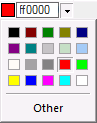
- To apply a preset color from the color selection palette, click on a desired color square from the range provided in the palette to select it.
- To apply a more customized color, click Other to access the Colors dialog box containing additional standard color options, or the ability to configure custom colors.
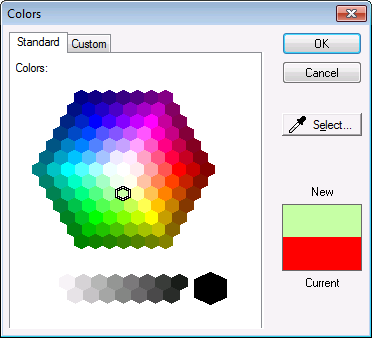
- Click the Standard tab to access options to select another standard color from the available array, using one of the following methods.
- Click on the desired color and gradation values within the graphic display to make a selection.
- Click the Select eyedropper icon to select a color elsewhere on the monitor and match it.
- Click the Custom tab to access options to configure a custom color from the available parameters, using one of the following methods.
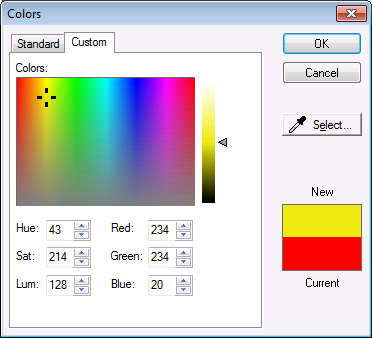
- Click on the desired color and gradation values within the graphic spectrum display to make a selection.
- Type values into the text boxes, or click the up/down arrows to navigate to desired values, to enter Hue, Saturation, and Luminosity value(s) or Red, Green, and Blue value(s) into the text box(es).
- Click the Select eyedropper icon to select a color elsewhere on the monitor and match it.
- The New selection you have chosen will be displayed in the color sample field, above the Current selection. Preview the new color selection to ensure your choice, and then click OK to commit the selection.


