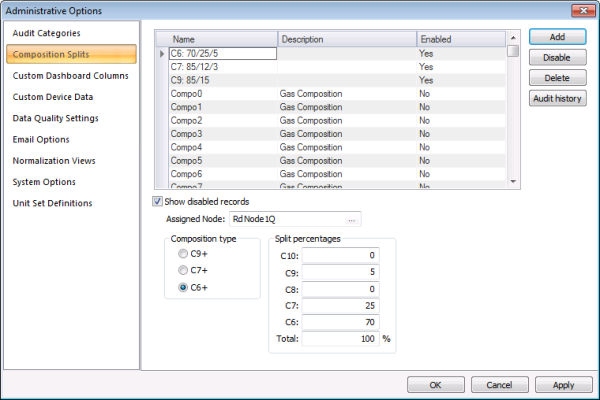
Use the Composition Splits page to configure details of the composition splits for the higher hydrocarbons (C6+) that are not broken out by the chromatographs, and make Node assignments for the configurations. Composition splits are configured per group or gas device or station Node. You can also access audit history information from this page.
You must have proper security authorization to configure and assign Composition Splits. See FMS Security (and ACCESS security event) for information about configuring security access to administrative options.
On the Admin menu, click Options, then Composition Splits to access the Composition Splits configured for your system.
The properties for the Composition Splits page of the Administrative Options dialog box are described below.
Note: Composition splits are configured and assigned per Node and conform to assignment rules, therefore special care is required regarding sequencing your actions when editing multiple Node assignments for composition splits.
|
Parameter |
Description |
|---|---|
| [Composition Splits list] | |
|
Name |
The name of the composition split Each composition split name must be unique. |
|
Description |
Specifies a description for the composition split |
|
Enabled |
Specifies if the composition split is enabled. Note: Disabled records are not removed from the system, only from the default view. The Enabled column will indicate a composition split's status. |
|
Add |
Click Add to add a new composition split. |
|
Disable Enable |
Click Disable to disable a selected composition split or click Enable to enable a disabled composition split. |
|
Delete |
Click Delete to delete a selected composition split from the system. |
|
Audit history |
Click Audit history to view the Audit History for the selected composition split. See Viewing Audit History for more information. |
|
Show disabled records |
Click this check box to show any disabled composition splits in the list. |
|
Assigned Node |
Click ... to access the Select Node dialog box to select the Node to assign to this composition split. Group and gas device or station Nodes are listed for selection. Each Node can only be assigned to a single composition split configuration. See Editing Multiple Composition Splits Node Assignments for more information about making multiple edits in sequence. |
|
Composition type |
Select the composition type to use for the received chromatograph data. Options are as follows.
|
|
Split percentages |
Indicate the percentage distribution for the composition split across the C6 through C10 hydrocarbons. The total must equal 100%. Example C6+ data may be split 75% to C6, 10% to C7, 5% to C8, 5% to C9, and 5% to C10. The total equals 100%. |
A Node can only be assigned to a single composition split. When making multiple sequential edits to composition splits Node assignments, it is therefore recommended that you make one change at a time to clear any existing assignments involved. This will make them available prior to attempting reassignments, so that you can successfully make the new assignments.
To Make Multiple Edits to Composition Splits Node Assignments

|
|
|

