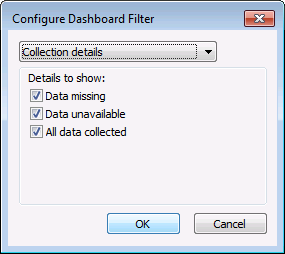
The Dashboard filter is used to additionally filter currently displayed data, letting you further focus the data view to suit current analysis purposes. The filter for each data view can be quickly selected, cleared, or reconfigured.
Each data view that can be displayed on the dashboard can be further customized by configuring the dashboard filter for the selected view. Click the Configure filter button on the Dashboard control toolbar to access the Configure Dashboard Filter dialog box. The dialog box that appears will correspond to the currently selected data view, and will list the corresponding filtering options.
When any data cell in a row meets the criteria defined in the filter, the entire data row will be displayed.
Filters can be configured individually for each type of data view you can select on the Dashboard control. Configure filters using the following procedure.
To Configure Dashboard Filters
For each data view selection, available filter options are as follows. See Configuring Dashboard Display Properties for more information about customizing the display of various properties on the screen.
| Option | Description |
|---|---|
| Analyst overview | |
|
States to show |
Note: Available configuration options are dependent on your system's operational mode (FULL or REPOSITORY) and the selected data mode (Device or Station), as described below. Click the check box(es) to select/clear the type(s) of records to display. Note: All listed options may not appear (e.g. exceptions, low data quality, PPAs) if configured otherwise in the administrative options. See Configuring System Options for more information. For FULL mode systems, filtering options are as follows.
For REPOSITORY mode systems, filtering options are as follows.
Note: There is a slight variation in the record status precedence depending on the selected data mode you are viewing (device or station), and depending on whether you are looking at a device or group Node. See Record Status Precedence for more information about order of appearance. |
| Collection details | |
|
Details to show |
Click the check box(es) to select/clear the collection details to display. Options are as follows.
Default value is all options selected. See Data Collection Details in the CygNet Measurement Concepts section for more information about these values. |
| Collection status | |
|
Status to show |
Click the check box(es) to select/clear the collection status(es) to display. Options are as follows.
Default value is all options selected. See Data Collection Status in the CygNet Measurement Concepts section for more information about these values. |
| Configuration poll | |
|
Show records if configuration has been polled within the span |
Click the check box to select/clear the option to display records for which configuration has been polled. Default value is selected. |
|
Show records if configuration has not been polled within the span |
Click the check box to select/clear the option to display records for which configuration has not been polled. Default value is selected. |
| Data quality | |
|
Maximum quality to show |
Type the percentage value for the maximum data quality percentage for which you want to display records. Default value is 100%. |
|
Minimum quality to show |
Type the percentage value for the minimum data quality percentage for which you want to display records. Default value is 0%. |
| Edit state | |
|
States to show |
Click the check box(es) to select/clear the edit state(s) to display. Options are as follows.
Default value is all options selected. |
| Exceptions (Linked or Open) | |
|
Minimum linked exceptions |
Type in the value for the minimum number of linked exceptions you want to display. Default value is 0. |
|
Minimum open exceptions |
Type in the value for the minimum number of open exceptions you want to display. Default value is 0. |
| Raw data export (REPOSITORY mode systems only) | |
|
Show if all exported |
Click the check box to select/clear the option to display records for which all raw data has been exported. Default value is selected. |
|
Show if some exported |
Click the check box to select/clear the option to display records for which some raw data has been exported. Default value is selected. |
|
Show if none exported |
Click the check box to select/clear the option to display records for which no raw data has been exported. Default value is selected. |

|
|
|

