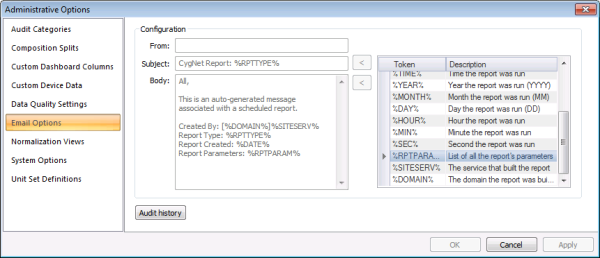
Use the Email Options page to configure settings governing the emailing of scheduled FMS reports. The configured settings determine how reports will be emailed when using a Reports: X command, scheduled through the MSS (Master Scheduling Service) in CygNet Explorer. You can also access audit history information from this page.
You must have proper security authorization to configure parameters for unit set definitions. See FMS Security (and ACCESS security event) for information about configuring security access to administrative options.
In order to configure email options, you must also configure authentication for the following keywords for the FMS Service.
Note: In the configuration file, manually delete the pound signs (#) from the lines where new keyword values have been inserted. The lines are commented out by default if they have not previously been used.
See FMS Configuration File Keywords for more information about Email Info Keywords.
Several keywords in CygNet Software are encrypted to provide added security for usernames and passwords. The name and location of the common encryption key file is specified by the ENCRYPTION_KEY_FILE keyword, which is found in the configuration files (.cfg) for the services that have encrypted keywords. This keyword and the encryption key file can be updated using the Config File Manager (ConfigFileMgr). See the following topics for more information about encrypted keywords and the Config File Manager:
Note: You must have proper security authorization to configure administrative options parameters for emailing reports. See FMS Security (ACCESS) for information about security event authorization.
On the Admin menu, click Options, then Email Options to access the report email options configured for your system.
The properties for the Email Options page of the Administrative Options dialog box are described below.
|
Parameter |
Description |
|---|---|
| Configuration | |
|
From |
Enter the email address to be displayed as the email source. |
|
Subject |
Enter the subject to display in the email subject line. Type the subject into the text box and/or use tokens to describe the subject line. |
|
Body |
Enter the content to display in the body of the email. Type the content text into the text box and/or use tokens to describe the subject line. To move the cursor to a new line within the Body text, press Ctrl+Enter. |
|
< |
Click < to move a selected token to either the Subject field or the Body field. |
|
[Token list] |
|
|
Tokens can be used to describe the email Subject and/or Body fields. A token is a text string enclosed by percent signs (%sampletext%), that represents a described value. The token will be replaced with the value it represents at runtime. Tokens can be used in conjunction with typed text in the Subject and/or Body fields. The Token column lists all available tokens to use in describing the email subject and body. |
|
|
Description |
The Description column lists the descriptions of all tokens available to describe the email subject and body. |
|
Audit History |
Click Audit history to view the Audit History for the selected Email options. See Viewing Audit History for more information. |
To Configure or Edit Email Options

|
|
|

