Configuring File Export Commands: Normalization View Data CSV
Note: This functionality is only available in systems licensed for FULL mode.
 Use the File Export button to access the Export: Normalization View Data CSV command that triggers the service to export all Normalization View records created within a specified time window. For each eligible Node the command resolves to, the service will gather data from the specified normalization view, within the specified time range, and export it as a .csv file to a specified directory location.
If your Normalization View data export will be utilizing the normalization view value for Avg Acceptability, the displayed value is affected by the record span of the data, as follows.
- Hour - For records with an hourly span, the Avg Acceptability value in the export file will be shown as the system calculated value. This value is the same as is shown in the Avg Acceptability column of the History Grid control.
- Day/Month - For records with a daily or monthly span, the Avg Acceptability value in the export file will be a volume weighted average value when Volume is also included in the normalization view. The Avg Acceptability value in the export file will be a simple average value when Volume is not included in the normalization view. In either case, the value is not the same as is shown in the Avg Acceptability column of the History Grid control, where it is shown as a range for daily records, and where a monthly records view is not an option.
Note: The resolved normalization view must be configured prior to exporting Normalization View data. See Configuring Normalization Views for more information.
See FMS Commands and Export: Normalization View Data CSV for more information about this command.
See Scheduling FMS Command Tasks in the MSS for more information about scheduling commands.
See FMS ActiveX Controls and CxHmiFms for more information about using commands via FMS ActiveX controls on CygNet Studio or CygNet Vision screens.
See CxFms for more information about scripting commands.
Configuring a Normalization View Data CSV File Export Command
Use the following procedure to configure and optionally run the Export: Normalization View Data CSV command. Click Normalization View Export on the Commands menu to access the Run FMS Command dialog box to select additional properties and run the Export Normalization View Data command.
To Configure and Optionally Run a Normalization View Data CSV Export Command
- On the Commands menu, click Normalization View Export to access the drop-down menu, and then click Normalization View Data CSV to access the Run FMS Command dialog box for the Export: Normalization View Data CSV command.
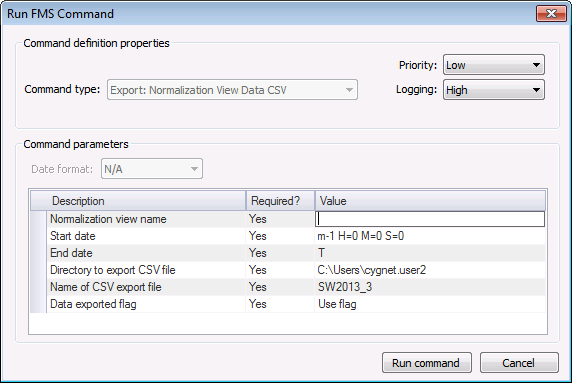
- Define the command definition properties.
- Select a processing Priority from the drop-down menu in the Command definition properties box. Options include Low, Medium, High, User, and Admin.
- Select a Logging level from the drop-down menu in the Command definition properties box. Options include Low, Medium, and High.
- Define the command parameters. The parameters for the Normalization View Export system command are described in the Command parameters box, which includes the Description, a Required indicator, and a configurable Value field. Set the value for each required and each selected optional parameter as indicated in its Value field.
- Optionally click Run Command, to run the command now.

Command Definition Properties
The following command definition properties apply to Normalization View Export commands.
|
Command type
|
For system commands, this property will be read-only and will display the selected command type.
See FMS Commands for more information about command types.
|
|
Priority
|
Select a processing queue Priority for the command from the drop-down menu.
Options from least to greatest priority are as follows.
- Low level
- Medium level
- High level
- User initiated transaction
- Admin initiated transaction
Default value is Low level processing queue priority.
|
|
Logging
|
Select a Logging level for the command results from the drop-down menu.
Options are as follows.
- Low - displays errors
- Medium - displays errors and warnings
- High - displays errors, warnings, and status
Default value is Low level logging when scheduling a command in the MSS.
Default value is High level logging when creating or running an ad-hoc command in FMS Explorer.
|
Command Parameters
The following command parameters apply to Normalization View Data CSV file export commands.
|
Normalization view name
|
String
|
Yes
|
Type the name of the normalization view to use for the export.
|
|
Start date
|
Date
|
Yes
|
This time is relative to the computer hosting your FMS Service. There is no timestamp conversion between the parameters specified in the command and the data in the database (which is determined by the normalization view definition).
Do one of the following to select the beginning of the time range for which to export Normalization View records.
- Type a date/time into the text box.
- Click ... to access the Select Date dialog box, set the date/time, and then click OK.
See Note* below this table.
|
|
End date
|
Date
|
Yes
|
This time is relative to the computer hosting your FMS Service. There is no timestamp conversion between the parameters specified in the command and the data in the database (which is determined by the normalization view definition).
Do one of the following to select the end of the time range for which to export Normalization View records.
- Type a date/time into the text box.
- Click ... to access the Select Date dialog box, set the date/time, and then click OK.
See Note* below this table.
|
|
Directory to export CSV file
|
String
|
Yes
|
Do one of the following to enter the directory location to which the file will be exported.
- Type a directory location into the text box.
- Click ... to access the Browse for Folder dialog box, browse to the directory location, and then click OK.
Note: The directory specified is relative to the computer hosting the FMS service.
See Note** below this table.
|
|
Name of CSV export file
|
String
|
Yes
|
Do one of the following to enter a name for the export file.
- Type a file name into the text box.
- Click ... to access the Select Name of CSV Export File dialog box, type a file name, and then click OK.
See Note*** below this table.
Important: Additional files may be generated as needed to accommodate exports containing multiple data types. File names will be appended depending on the data type being exported, e.g. gas or liquid device-level data.
See Note**** below this table.
|
|
Data exported flag
|
String Enum
|
Yes
|
Select, from the drop-down menu, whether or not to use the Data Exported flag to mark Normalization View records as "exported" in the database.
Options are as follows.
|
Notes:
* Start/End dates based on relative time - Make sure that you accurately describe exports if you are typing the start and end date/time entries into the text boxes, and are using a Relative Date/Time or Relative Day format. In this situation, the date/time range of the records to export is determined as follows.
-
If any of the Start or End date/time hour, minute, or second values are specified as a value other than zero or midnight, the range will be used as specified.
-
If both the Start and End date/time values are 00:00:00, or if both are set to midnight however, an additional day will be added to the date at the end of the range. This occurs because in this circumstance the service assumes the starting date/time to be at the start of the specified start day, and assumes the ending date/time to be at the end of the specified end day. Therefore requesting a time range from T to T will yield one entire day of data (from the beginning of day T to end of day T), and similarly from day d-1 to day d will yield two days of data. If only one day of data is desired using relative date/time therefore (and time values are equal to 00:00:00 or midnight), the start and end days must have the same value.
See Selecting Date and Time for more information.
** Directory to export CSV file - Make sure that you are cognizant of the system in which you are specifying the file location. The file location selected when you Browse For Folder will be relative to your local file system, whereas the file location generated when the command is executed will be relative to the computer hosting your FMS Service, which could be a separate system.
*** Name of CSV export file - Make sure that the specified Name of CSV export file does not already exist in the specified destination, or it will be overwritten by this command and could cause accidental data loss. File name collision will not be detected for this command.
**** Name of CSV export file - If your Normalization View data export contains multiple data types (e.g. station, gas, liquid), multiple output files will be generated. File names generated correspond to the data type contained, as follows.
|

|
|
