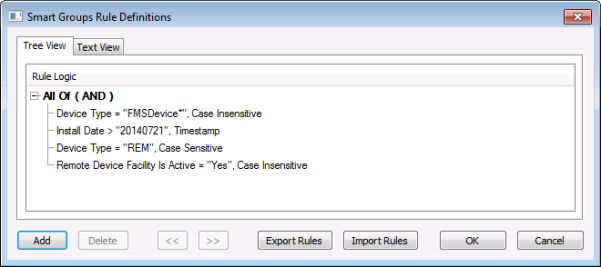
Smart Groups rules belong to a Smart Groups definition, which is used to determine group membership when automatically generating groups via a Generate Smart Groups command. The rules can be part of a simple or advanced group definition.
The simple group definition method always utilizes smart groups rules. It generates a single group based on the rules criteria you provide.
The advanced group definition method optionally utilizes smart groups rules. It can generate multiple groups based on values of the selected association property (primary criteria) you provide, and can additionally apply rule logic (secondary criteria) as wanted to further refine the group membership.
When using rules for either the simple or advanced group definition method, first define the Smart Groups rules and the logic between them, and then edit and refine the rules and their relationships using the Smart Groups Rule Definitions functions or context menu options.
Each Smart Groups rule set you define applies to a specific Smart Group definition, although rules can also be exported to or imported from XML files for ease of re-use.
In the top pane of the Smart Group Configuration page, select the definition for which the rules apply. This can be a new Smart Group definition you are adding, or an existing definition you want to edit. In the Group Definition box in the lower pane, click Simple or Advanced to access the configuration options that include creating and editing smart group rules.
To configure specific rules for the selected definition, click Edit rule list to access the Smart Groups Rule Definitions dialog box. When using the Simple group definition method, the Edit Rule List option is always enabled. When using the Advanced group definition method, the Edit rule list option is enabled only if you select the Enable additional rules check box.
The following options are available on the Smart Groups Rule Definitions dialog box.
| Option | Description |
|---|---|
|
Add |
Click Add to access the Rule Definition dialog box to configure a new rule. This option is available in Tree View. |
|
Delete |
Click Delete to delete the selected rule. This option is available in Tree View. |
|
<< >> |
Click << or >> to move the selected rule within the rule logic hierarchy. This option is available in Tree View. |
|
Export Rules |
Click Export Rules to save the selected rule as an XML file to a specified file location. This option is available in Tree View or Text View. |
|
Import Rules |
Click Import Rules to browse to a selected file location to import an XML file containing a selected rule. This option is available in Tree View or Text View. |
|
OK |
Click OK to save the Smart Groups rules and logic. |
To define a smart groups rule, use the following procedure to select data item parameters for each rule, join them by selected operators and qualifiers, and then compare them to specified values in order to auto-create the group(s) when the Generate Smart Groups command is run. All devices matching the customized rules are put into a single group for simple group definitions, but may generate multiple groups for advanced group definitions.
To Define Smart Groups Rules
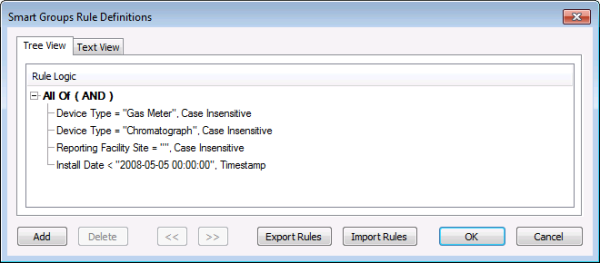
Click Add to add a new rule, and then define the following Rule Definition parameters for the new Smart Groups rule. Repeat for additional rules applicable to the selected Smart Group definition.
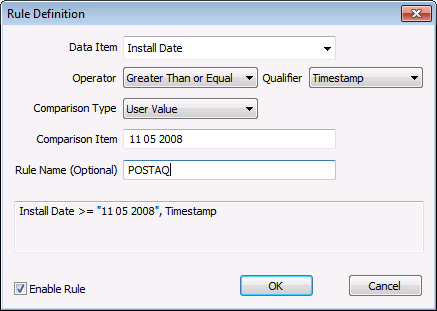
| Parameter | Description |
|---|---|
|
Data item |
Click to select the Data item for the rule from the drop-down menu. Expand categories in the list to see available options. See Selecting an Association Property or Data Item for more information. |
|
Operator |
Click to select the Operator for the data item from the drop-down menu. Options are as follows.
|
|
Qualifier |
Click to select a Qualifier for the operator from the drop-down menu. Options are as follows.
|
|
Comparison type |
Click to select a Comparison type from the drop-down menu. Select User value to type in a value in the Comparison item text box. |
|
Comparison item |
Type in a Comparison item for the rule. This item will be compared, utilizing the operator and qualifier defined for the rule. See Selecting an Association Property or Data Item for more information. |
|
Rule name |
Type in a Rule name to help identify the rule. This parameter is optional. |
|
(text box) |
Displays a text view of the rule as configured. |
|
Enable rule |
Click to select/clear the check box to enable the defined rule. |

Use the context menu to edit and refine rules and rule logic. Right-click on a selected rule element to access the following context menu options.
| Option | Description |
|---|---|
|
Edit Rule |
Click Edit Rule to access the Rule Definition dialog box to edit the selected rule definition. |
|
Delete Rule |
Click Delete Rule to delete the selected rule. A confirmation message will appear to confirm the deletion. Click Yes to delete the rule. |
|
Add Rule |
Click Add Rule to access the Rule Definition dialog box to add a new rule definition. |
|
Convert to compound rule |
Click Convert to Compound Rule to access the Compound Rule Properties dialog box to configure the selected rule as a compound rule. Use this option to evaluate the selected rule in one of the following ways.
In addition, you can evaluate the selected rule by exclusion as follows.
You may optionally assign a Rule Name to the defined compound rule. Click the check box to select/clear the option to Enable Compound Rule. |
|
Expand |
Click Expand to expand the Tree View from the point selected. |
|
Collapse |
Click Collapse to collapse the Tree View to the point selected. |
|
Expand fully |
Click Expand Fully to expand the Tree View entirely. |
|
Collapse fully |
Click Collapse Fully to collapse the Tree View entirely. |
|
Show rule names |
Click Show Rule Names to display a column containing rule names for rules that have names. |
|
|
|

