
Validation rules are the elements that comprise validation engines. When creating a new validation engine or editing an existing validation engine, you have the opportunity to define the properties, details, and schedules pertaining to each of its component validation rules. Use the following procedure to add or edit rules for a validation engine.
Within a selected validation engine, add or edit validation rules as follows.
To Create or Edit a Validation Rule
The properties for the Rule list section of the dialog box are described below.
| Property | Description |
|---|---|
| [Rule list] | |
|
Rule Name |
Lists the rule name for each rule belonging to the currently selected validation engine. Names initially default to the name of the rule type selected, but can be edited to better suit your usage. Click the cell to type in a new name. Valid characters for names are as follows. A-Z, a-z, 0-9, . (period), #, $, &, (, ), +, -, \, /, :, <, >, =, @, [, ], ^, {, }, _ (underscore), !, ~ (tilde). Spaces are acceptable, when they are not leading or trailing. |
|
Rule Category |
Lists the rule category for each rule belonging to the selected validation engine. Click to access the drop-down menu to select a category to apply to the rule. Possible rule categories are as follows.
Note: When you change the Rule Category, the corresponding Rule Name and Rule Type options will also change, to default values you can edit. See FMS Validation Rules for a complete list of all the rule categories and types provided in the measurement system. |
|
Rule Type |
Lists the rule type for each rule belonging to the selected validation engine. Click to access the drop-down menu to select the rule type desired. Rule type options displayed in the drop-down menu depend on the rule category selected. The rule type you select determines the configurable properties displayed in the Rule details section. Note: When you change the Rule Type, the corresponding Rule Name will also change, to a default value you can edit. See FMS Validation Rules for a complete list of all the rule categories and types provided in the measurement system. |
|
Severity |
Lists the severity level assigned to each rule. Click to access the drop-down menu to select a severity level to associate with the rule. The severity level selected will be assigned to the exception generated when the validation rule fails. Options include Low, Medium and High. Severity is displayed on the Exceptions Control and is provided as a mechanism to help you organize exceptions hierarchically. |
|
Schedule |
Lists the schedule applied to each rule. Click to access the drop-down menu to select a schedule to apply to the rule. Additional schedules can be configured via the Schedules button. See Validation Rule Schedules for more information. |
|
Add |
Click to add a new rule to the validation engine. A new rule will appear in the list, populated with default values. Configure the rule properties and details as desired. |
|
Delete |
Click to delete a selected rule from the validation engine. |
|
Details |
Click to access the Record Details dialog box to view details about changes made to the selected rule. Note: Only applies to rules that have already been saved. See Viewing Record Details for more information. |
|
Schedules |
Click to access the Manage Schedules dialog box to configure schedule details for activation of the selected rule. See Validation Rule Schedules for more information. |
The properties for the Rule Details section of the dialog box are described below.
| Property | Description |
|---|---|
|
Type |
Displays the rule type of the currently selected validation rule (read-only). See FMS Validation Rules for a complete list of all the types of validation rules provided in the measurement system. |
|
Description |
Displays the description of the currently selected validation rule (read-only). See FMS Validation Rules for a complete list of all the validation rules, and their descriptions, provided in the measurement system. |
|
Data quality |
This parameter will appear on the right side of the Rule details section below the rule list. For the currently selected validation rule (except Configuration Data rules), select a data quality level from the drop-down menu. The data quality selected will be assigned to a record if it fails the validation rule. If a record fails multiple validation rules, it will be assigned the data quality with the lowest configured influence (of the rules it failed). The options in the Data quality drop-down menu are listed in order of influence, from highest to lowest. Options are populated by the settings saved in your system. These data quality settings are configured by users with proper security access, via the Options button on the Admin menu. See Configuring Data Quality Settings for more information. Note: Since a failed configuration record does not affect data quality, the data quality parameter is not available for validation rules belonging to the Configuration Data category. |
|
[additional configuration parameters] |
These parameters will appear on the right side of the Rule details section below the rule list. Depending on the type of rule selected, different configuration parameters are required. Configure the required parameters for the currently selected validation rule. For most rules that require configuration you must specify the Units, and an upper and lower bound such as a high/low value, a +/- value for the tolerance, or a limit value. See FMS Validation Rules for a complete list of all validation rules provided in the measurement system, and their configuration options. |
Use the Schedules button to access the Manage Schedules dialog box to configure schedule details to assign to validation rules.
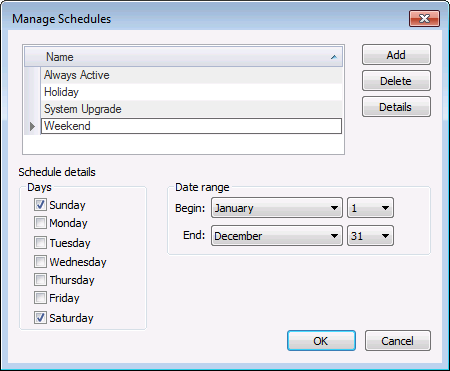
The Always Active schedule exists by default, and is automatically assigned to any rule, unless changed. It cannot be deleted from the schedule list. Additional schedules can be created and/or deleted (until used) as needed. Once saved, new schedules will appear on the drop-down menu of Schedule options available when configuring the validation engine rules.
The properties for the Manage Schedules dialog box are described below.
| Property | Description |
|---|---|
| [Schedule list] | |
|
Name |
Lists the names of the schedules saved in your system. Saved schedule names appear in the Schedule drop-down menu as options for assignment to validation rules when creating/editing validation engines. Valid characters for names are as follows. A-Z, a-z, 0-9, . (period), #, $, &, (, ), +, -, \, /, :, <, >, =, @, [, ], ^, {, }, _ (underscore), !, ~ (tilde). Spaces are acceptable, when they are not leading or trailing. |
|
Add |
Click Add to create a new schedule on the list. The default name will be <New Schedule> until the new name is entered. |
|
Delete |
Click Delete to remove a schedule from the list. Note: Only schedules that are not in use by any validation rules can be deleted. If you try to delete a schedule that is already saved and assigned, you will be informed with a message that it can't be deleted. If you try to delete a schedule that is saved but not yet assigned, you will be prompted to confirm the deletion. |
|
Details |
Click Details to access the Record Details dialog box to view details about changes made to the selected schedule. Note: This option only applies after the associated validation engine has been saved. |
| Schedule details | |
|
Days |
Click to select/clear the check box(es) next to the day(s) of the week this rule will be active. |
|
Date range |
Use the drop-down menus to indicate the month/day time window during which this rule will be active. |
|
Begin |
Select a begin month and date for the active range. |
|
End |
Select an end month and date for the active range. |
|
|
|

