 The CygNet FMS Configuration Control is an ActiveX control used to view, create, and edit configuration log entries for the selected Node, and to distinguish the changes between configuration log entries.
The CygNet FMS Configuration Control is an ActiveX control used to view, create, and edit configuration log entries for the selected Node, and to distinguish the changes between configuration log entries.
See Using the Configuration Control for more information about configuring and using this control.
See CxFmsConfigCtrl Object in the Scripting section for more information about scripting this control.
To Add and Configure a CygNet FMS Configuration Control in CygNet Studio
 on the Standard Tools palette.
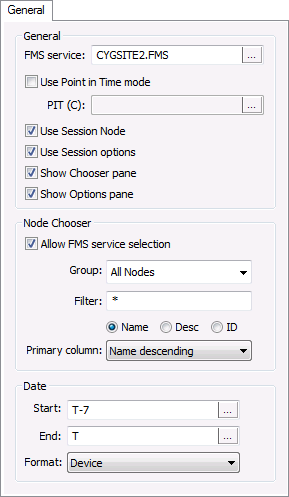
The General page of the CygNet FMS Configuration Control Properties dialog box contains the following properties.
| Property | Description |
|---|---|
| General | |
|
FMS service |
Type the name of the Site.Service to which to connect in the control's Chooser, or click ... to access the Select Service dialog box. |
|
Use Point in Time mode |
Click the check box to select/clear the option to use the Point in Time mode. |
|
PIT (C) |
If Use Point in Time mode is selected, do one of the following.
Default value is T, date and time today. See Using the Home Menu for more information about PIT mode. |
|
Use Session Node |
Click the check box to select/clear the option to Use Session Node instead of using the chooser. Default value is cleared. |
|
Use Session options |
Click the check box to select/clear the option to Use Session options instead of entering a time window and time format. Default value is cleared. |
|
Show Chooser pane |
Click the check box to select/clear the option to display the Chooser pane in the control. Default value is selected. |
|
Show Options pane |
Click the check box to select/clear the option to display the Options pane in the control. Default value is selected. |
| Node Chooser | |
|
Allow FMS service selection |
Click the check box to select/clear the option to show the FMS service selector in the control's Chooser. |
|
Group |
Select the desired Node Group type to display in the control's Chooser from the drop-down menu. Options are as follows.
|
|
Filter |
Select a filter. First type a partial string of known Node name/description/ID characters to populate the filter text box in the control's Chooser. Wildcard values * (multiple character) and ? (single character) are supported. Default value is * (multiple character wildcard) - all. Note: Wildcards can be used only when filtering by Name or Desc, not when filtering by ID. Then select a Node option to filter for results. Options are as follows.
|
|
Primary column |
Select the desired primary sort column in the control's Chooser from the drop-down menu. Options include the following
Default value is Name ascending |
| Date | |
|
Start |
Date selections are in Contract days (C). Enter the starting date (absolute or relative date) in the text box or click ... to access the Select Date dialog box. See Selecting Date and Time for more information. |
|
End |
Date selections are in Contract days (C). Enter the ending date (absolute or relative date) in the text box or click ... to access the Select Date dialog box. See Selecting Date and Time for more information. |
|
Format |
Select the desired date/time format from the drop-down menu. Options are as follows.
|
See Using the Configuration Control for more information about configuring these properties.
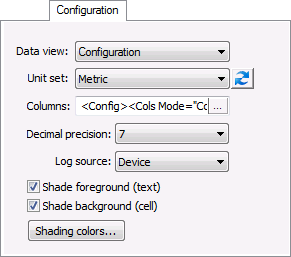
The Configuration page of the CygNet FMS Configuration Control Properties dialog box contains the following properties.
| Property | Description |
|---|---|
|
Click the Data view drop-down menu to select the type of data you would like displayed. Options are as follows.
|
|
|
Unit set |
Select a Unit set in which to view the data. Options appear in the drop-down menu, which is populated by the unit sets defined in the service, and includes a default unit set. |
|
|
Refresh the available unit set list |
|
Columns |
Click ... to access the Configuration Control Columns dialog box to select columns for display in the control. The data fields available to be viewed in the columns correspond to the data view selected, and you can select the sets of columns to appear for each data view. Options include data items corresponding to the following.
See Using the Configuration Control for more information about columns. |
|
Decimal precision |
Click to select a Decimal precision for the display from the drop-down menu. Options are from 0 - 10 decimal places. Default value is 7. |
|
Log source |
Click ... to access the Configure Filter dialog box to select the log source(s) by which to filter the control view. Options are as follows.
Default value is all sources selected. |
|
Click the check box to select/clear the option to color text in the grid with selected shading colors. |
|
|
Click the check box to select/clear the option to color cells in the grid with selected shading colors. |
|
|
Click to access the Shading Colors dialog box to select Foreground (text) and/or Background (cell) colors to apply to the grid, from the drop-down menus. Options are as follows.
A preview of the selected shading colors appears on the dialog box, so you can review your selections prior to clicking OK. Use the Shade foreground and Shade background options to select what grid elements will have the selected color(s) applied. See Customizing Shading Colors for more information. |
See Using the Configuration Control for more information about configuring these properties.
The Commands page of the CygNet FMS Configuration Control Properties dialog box contains the following options.
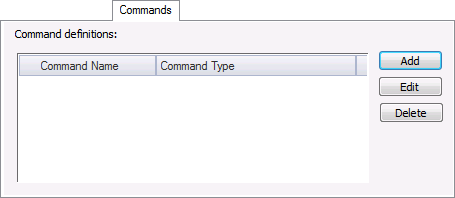
See Managing Node Commands for more information about configuring commands for the FMS Configuration control.
More:
 CygNet FMS Configuration Control – Properties, Methods, and Events

|
|
|


