Exporting History Graphs
Use the History Graph control to export history graph data to your clipboard, a file directory location, or a printer.
To Export a History Graph
- From the History Graph control, right-click to access the context menu, and then click Export Dialog to access the Exporting dialog box to specify the file type, destination, and size for your graph export.
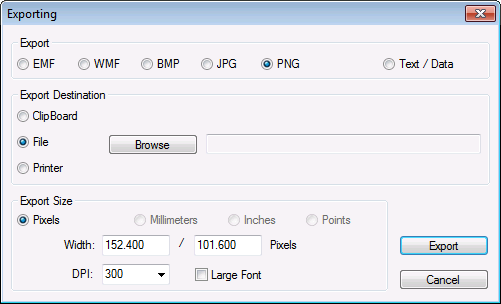
- In the Export box, click a button to select the desired export file type. Options are EMF (Enhanced Metafile Format), WMF (Windows MetaFile format), BMP (Bitmap Image File format), JPG (JPEG - Joint Photographic Experts Group), PNG (Portable Network Graphics), or Text/Data.
- In the Export Destination box, click a button to select the destination for your export. Options are Clipboard, File, or Printer (although Text/Data exports do not support the Printer option.)
- Do one of the following to complete your selected export.
- Export a history graph image file to the clipboard.
- In the Export Size box, enter parameter values.
- Click Export.
- Export a history graph image file to a file directory location.
- In the Export Destination box, click Browse to access the Save As dialog box. Navigate to the desired location for the file, and then click Save.
- In the Export Size box, enter parameter values.
- Click Export.
- Export a history graph image file to a printer.
- In the Export Size box, enter parameter values.
- Click Print to access the Printing Chart dialog box to configure print parameters.
- Select the desired values for printer, orientation, paper, printing style, and DPI. Optionally click Setup to configure additional properties for the selected printer and then click OK.
- Click OK.
- Export a history graph text/data file to the clipboard.
- Click Export to access the Export dialog box to configure text/data parameters.
- Select the desired options for data subsets and points, data to export, export style, and decimal precision.
- Click Export.
- Export a history graph text/data file to a file directory location.
- In the Export Destination box, click Browse to access the Save As dialog box. Navigate to the desired location for the file, and then click Save.
- Click Export to access the Export dialog box to configure text/data parameters.
- Select the desired options for data subsets and points, data to export, export style, and decimal precision.
- Click Export.


