Importing GMR Device CSV Files into FMS
The Import Devices task helps you to import device definition .csv files into FMS to create FMS device Nodes. After the device .csv file containing your GMR information has been configured and edited, the next step of the migration process is to import the prepared .csv file into FMS, using this task.
You must have proper security authorization to import files into FMS. FMS ACCESS event authorization level 5 is required to complete this step. See FMS Security (and ACCESS security event) for more information about security event authorization.
Importing GMR Devices
To Import a Device CSV File into FMS
The following procedure applies to importing devices into FMS.
- Start CygNet FMS Toolbox, and then click GMR Migration to access associated tasks.
- Click Import Devices to access the Import Devices pane.
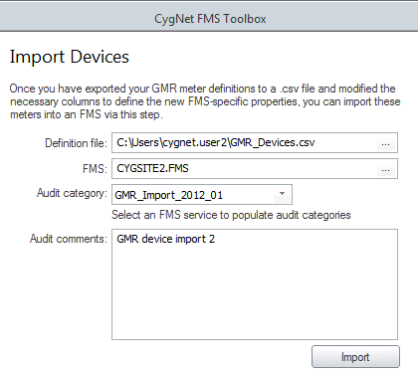
- Enter information into the following fields.
- Definition file text box. To import the device definition file, type the name of the device definition file you wish to import into FMS, or click ... to access the Select Meter Definition File to Import dialog box to browse to your selection and then click Open.
Note: You may select a previously imported .csv file for reimport, in cases where there were previously errors in some of the devices and you want to reimport those meters after editing the .csv manually to provide proper parameters. The reimport will skip devices that were previously imported successfully (for which "FmsImportStatus" = OK).
- FMS text box.
- To import files to a Site.Service located on the same domain, type the name of the FMS Site.Service to which you wish to connect to import the file, or click ... to access the Select Import FMS dialog box to browse to your selection and then click OK.
- To import files to a Site.Service located on a different domain, type [XXXX], where XXXX is the name of the domain, followed by the name of the FMS Site.Service to which you wish to connect to import the file.
- Audit category text box. Select an audit category from the options in the drop-down menu. This menu will be populated based on the FMS Site.Service selected. Audit categories are configured on the Admin menu. See Auditing in CygNet Measurement for more information about creating audit categories.
- Audit comments text box. You have the opportunity to type Comments regarding the file migration into the text box, which will become part of the audit record for the file import. Although comments are optional, they can be helpful when auditing or reviewing records later.
- Click Import to import the selected device .csv file into FMS. Import status, including any import errors, will be displayed in the text box above the Import/Restart button.
- If any import errors have occurred, do the following.
- Go back and edit the device .csv file manually to correct any import errors.
Note: For import errors, the error field and reason will be displayed in the FmsImportStatus column of the device .csv file.
- Once errors have been corrected with proper parameters, click Restart to reimport the file.
Note: For device .csv file imports, the Restart process will skip devices that were previously imported successfully (for which "FmsImportStatus" = OK) and will import the corrected devices.
- Repeat steps a - b until the import is successful.
- Save and Close the files.


