 Use the Validation button on the Admin menu to access options to manage validation engines and their component rules. You can add, view or edit, delete or copy estimation engines via this interface.
Use the Validation button on the Admin menu to access options to manage validation engines and their component rules. You can add, view or edit, delete or copy estimation engines via this interface.
The CygNet Measurement system supports the configuration of multiple validation engines, which check that measurement data conforms to specification. Set up multiple validation engines to ensure that different validation handling processes can be applied to specified Nodes and circumstances. The validation process will quickly identify data of suspect quality, by verifying the data against discrete values, historical values, and/or station totals, and will then make the results available for user analysis and closing. Data records failing the validation process will generate exceptions, which can be viewed and handled via the Exceptions Control.
You must have proper security authorization to perform these actions. See FMS Security (and ACCESS security event) for information about configuring security access to validation engines and rules.
Multiple validation rules can be grouped together into a validation engine with well-defined applicability triggers. Within each engine, you can configure rules and related parameters accordingly. Each component validation rule can be customized and configured by an authorized user to activate for specified times (e.g. day(s) of the week, or a time window), and applied using a preferred time schedule. If a device resolves to multiple validation engines, then all the component rules will be used according to their individual settings.
Validation engines can be configured on a group or device level. Because an engine can be defined and assigned to a group Node, the engine and its component rules apply indirectly to the multiple devices within the group. However, you can modify the group-level rules for a device by also applying different validation engines to specific device Nodes that belong to the group. When the system needs to validate data for a device, it will use the rules from as many engines as are configured for the given device. For example, if the device belongs to five groups, each with configured validation engines containing associated rules, plus has an engine configured directly for the device, then FMS will validate all six sets of rules. If multiple engines are evaluated that contain the same validation rule, then that rule will be tested by each of the validation engines containing it.
Gas records are automatically assigned a data quality flag from the validation engine as data comes into the system. The purpose of the flag is to indicate the level of confidence in the validity of the data. Each validation rule can have an associated data quality level set, to be assigned if the data fails the rule. If multiple validation rules are failed, then the data quality of the affected records will be set to the lowest of the configured values.
Exceptions are generated for the records that are affected by the invalid data. Each time a record fails a validation rule, a related exception will be generated. Any given record can generate one or more exceptions.
Validation engines are configured via the Admin menu in FMS Explorer. Click Validation on the Admin ribbon to access the Validation Engines dialog box.

The Validation Engines dialog box lists all defined validation engines in the measurement system. Each row displays a configured validation engine name, details about the Node to which it applies, the active begin and end times, and whether or not the engine is currently enabled. Results can be filtered by the values of any column. You can also access options to add, view or edit, delete, or copy validation engines and rules from this dialog box.
The properties for the Validation Engines dialog box are described below.
| Property | Description |
|---|---|
| [Validation Engine list] | |
|
Engine |
The name of the validation engine Valid characters for names are as follows. A-Z, a-z, 0-9, . (period), #, $, &, (, ), +, -, \, /, :, <, >, =, @, [, ], ^, {, }, _ (underscore), !, ~ (tilde). Spaces are acceptable, when they are not leading or trailing. |
|
Node |
The name of the Node to which this validation engine applies |
|
Node Desc |
The description of the Node to which this validation engine applies |
|
Node Type |
The type of the Node to which this validation engine applies, e.g. Gas Device, General Group, Station Meter, etc. |
|
Active Begin |
The date application of this validation engine begins |
|
Active End |
The date application of this validation engine ends |
|
Enabled |
Indicates whether or not this validation engine is currently enabled |
|
Add |
Click to add a new validation engine. The Create New Validation Engine dialog box will appear. See Creating Validation Engines below. |
|
Edit |
Click to edit the selected validation engine. See Viewing or Editing Validation Engines below. |
|
Delete |
Click to delete the selected validation engine. The Delete Validation Engine dialog box will appear, where you can select whether to delete the engine from a Point in Time, or purge it from your system entirely. Only one engine can be deleted at a time. See Deleting Validation Engines below. |
|
Copy |
Click to copy an existing validation engine. The duplicate validation engine will be created in the list. The engine name will be prefixed with *copy* and the new engine will contain all the properties of its source, until edited. See Copying Validation Engines below. |
Use the Add button to add a new validation engine in your system via the Create New Validation Engine dialog box.
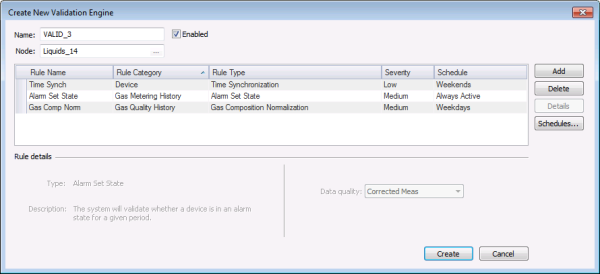
The Create New Validation Engine dialog box accommodates configuration of all validation rules and properties necessary to define a new validation engine. Each row will display a configured validation rule name, details about the category and type of rule, the severity level to assign to data records that fail the rule, and the activation schedule to assign to the rule. The list can be filtered by the values of any column. You can access options to add a rule, delete a rule, or schedule activation of a rule from this dialog box. Configure all of the rules and properties that will comprise the new validation engine via this dialog box.
The properties in this dialog box are similar to the properties in the Validation Engine Properties dialog box (with the exception of the historization navigator), and are described in the Validation Engine Properties table below.
To Create a New Validation Engine
On the Validation Engines list, click Add to access the Create New Validation Engine dialog box.

Use the Edit button to modify or view the properties for an existing validation engine, or to view its historized records, via the Validation Engine Properties dialog box.
The Validation Engine Properties dialog box displays all of the validation rules and properties comprising an existing validation engine. Each row displays a configured validation rule name, details about the category and type of rule, the severity level assigned to failure of the rule, and its activation schedule. Results can be sorted by the values of any column. Click to select a validation rule to view or edit its properties. You can also access options to add a rule, delete a rule, view historical rule details, or schedule activation of a rule from this dialog box. View or edit all of the rules and properties comprising an existing validation engine via this dialog box.
The properties in this dialog box are described in the Validation Engine Properties table below, and are similar to the properties in the Create New Validation Engine dialog box.
To View or Edit a Validation Engine
On the Validation Engines list, click to select an existing engine and then click Edit to access the Validation Engine Properties dialog box.
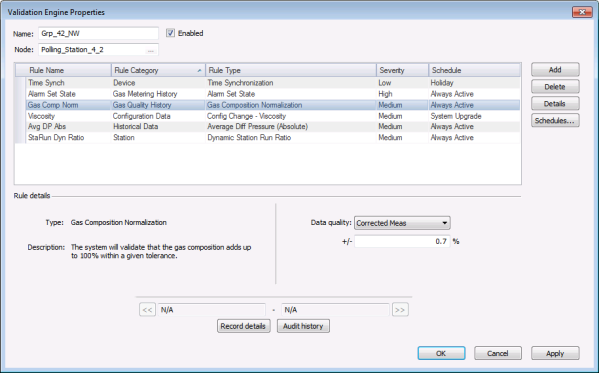
The properties for the Validation Engine Properties dialog box, and for the similar Create New Validation Engine dialog box, are described below.
| Property | Description |
|---|---|
|
Name |
Type in a name for the validation engine. Valid characters for names are as follows. A-Z, a-z, 0-9, . (period), #, $, &, (, ), +, -, \, /, :, <, >, =, @, [, ], ^, {, }, _ (underscore), !, ~ (tilde). Spaces are acceptable, when they are not leading or trailing. |
|
Enabled |
Click to select/clear the check box to determine whether or not to enable this validation engine. |
|
Node |
Click ... to select the Node to which this validation engine applies. |
| [Rule list] | |
|
Rule Name |
Lists the rule name for each rule belonging to the currently selected validation engine. Names initially default to the name of the rule type selected, but can be edited to better suit your usage. Click the cell to type in a new name. Valid characters for names are as follows. A-Z, a-z, 0-9, . (period), #, $, &, (, ), +, -, \, /, :, <, >, =, @, [, ], ^, {, }, _ (underscore), !, ~ (tilde). Spaces are acceptable, when they are not leading or trailing. |
|
Rule Category |
Lists the rule category for each rule belonging to the selected validation engine. Click to access the drop-down menu to select a category to apply to the rule. Possible rule categories are as follows.
Note: When you change the Rule Category, the corresponding Rule Name and Rule Type options will also change. See FMS Validation Rules for a complete list of all the rule categories and types provided in the measurement system. |
|
Rule Type |
Lists the rule type for each rule belonging to the selected validation engine. Click to access the drop-down menu to select the rule type desired. Rule type options displayed in the drop-down menu depend on the rule category selected. The rule type you select determines the configurable properties displayed in the Rule details section. Note: When you change the Rule Type, the corresponding Rule Name will also change. See FMS Validation Rules for a complete list of all the rule categories and types provided in the measurement system. |
|
Severity |
Lists the severity level assigned to each rule belonging to the selected validation engine. Click to access the drop-down menu to select a severity level to associate with the rule. The severity level selected will be assigned to the exception generated when the validation rule fails. Options include Low, Medium and High. Severity is displayed on the Exceptions Control and is provided as a mechanism to help you organize exceptions hierarchically. |
|
Schedule |
Lists the schedule applied to each rule belonging to the selected validation engine. Click to access the drop-down menu to select or create a schedule to apply to the rule. See Configuring Validation Rules for more information. |
|
Add |
Click to add a new rule to the validation engine. A new rule will appear in the list, populated with default values. Configure the rule properties and details as desired. See Configuring Validation Rules for more information. |
|
Delete |
Click to delete a selected rule from the validation engine. |
|
Details |
Click to access the Record Details dialog box to view details about changes made to the selected rule. Note: Only applies to rules that have already been saved. See Viewing Record Details for more information. |
|
Schedules |
Click to access the Manage Schedules dialog box to configure schedule details for activation of the selected rule. See Configuring Validation Rules for more information. |
| Rule details | |
|
Type Description |
When you click a validation rule in the list, the Type and Description of the selected rule will appear on the left side of the Rule details section. See Configuring Validation Rules for more information. |
|
[Parameters] |
When you click a validation rule in the list, the configurable parameters required for the selected rule will appear on the right side of the Rule details section. See Configuring Validation Rules for more information. |
| Historization Navigator | |
|
Record details |
Where applicable, click Record details in the historization navigator to view sequential historized records for the selected validation engine. |
|
Audit history |
Where applicable, click Audit history in the historization navigator to view detailed history of audit trail data changes for the selected validation engine. |
Use the Delete button to either delete a Validation Engine from a point in time, or to completely purge a Validation Engine from the system. You can only take this action for one validation engine at a time.
To Delete a Validation Engine
On the Validation Engines list, click to select an existing engine name and then click Delete to access the Delete Validation Engine dialog box.
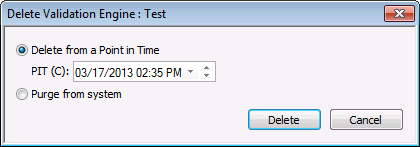
On the Delete Validation Engine dialog box, select whether to delete the validation engine from a Point in Time, or to completely purge the validation engine from the system, and then click the radio button corresponding to your selection.
If you select to delete from a Point in Time, also specify the PIT using the date/time selector provided. See Using the Home Menu for more information about PIT.
Note: Be certain of your selection, as there is NO "undo" for this action.
Use the Copy button to make a new validation engine exactly like an existing engine, and then alter it to meet a new purpose.
You will be prompted to save a record of the action, requiring you to enter effective dates, audit category, and comments. (You will be prompted to enter this information again once you save any edits you make to the copied validation engine.) See Save FMS Record for more information.
The new validation engine will contain all the properties of its source. Click the *copy* name and then click Edit to assign a new engine name, Node, and/or edit the engine properties, as desired. See Viewing or Editing Validation Engines for more information.
To Copy a Validation Engine
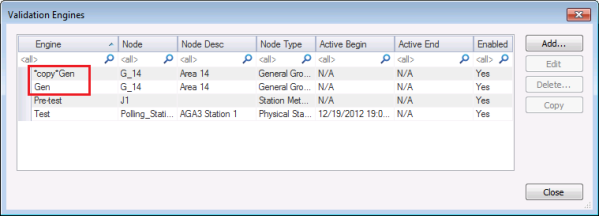
The duplicate validation engine will be created at the top of the list, and the new engine name will be the existing engine name, prefixed with *copy*. The new engine will initially contain all the properties of its source engine.
The Validation Engine Properties dialog box contains a historization navigator. Use the historization navigator to access sequential historized records for the selected validation engine, where applicable.

The following fields are displayed in the historization navigator.
| Field | Description |
|---|---|
|
<< |
Click << to navigate to the previous historized record, if applicable. |
|
[Begin date] |
Displays the effective begin date, in Contract time (C), of the historized record currently selected. |
|
[End date] |
Displays the effective end date, in Comntract time (C), of the historized record currently selected. |
|
>> |
Click >> to navigate to the next historized record, if applicable. |
|
Record details |
Use the << and >> navigation buttons to select a historized record date span, in Contract time (C), for which you want to view record details. Next, click Record details to view details of the record such as who made the change, the date and time it was made, and optionally the audit category and/or any comments entered regarding the change. See Viewing Record Details for more information. |
|
Audit history |
Click Audit history to view detailed history of audit trail value changes for the Node in its entirety. See Viewing Audit History for more information. |
After creating or editing a validation engine or rule, you'll be asked to save your changes via the Save FMS Record dialog box. Configure the date and audit information requested to historize the changes in your system.
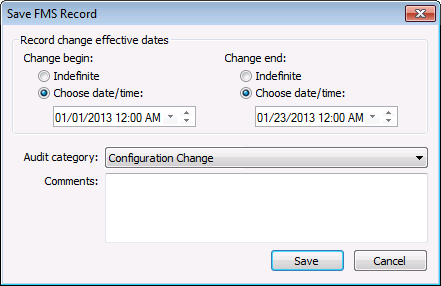
| Property | Description |
|---|---|
|
Change begin |
Set the effective date and time for the record change to begin. Options are as follows.
|
|
Change end |
Set the effective date and time for the record change to end. Options are as follows.
|
|
Audit category |
Select an appropriate Audit category from the drop-down menu. The audit category type for this kind of edit is Configuration Change. Audit categories are configured on the Admin menu. See Configuring Audit Categories for more information. |
|
Comments |
Type Comments regarding creation or modification of the rule or Node in the text box. Although comments are optional, they become part of the record and can be helpful when auditing or reviewing records. |
More:
|
|
|


