Migrating Data Groups from GMR to FMS
The Migrate Data Groups task helps you to migrate data groups (for Emerson device types only) from GMR to FMS for CygNet versions 8.2.0 or greater.
Use FMS Toolbox to migrate your GMR data groups to FMS data groups for the selected device types, and additionally filter the selections by device ID, if desired. This migration can be accomplished for device data groups that only exist as GMR data groups; where FMS data groups already exist they will be used as is and not altered. A migration results file is generated, to allow the process to be restarted without losing previously successful migration results in case of errors or omissions.
Note: If the corresponding GMR history has custom process variables mapped to Emerson history points, the data group is migrated differently depending on device (meter) type. For liquid device types using custom process variables, they will map directly to FMS History data groups. For gas device types using custom process variables, they can be mapped to FMS History data groups via a CSV file containing the mappings.
You must have proper security authorization to migrate GMR data groups into FMS. See FMS Security for more information about security event authorization.
Migrating GMR Data Groups
For Emerson device types, use this procedure to automatically migrate your GMR data groups to FMS data groups.
To Migrate Data Groups from GMR to FMS
- Start CygNet FMS Toolbox, and then click GMR Migration to access associated tasks.
- Click Migrate Data Groups to access the Migrate Data Groups pane.
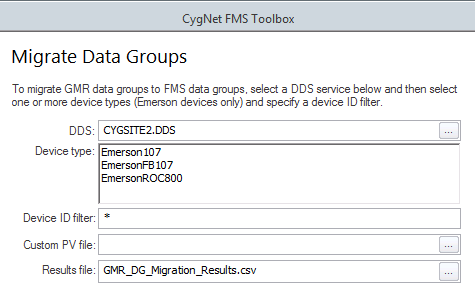
- Enter information into the following fields.
- DDS text box.
- To migrate data groups, either type into the text box, in MySite.DDS format, the name of the DDS from which you wish to migrate GMR data groups to FMS, or click ... to access the Select DDS dialog box to browse to your selection and then click OK.
- Device type list box. A list of Emerson device types available in the selected DDS appears in the list box. Click to select the device types for which you wish to migrate data groups. You may select a single device type, or select multiple types by pressing Ctrl+Click or Shift+Click.
- Device ID filter. Optionally specify a device ID filter. Type in a partial name, in conjunction with wildcard(s), to use as a search criteria. Wildcard values * (multiple character) and ? (single character) are supported. Default filter value is "*" or all device IDs of the selected device types.
- Custom PV file text box. For gas device types only, if you are using customizable process variable (PV) item mappings in GMR that you wish to migrate to FMS, prepare mappings from the GMR data item enumerations (GMR Custom History items 1 - 8, e.g. eGMR_PROCESS_VAR_CUSTOM_1) to the FMS data item enumerations (FMS Custom Metering items 1 - 5 or Custom Quality items 1 - 5, e.g. eFMS_PV_PM_CUSTOM1, eFMS_PV_PQ_CUSTOM1), so that you can include these items in the migration via a CSV file. To specify what custom PV mapping file to use, enter file name and location information as follows.
- Type the file name into the Custom PV file text box.
- Click ... to access the Select Custom PV Mappings File to Load dialog box to browse to your selected location, and then click Open.
- Results file text box. A results file will be generated to facilitate completion of file migration for any portions that might initially fail. You can use the default or specify a results file name and directory location. If no results file is specified, the file defaults to the current directory location of the CygNet FMS Toolbox utility. To specify a results file name and location, enter file information as follows.
- Type the file name into the Results file text box.
- Click ... to access the Select Location to Save Results File dialog box to browse to your selected location, and then click Open.
- Click Validate to run a facilities check of the data group information that will be migrated. This process validates that each set of GMR data group ordinals being migrated (e.g. GMR Configuration Data, GMR Events Data, GMR History Data, etc.) shares the same facility, and that the facility for each set is unique.
- Click Migrate to migrate the validated data groups from GMR to FMS.
Migration status, including any errors, will be displayed in the results box. For longer processes a progress bar appears above the results box.
- Optionally click Cancel to stop the migration process if you need to stop it while in progress. Wait until processing is done before proceeding.
- If any migration errors have occurred, do the following.
- Identify any migration errors that occurred. Migration status is displayed in the results text box.
- Review the migration results file and manually correct any errors preventing successful migration of data groups.
- Manually make any desired changes and/or additions to the Migrate Data Groups configuration pane.
- Click Migrate to rerun the migration.
Note: When you rerun the migration, the process will skip devices for which data groups previously migrated successfully, and will migrate data groups for the remaining devices.


