Shortcut
Description
Alt
Alt+
Press Alt to display shortcut keys available for menu navigation.
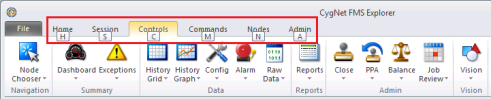
Press Alt+<menu ribbon shortcut> to access the desired menu ribbon. When accessed via the keyboard shortcut, the ribbon appears and also displays the shortcut keys for accessing each function within the selected menu ribbon.

Use the following shortcut keys to navigate within menu ribbons.
- Alt+H - Home
- SS - Site and Service
- SR - Refresh Site and Service
- PN - System Default Mode
- PO - Point in Time Mode
- PP - Point in Time Date
- PD - Point in Time Selector
- Alt+S - Session
- SN - Session Node
- SP - Session Node Properties
- SD - Session Node Polling Device
- TP - Previous Time Window
- TN - Next Time Window
- TS - Start Date of Time Window
- TT - Start Date Selector
- TE - End Date of Time Window
- TN - End Date Selector
- FD - Device (D) Time Format
- FC - Contract (C) Time Format
- FL - Local (L) Time Format
- Alt+C - Controls
- NC - Node Chooser Control
- SD - Dashboard Summary Control
- SE - Exceptions Summary Control
- DD - History Grid Data Control
- DF - History Graph Data Control
- DC - Configuration Data Control
- DA - Alarm Data Control
- DR - Raw Data Control
- RR - Reports Control
- AC - Close Period Control
- AP - Prior Period Adjsutment Control
- AB - Balance Control
- AJ - Jobs Control
- VV - Vision Control Control
- Alt+M - Commands
- DR - Run Node Commands
- DM - Manage Node Commands
- SF - File Import Commands
- ST - File Export Commands
- SN - Normalization View Commands
- SE - Station Estimation Commands
- SG - Smart Group Commands
- SD - Detect New Device Commands
- SM - Database Maintenance Commands
- SX - Extended Command Options
- VL - View Command Logs
- Alt+N - Nodes
- DG - Create Gas Meter Nodes
- DC - Create Chromatograph Nodes
- DL - Create Liquid Device Nodes
- GG - Create General Group Nodes
- GS - Create Station Group Nodes
- GM - Manage Group Nodes
- ND - Delete Nodes
- Alt+A - Admin
- PV - Validation Processing
- PE - Estimation Processing
- DP - Data Purging
- RM - Report Management
- OO - Administrative Options
F2
Edit mode - When in an editable cell in navigation mode (no edit action), either press F2 or type into the cell to enter Edit mode.
Enter
Advance in column - When editing a cell, press Enter to advance to the next cell in the column, below the current selection.
Tab
Advance in row - When editing a cell, press Tab to move to the next cell in the row, to the right of the current selection. When you reach the end of a row, it will wrap to the next row.
Shift+Tab
Previous cell - When editing a cell, press Shift+Tab to move to the previous cell in the row, to the left of the current selection. When you reach the beginning of a row, it will wrap to the previous row.
Ctrl+[=]
Ctrl+[+]
Expand selected - In the Balance, Dashboard, Exceptions, or History Grid controls, press Ctrl+(keyboard)[=] (or Ctrl+(numeric keypad)[+]) while a parent row is selected to expand the area to also show records for its children.
Ctrl+[-]
Collapse selected - In the Balance, Dashboard, Exceptions, or History Grid controls, press Ctrl+(keyboard)[-] (or Ctrl+(numeric keypad)[-]) while any parent or child rows are selected to collapse the area to show records only for the parent.
Ctrl+A
Select all - In the History Grid control, press Ctrl+A while any cell is selected to select all items in the grid.
Ctrl+C
Copy - In the History Grid control, press Ctrl+C while any cells are selected to copy the selected cells.
Ctrl+V
Paste - In the History Grid control, press Ctrl+V while any cells are selected to paste previously copied cells into the selected cells.
Ctrl+0 (zero)
Zero flow - In the History Grid control, press Ctrl+0 (zero) while any records are selected to zero out volume and flow values for the selected device record, depending on the device type.
See Using Zero Flow for more information.
Ctrl+J
Adjust value - In the History Grid control, press Ctrl+J while any cells are selected to use adjust value in the selected area.
Ctrl+L
Linear fill - In the History Grid control, press Ctrl+L while any cells are selected to use linear fill in the selected area.
Ctrl+M
Mass fill - In the History Grid control, press Ctrl+M while any cells are selected to use mass fill in the selected area.
Ctrl+Shift+E
Export data to .csv - Press Ctrl+Shift+E while a section of a data grid is selected to export and save the selected contents as a CSV file.
Ctrl+Shift+S
Session Node - Press Ctrl+Shift+S while a Node is selected to designate it as the Session Node.

Up - Use the arrow buttons to quickly navigate within the cells of a grid.
Press the Up Arrow to move the cursor to the next cell above the current selection.

Down - Use the arrow buttons to quickly navigate within the cells of a grid.
Press the Down Arrow to move the cursor to the next cell below the current selection.

Left - Use the arrow buttons to quickly navigate within the cells of a grid.
When not editing a cell, press the Left Arrow to move the cursor to the next cell to the left of the current selection.
When editing a cell, press the Left Arrow to do the following.
- If you are within the string, to move the cursor to the left within the cell.
- If you are at the beginning of the string, to move the cursor to the next cell to the left.

Right - Use the arrow buttons to quickly navigate within the cells of a grid.
When not editing a cell, press the Right Arrow to move the cursor to the next cell to the right of the current selection.
When editing a cell, press the Right Arrow to do the following.
- If you are within the string, to move the cursor to the right within the cell.
- If you are at the end of the string, to move the cursor to the next cell to the right.


