Use an import definition file to customize how .csv file data is imported into your system. The process requires two files: the source data file (.csv) and the import definition file (.idf), which is referenced via the import command parameters.
The .idf file is an XML file that is used to define custom conditions for a .csv file import. Use an .idf file during the import process to set the data source to show whether the imported file contains raw data or not, to specify what columns are required for the import, to define or override units for specific items, or to customize column header names by mapping each default column header name (FMS enumeration value) to a new column header name (user-provided value).
For history import files, a file collection time can also optionally be defined using the .idf file, and data aggregation must be defined using the .idf file for certain conditions.
See the following configuration topics for more information about preparing and importing .csv files that may utilize an .idf file.
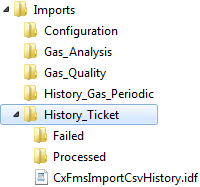
If you will be performing more than one type of file import, a simple way to set up your import folders is to make parallel folders in your chosen directory location. Create a separate folder for each CSV file type you will be importing, and clearly name each folder to reflect the appropriate type of data (shown as Configuration, Gas_Analysis, History_Gas_Periodic, History_Ticket, and Send_Configuration in the example below). Each folder would then contain its own "Failed" sub-directory, "Processed" sub-directory, and a properly configured data-type-specific IDF file.
Note: For both History_Gas_Periodic and History_Ticket, you would need to rename the IDF to CxFmsImportCsvHistory.idf.
Example
CygNet Measurement provides two separate samples of history IDF files, one to be used for gas periodic history data (CxFmsImportCsvHistoryGasPeriodic.idf) and one to be used for ticket history data (CxFmsImportCsvHistoryTicket.idf). In order for the service to find the file however, it must be titled CxFmsImportCsvHistory.idf, therefore the words "GasPeriodic" or "Ticket" must ultimately be deleted from your working IDF file name(s).
CygNet provides sample files you can adjust and use to create IDFs for new imports. Sample .idf files are located in the CygNet\Services\FMS\ImportSamples folder on your host server.
The following general requirements apply to Import Definition Files.
Note: Sample .idf files are provided for both gas periodic (CxFmsImportCsvHistoryGasPeriodic.idf) and ticket (CxFmsImportCsvHistoryTicket.idf) data, but for either type you must rename the file to CxFmsImportCsvHistory.idf before it is used.
The structure of an .idf file for importing configuration data is shown in the following example.
|
<FileImportDefinition textFilesTrusted="true"> <ColumnMapping name="Device" enum="Device" required="true"/> <ColumnMapping name="DateTime" enum="ConfigDateTime" required="true"/> <ColumnMapping name="AGA3ExpRange" enum="eFMS_CFG_AGA3_EXPANDED_RANGE" required="true"> <ValueMapping name= "Yes" enum= "eYESNO_YES"/> <ValueMapping name= "No" enum= "eYESNO_NO"/> </ColumnMapping> <ColumnMapping name="RelativeDensity" enum="eFMS_CFG_RELATIVE_DENSITY" required="true"/> <ColumnMapping name="Methane" enum="eFMS_CFG_METHANE" required="true" units="%"/> <ColumnMapping name="Nitrogen" enum="eFMS_CFG_NITROGEN" required="true" units="%"/> ... </FileImportDefinition> |
The structure of an .idf file for importing gas periodic history data, using the fileCollectionTime property, is shown in the following example.
|
<FileImportDefinition textFilesTrusted="false" fileCollectionTime="T-3"> <ColumnMapping name="DataNode" enum="Device" required="true"/> <ColumnMapping name="SampleDate" enum="BeginDateTime" required="true"/> <ColumnMapping name="PressDiff" enum="eFMS_PV_DIFF_PRESSURE" required="false"/> <ColumnMapping name="PressStatic" enum="eFMS_PV_LINE_PRESSURE" required="false"/> <ColumnMapping name="Air%" enum="eFMS_PV_AIR" aggregation="Average" required="false"/> ... </FileImportDefinition> |
The structure of an .idf file for importing ticket history data, using the fileCollectionTime property, is shown in the following example.
|
<FileImportDefinition textFilesTrusted="false" fileCollectionTime="T"> <ColumnMapping name="Node" enum="Device" required="true"/> <ColumnMapping name="TicketDate" enum="TicketDateTime" required="true"/> <ColumnMapping name="TicketName" enum="eFMS_TICKET_NAME" required="false"/> <ColumnMapping name="TicketType" enum="eFMS_TICKET_DEVICE_TYPE" required="false"/> <ColumnMapping name="TransportType" enum="eFMS_TICKET_TRANSPORT_METHOD" required="false"/> ... </FileImportDefinition> |
The following .idf file elements can be used to custom define options in your configuration file import.
Note: XML elements used in .idf files are case sensitive, unless noted otherwise.
The FileImportDefinition element is the root element of the XML file. The properties of this element are as follows.
The ColumnMapping element defines each column header. The properties of this element are as follows.
See FMS Configuration Items, FMS History Items and FMS Ticket Items for more information about EFM data items.
Possible values are ="Average" or ="Sum". Acceptable values are case insensitive. Invalid values for this element will cause the import to fail.
See Configuring Custom Device Data for more information about mapping custom device data items.
Example
When mapping HeatingValueBasis values for a Gas Analysis IDF, the numbers 1, 2, and 3 represent the value type options of Wet, Dry, and As delivered, respectively. Without looking these values up, you can specify either Wet, Dry, or As delivered (the default name values), OR enter a user-defined term for each of these name values, and the correct heating value basis type will be inserted into the CSV file column.
<ColumnMapping name= "HeatingValueBasis" enum= "eFMS_CFG_GAS_ANALYSIS_HEATING_VALUE_BASIS" required="false">
<ValueMapping name= "Dry (or user-defined name)" enum= "eFMS_CFG_HEATING_VALUE_BASIS_DRY">
<ValueMapping name= "Wet (or user-defined name)" enum= "eFMS_CFG_HEATING_VALUE_BASIS_WET">
<ValueMapping name= "As delivered (or user-defined name)" enum= "eFMS_CFG_HEATING_VALUE_BASIS_AS_DELIVERED">
</ColumnMapping>

|
|
|

