Using the Balance Control
 Use the Balance control to view material and energy balances for a single selected station or device Node (with periodic history support) within the measurement system and to review calculation results necessary to produce balance reports. Rollups performed at station and station group levels are used to generate calculated balances, which can then be reported to support operations and business functions. You can create up to eight instances of this control. See Balancing in the CygNet Measurement Concepts topic for more information about balancing and station contributions.
Balance data for Gas Device or Liquid Device (supporting periodic history) or Station Nodes (station meters or station groups) is available for viewing in this control. You can view data for one Node at a time, selected from the filtered Node Chooser results.
The Balance control displays data in Contract time (C) with one exception. The Last Modified column displays the timestamp of the last modification in Local time (L).
Each row of the grid represents a Node record, which can be expanded or contracted to customize the current view. Each column represents a data field displaying receipt and delivery calculation results by volume, energy, or mass. The last modification date and average acceptability of the data can also be viewed.
Note: Average Acceptability is not dynamically updated at the station level. When the data quality acceptability percentage is changed, average acceptability for the station will not be updated until the next time data is rolled up.
The control toolbar and the context menu allow you additional options to manage files, customize the data view directly from the grid, or to set the Session Node to further investigate areas of interest.
The mechanism for understanding the balancing of the measurement data is unique. You can select a Node, time period, and unit set in which you wish to view data, then from that point you can "drill down" to check balances at more and more granular levels (month, day, hour) using the expand (+) and contract (-) icons. Acceptability range colors can also be customized in the data display to help you quickly identify areas of interest.
You must have proper security authorization to perform these actions. See FMS Security for information about configuring security access for the Balance control.
See FMS Explorer User Interface for more information about the FMS Explorer user interface.
Viewing Balance Data
Use the Balance control Chooser pane (unless the Use Session Node option is selected in the Options pane) and Options pane to filter the data to show in the grid. Either pane can optionally be displayed or pinned to the left side.
Chooser Pane
In the embedded Node Chooser for the Balance control, select the Nodes you want to view data for from the Gas Device or Liquid Device (supporting periodic history) or Station (including station meter or station group) Node categories. Further filter the Nodes by name, description, or ID as desired. See Using the Node Chooser Control for more information.
Options Pane
In the Session section of the Options pane, define the values for the data you would like to view. In the Balance section, define additional display options.
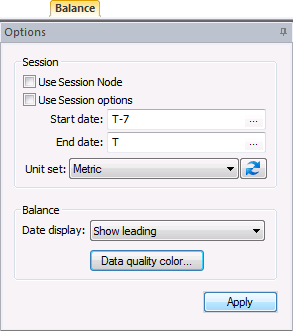
Balance control options are as follows.
| Session |
|
Use Session Node
|
Click the check box to select/clear the option to Use Session Node instead of using the chooser.
Notes:
The Use Session Node check box is selected by default for Data controls (Alarm, Configuration, History Graph, History Grid, and Raw Data).
The Use Session Node check box is cleared by default for Summary controls (Dashboard, Exceptions), Reports controls, and Admin controls (Balance, Jobs; not applicable to Close Period, PPA).
|
|
Use Session options
|
Click the check box to select/clear the option to Use Session options instead of entering a time window and time format.
Notes:
The Use Session options check box is selected by default for Data controls (Alarm, Configuration, History Graph, History Grid, and Raw Data).
The Use Session options check box is cleared by default for Summary controls (Dashboard, Exceptions), Reports controls, and Admin controls (PPA, Balance, Jobs; not applicable to Close Period).
|
|
Start date
|
Date selections are in Contract days (C).
Select the starting date, unless Use Session options is selected. Type the date into the text box or click ... to Select Date.
See Selecting Date and Time for more information.
|
|
End date
|
Date selections are in Contract days (C).
Select the ending date, unless Use Session options is selected. Type the date into the text box or click ... to Select Date.
See Selecting Date and Time for more information.
|
|
Unit set
|
Select a unit set in which to view the data. Options appear in the drop-down menu, which is populated by the unit sets defined in the service, and includes a default unit set.
|
|

|
Refresh the available unit set list.
|
| Balance |
|
Date display
|
Click to select a date display convention from the drop-down menu.
Options are as follows.
- Show Leading (time shown indicates the leading or beginning time of the increment)
- Show Trailing (time shown indicates the trailing or ending time of the increment)
|
|
Data quality color
|
Click Data quality color to access the Data Quality Color dialog box, to set cell coloring options based on data quality.
Note: Options on the drop-down menu are populated by the values configured for your system on the Admin menu > Options button > Data Quality Settings page. The default data quality value is as configured for Quality for device data that validates. See Configuring Data Quality Settings for more information.
|
|
Apply
|
Click to Apply the changes made through the Options pane.
Note: When you click Apply on the Options pane, any Node selection that has been made but not applied on the Chooser pane will also be applied.
|
Data Quality Color
Configure and edit data quality color properties in the control to customize your view of the selected data and allow greater initial understanding of its data quality values at a glance.
To Edit Data Quality Color Display Properties
- On the Options pane, click Data quality color to access the Data Quality Color dialog box to edit the display basis and cell colors used to display data quality values.
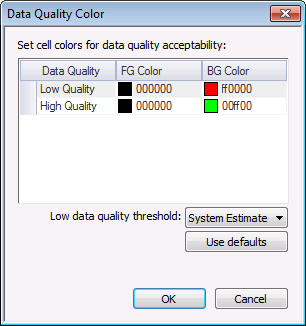
- Specify what colors to display in the control. In the color columns, optionally edit or customize the foreground (FG Color) and background (BG Color) color selections to represent low quality and high quality data values, by doing one of the following.
- Type the hexadecimal value for the desired color into the corresponding text box.
- Click the down arrow to access the color selector. See Configuring Color for more information about using color selectors.
- Select the Low data quality threshold setting from the values in the drop-down menu. This setting determines the data quality results that you want to be shown in the "High Quality" and "Low Quality" colors in the control, as follows.
- Data quality values with a data quality value higher than or equal to this setting will be shown in the "High Quality" color (as configured in step 1a), so that you can identify data that is already of a desired data quality.
- Data quality values with a data quality value lower than this selected setting will be shown in the "Low Quality" color (as configured in step 1a), so that you can identify data that requires more attention in order to meet or exceed the desired data quality threshold.
Note: Drop-down menu data quality options are populated by the values configured for your system. Data quality settings can be viewed or configured on the Admin menu. The default data quality value is as configured for Quality for device data that validates in the Admin Options > Data Quality Settings dialog box. See Configuring Data Quality Settings for more information.
- Optionally click Use defaults to clear any previously customized settings and restore the system default selections. The system default color values are as follows.
- FG Color (Foreground) - black (000000)
- BG Color (Background) - red (ff0000) for low quality data, and green (00ff00) for high quality data
- Click OK to save the settings, and refresh the control to see the results.

Columns
Note: Energy and Volume data cell values have meaning according to the Node type selected, as follows:
- Energy values apply for Gas Nodes only; they do not apply for Liquid Nodes.
- Volume values for Liquid Nodes are calculated Gas Equivalent Volume (GEV), in accordance with Directive 017. Refer to Appendix 5: Gas Equivalent Volume Determination for more information.
A variety of data types are available to be viewed in the balance control. Balance data for the selected Node is always sorted by date.
Columns can be reorganized for the most efficient viewing of data in the following ways.
- Hover over a fixed column edge to display an icon to reset column width. Drag the column to the desired width.
- Drag a column header left or right to the desired location.
- Drag a column header off the grid entirely to remove that data field from the view. The removed column header will appear on the field chooser.
- Drag a column header from the field chooser to the column header row to add that data field to the view.
Columns in the grid represent the following data fields. Volume, energy, and mass column headers reflect the units selected on the Options pane.
|
[Name (Description)]
|
Lists the Node name, with the description in parentheses if present
|
|
Average Acceptability
|
Shows the average data quality acceptability for the selected station (or liquid device Node)
Average acceptability for stations is calculated using a flow-weighted average of their members (entries). Therefore, if a record is missing, it will not change the acceptability value.
See Configuring Data Quality Settings for more information.
|
|
Received Volume (units)
|
Volume received, in units corresponding to the selected unit set
|
|
Received Energy (units)
|
Energy received, in units corresponding to the selected unit set
|
|
Received Mass (units)
|
Mass received, in units corresponding to the selected unit set
|
|
Delivered Volume (units)
|
Volume delivered, in units corresponding to the selected unit set
|
|
Delivered Energy (units)
|
Energy delivered, in units corresponding to the selected unit set
|
|
Delivered Mass (units)
|
Mass delivered, in units corresponding to the selected unit set
|
|
Gain/Loss Volume (units)
|
Volume gained or lost, in units corresponding to the selected unit set
|
|
Gain/Loss Energy (units)
|
Energy gained or lost, in units corresponding to the selected unit set
|
|
Gain/Loss Mass (units)
|
Mass gained or lost, in units corresponding to the selected unit set
|
|
% Change Volume
|
Volume change, by percentage
|
|
% Change Energy
|
Energy change, by percentage
|
|
% Change Mass
|
Mass change, by percentage
|
|
Last Modified (L)
|
The date/time the data was last modified, displayed in Local time (L)
|
Managing Balance Data
Toolbar
Use the Balance control toolbar to access options to manage the data you are viewing. See Menus and Toolbars for more information.

The following options appear on the toolbar; unavailable buttons appear dimmed.
|
|
Click to Refresh the control view.
Note: The Refresh button will not take into account changes made through the Options pane that have been selected but not yet applied.
See Refresh Button for more information.
|
|

|
[The Save button is not available on this control.]
|
|

|
[The Cancel button is not available on this control.]
|
|

|
Click to Open and view the control as a .csv file.
|
|

|
[The Print button is not available on this control.]
|
|

|
Click to Export the contents of the control to a .csv file.
|
Context Menus
Right-click on a Node row to access the option to click Set as Session Node. Alternatively, click on a Node row and press Ctrl+Shift+S to set the Session Node using a keyboard shortcut. See Session Node and Using Keyboard Shortcuts for more information.
Right-click in the column header row to access the option to display/hide the Field Chooser so that you can customize which columns to display in the grid. See Using the Field Chooser for more information.

