Note: See Gas Analysis Properties for more information about property page content.
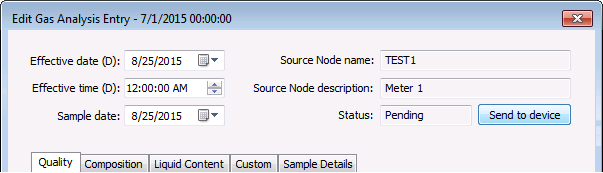
You can use the Gas Analysis data view to send gas quality information from a selected gas analysis record to the device by executing a Send Gas Quality command. The request can be initiated via the Gas analysis data view context menu or via the Node's Gas Analysis Entry property sheet.
Gas analysis records for the selected Node can also be sent via the Send Gas Quality command in other ways. When this is the case, the FMS service does a check and then sends the appropriate records, from gas analysis or gas quality data or both, based on the device configuration at the time. See Send Gas Quality for more information.
You must have proper security authorization to send GQ data from gas analysis information to a device. See FMS Security (and CMDDEV security event) for information about configuring security access.
See Configuring Send Gas Quality Commands for more information about the command that is sent.
See Gas Analysis and Gas Quality Data in the CygNet Measurement Concepts topic for a discussion about gas quality and gas analysis data.
Gas quality information contained in a gas analysis record for a selected Node can be sent directly to the device using one of the following procedures.
To Send Gas Quality to a Device from the Gas Analysis Context Menu
To Send Gas Quality to a Device from the Gas Analysis Property Sheet
Note: See Gas Analysis Properties for more information about property page content.

|
|
|

