Using the Dashboard Control
 The Dashboard control provides the primary overview of your system. Use this control to see high-level statistics for multiple selected Nodes in order to quickly identify the most problematic areas. You can quickly switch between Dashboard views of various data to enhance your understanding of what is going on in your system. In addition, this is the only control where you can run Node commands directly from the data grid, via the context menu. You can create up to eight instances of this control.
Available Node categories for display in this control include Gas Device, Liquid Device, Group, or Station Nodes. Liquid device Nodes configured for periodic metering, Batch, or Ticket data are supported. To select multiple Nodes from the filtered Node Chooser results, use the Apply changes option. See Using the Node Chooser Control for more information.
The Dashboard control views all data in Contract time (C). Each row of the data grid represents a Node record, and each column represents a time range or a property of the selected data view. The control toolbar and the context menu allow you to access several options to manage viewed data, change display properties, view associated Node properties and details, or run Node commands directly from the Dashboard control.
The dashboard grid is structured as a tree view. In tree view you can "drill down" to check data at various group, station, and device levels using the expand (+) and contract (-) icons. Once a Node requiring further attention is identified, it can be set as the Session Node, which will cause other controls (if set to Use Session Node) to update and display associated data. You can use this feature to view, and go back and forth between, large quantities of related data in a small amount of time.
See FMS Explorer User Interface for more information about the FMS Explorer user interface.
Dashboard Views
There are several views available in the Dashboard control, to help identify areas for further action on, or investigation into, your system data. In addition to selecting different Nodes (via the Chooser pane) and conditions (via the Options pane) for which to view data within each data grid view, you can also further customize your view of the selected data by quickly changing the following settings directly from the control toolbar.
- The type of data to display (Data view selector)
- The configuration of associated filters (Configure Filter button)
- Whether or not to use a configured filter (Use filter check box)
The data view and filtering options together allow for a highly customizable usage of the Dashboard control.
The default data view shown in the control is the Analyst Overview, which contains the broadest spectrum of information compared to other data views. See Using the Analyst Overview for more information.
The alternative data views are more specific in detail and type of data shown, in order to more fully understand specific identified issues. Changing between data views can be accomplished quite quickly via either the control toolbar or context menu.
Note: In all Dashboard data views, when no data exists for display, a message appears on the screen ("There are no items to display") to verify that the view is functional although it appears blank.
See Data Quality, Data Collection Status, Data Collection Details, Edit State, and Exceptions in the CygNet Measurement Concepts topic for more information about the types of data shown in these views.

Viewing Dashboard Data
Use the Dashboard control Chooser pane (unless the Use Session Node option is selected in the Options pane) and Options pane to filter the data to show in the grid. Either pane can optionally be displayed or pinned to the left side.
Chooser Pane
In the embedded Node Chooser for the Dashboard control, select the Nodes you want to view data for from the <Any>, Group, Device, Gas Device, Liquid Device, or Station Node categories. Further filter the Nodes by name, description, or ID as desired. See Using the Node Chooser Control for more information.
Options Pane
Dashboard control options allow you to make several selections to determine which type of summary data to view, including a Data mode and optional fixed columns to show in the grid. You can select to view data in Device or Station mode for your selected Nodes. In Device mode, only device Nodes will display records. In Station mode, only stations will display records. When Group Nodes are displayed, they show the aggregate/rollup record of their member Nodes; if a Node has no member Nodes with records, then it will not be displayed.
In the Session section of the Options pane, define the values for the data you would like to view. In the Dashboard section, define additional display options.
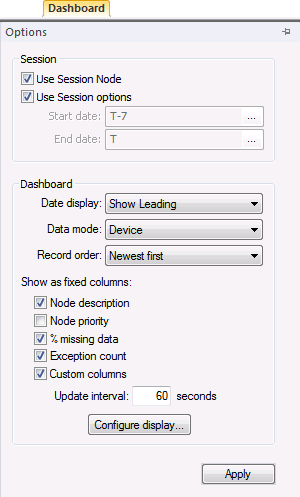
Dashboard control options are as follows.
| Session |
|
Use Session Node
|
Click the check box to select/clear the option to Use Session Node instead of using the chooser.
Notes:
The Use Session Node check box is selected by default for Data controls (Alarm, Configuration, History Graph, History Grid, and Raw Data).
The Use Session Node check box is cleared by default for Summary controls (Dashboard, Exceptions), Reports controls, and Admin controls (Balance, Jobs; not applicable to Close Period, PPA).
|
|
Use Session options
|
Click the check box to select/clear the option to Use Session options instead of entering a time window and time format.
Notes:
The Use Session options check box is selected by default for Data controls (Alarm, Configuration, History Graph, History Grid, and Raw Data).
The Use Session options check box is cleared by default for Summary controls (Dashboard, Exceptions), Reports controls, and Admin controls (PPA, Balance, Jobs; not applicable to Close Period).
|
|
Start date
|
Date selections are in Contract days (C).
Select the starting date, unless Use Session options is selected. Type the date into the text box or click ... to Select Date.
See Selecting Date and Time for more information.
|
|
End date
|
Date selections are in Contract days (C).
Select the ending date, unless Use Session options is selected. Type the date into the text box or click ... to Select Date.
See Selecting Date and Time for more information.
|
| Dashboard |
|
Date display
|
Click to select a date display convention from the drop-down menu.
Options are as follows.
- Show Leading - time shown on the column header indicates the leading or beginning time of the increment
- Show Trailing - time shown on the column header indicates the trailing or ending time of the increment
|
|
Data mode
|
Click to access the drop-down menu to select a data mode in which to view summary data.
Options are as follows.
In Station mode, only station-level data records are shown. In Device mode, only device-level data records are shown.
|
|
Record order
|
Click to access the drop-down menu to select the order in which to view summary data records.
Options are as follows.
- Oldest first
- Newest first
Default value is Oldest first.
|
|
Show as fixed columns
|
Note: The Custom column option appears in Device data mode only.
Click the check box(es) in the column list to select/clear the fixed column(s) to display.
Options are as follows.
- Node description
- Node priority
- % missing data*
- Exception count
- Custom columns
*Note: The "% missing" column value is most meaningful for the consistent spans of Periodic data collection. Due to the intermittent nature of Batch and Ticket data collection, their % missing values (viewed as daily spans) are more approximate.
|
|
Update interval
|
This field becomes available when Custom columns is selected.
Type in the desired update interval, in number of seconds, for the custom data columns. The value you set will persist.
Minimum value is 10 seconds.
Maximum value is 86,400 seconds (daily).
(Initial default value is 60 seconds.)
|
|
Configure display
|
Click Configure display to access the Display Properties dialog box to configure how your data is displayed on the grid, including customized colors and cell values.
See Configuring Dashboard Display Properties for more information.
|
|
Apply
|
Click to Apply the changes made through the Options pane.
Note: When you click Apply on the Options pane, any Node selections (singular or multiple) that have been made but not applied on the Chooser pane will also be applied.
|
Columns
The Dashboard control grid contains fixed data columns, and navigable data columns.
Columns can be reorganized for the most efficient viewing of data in the following ways.
- On the Options pane, select fixed columns to be displayed. In Device data mode, this can optionally include custom columns.
- Hover over a fixed column edge to display an icon to reset column width. Drag the column to the desired width.
- Click on any fixed data column header to sort the display (in ascending or descending order) based on the values in the selected property column.
- Click on any navigable data column header to sort the display (in ascending or descending order) based on the values in the Node Name property column.
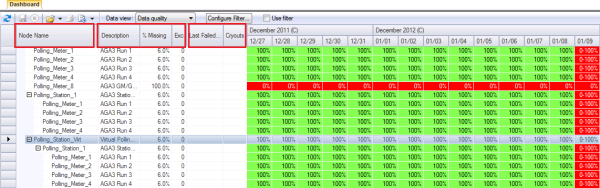
In Station data mode, the fixed columns include the permanently fixed Node Name column (first red box on the illustration) and optionally several selected fixed columns (second red box on the illustration), which make up the fixed portion of the data grid. Optional fixed columns are selected on the Options pane, and can include Node description, Node priority, % missing data, and/or Exception count.
In Device data mode, you may additionally opt to show a group of custom columns containing selected device data (third red box on the illustration) in the fixed portion of the data grid. Custom columns are configured on the Admin menu. See Configuring Custom Dashboard Columns for more information about this option.
Data columns (color shaded cells on the illustration) are located to the right of the fixed columns. Data for the selected data view is displayed on a daily basis. Scroll through the data columns to focus on desired date/time ranges for the displayed records.
Optional Fixed Columns
Optional fixed data columns can be selected on the Options pane and include the following.
Notes:
The Node Name column displays the name of the Node for the displayed record, and is fixed. You do not have the option to hide the Node name column.
If the facility cannot be resolved, will be displayed in the cell.
|
Node description
|
Click the check box to display/hide a Description column containing the description(s) of the selected Node(s).
|
|
Node priority
|
Click the check box to display/hide a Priority column containing the sorting priority of the selected Node(s).
The sort priority number assigned to a Node places it within a manually sortable list of Nodes, to help sort your data. Higher numbers place a Node higher up on a list.
Default value is 0.
|
|
% missing data
|
Click the check box to display/hide a % Missing column containing the percentage of missing data in the selected Node data row(s).
Note: Record time periods occurring prior to the device installation date are indicated by PTI in the grid, to distinguish them from "missing" data states.
"Missing data" means records with a collection status of anything other than Good, for valid device time periods. This includes cases where data is unavailable, the data request failed, data was not requested, the device was offline, or other cases for which device data could not be collected within the valid time window of the request. See Data Collection Status for more information.
Note: This column can be displayed even if Collection status is not the selected Data view.
|
|
Exception count
|
Click the check box to display/hide an Exc column containing the total number of exceptions for the selected Node.
|
|
Custom columns
|
Note: This option appears in Device data mode only.
Click the check box to display/hide a maximum of 10 optional custom columns, as configured on the Admin Options page.
See Configuring Custom Dashboard Columns for more information.
|
Note: The Dashboard control can display a maximum of 350 date/time columns. If you request data requiring a larger number of columns, the control will truncate the grid at the maximum column count. A status message will be displayed in the Status bar to notify you of this occurrence.
Managing Dashboard Data
Toolbar
Use the Dashboard control toolbar to access options to manage the data you are viewing. See Menus and Toolbars for more information.

The following options appear on the toolbar; unavailable buttons appear dimmed.
|

|
Click to Refresh the control view.
Note: The Refresh button will not take into account changes made through the Options pane that have been selected but not yet applied.
See Refresh Button for more information.
|
|

|
[The Save button is not available on this control.]
|
|

|
[The Cancel button is not available on this control.]
|
|

|
Click to Open and view the control as a .csv file, using the default setting: Show all visible records.
Click the down arrow to access view options available in the drop-down menu.
Options are as follows.
- Show all visible records - as currently displayed in the control
- Show only device records - see Device Data and Station Data in the CygNet Measurement Concepts topic for more information
|
|

|
[The Print button is not available on this control.]
|
|

|
Click to Export the contents of the control to a .csv file, using the default setting: Export all visible records.
Click the down arrow to access export options available in the drop-down menu.
Options are as follows.
- Export all visible records - as currently displayed in the control
- Export only device records - see Device Data and Station Data in the CygNet Measurement Concepts topic for more information
|
|
Data view
|
Click the Data view drop-down menu to select the type of data you would like displayed, and refresh the grid.
In Device data mode, options are as follows.
- Analyst overview
- Collection details
- Collection status
- Configuration poll
- Data quality *
- Edit state
- Linked exceptions (gas Nodes only)
- Open exceptions (gas Nodes only)
- Raw data export
* SeeNote.
In Station data mode, options are as follows.
- Analyst overview
- Data quality *
- Edit state
- Open exceptions
* See Note.
See Data Quality, Data Collection Status, Data Collection Details, Edit State, and Exceptions in the CygNet Measurement Concepts topic for more information about these options.
Data view options can also be accessed through the context menu.
|
|
Configure filter
|
Click the Configure filter button to access the Configure Dashboard Filter dialog box to specify data filter details to apply to the grid.
See Configuring Dashboard Filters for more information.
|
|
Use filter
|
Click the check box to select/clear the Use filter option to further filter your data view.
See Configuring Dashboard Filters for more information about filters.
|
Context Menu
Use the context menu to access options to set the Session Node, execute configured commands, view properties, and modify your data view.
Right-click on the grid display to access the following options.
|
Set as Session Node
|
Click Set as Session Node to set the selected Node as the Session Node. Alternatively, press Ctrl+Shift+S to set the Session Node using a keyboard shortcut.
See Session Node and Using Keyboard Shortcuts for more information.
|
|
Execute FMS command
|
Click Execute FMS command to access a list of configured FMS commands, or a <Quick Command> option.
See Running Node Commands from the Dashboard Control for more information.
|
|
View Node properties
|
Click View Node properties to access the Properties dialog box to view properties for the selected Node.
See Viewing and Editing Node Properties for more information about viewing and editing Nodes.
|
|
View polling device
|
Click View polling device to access the FMS Polling Device dialog box, where you can view DDS data groups and Comm data bytes for the polling device linked to the selected device Node.
See Viewing SCADA Polling Device for more information.
|
|
View polling FAC
|
Click View polling FAC to view the Properties dialog box for the SCADA polling facility linked to the selected device Node.
This option is available only for device (gas meter, chromatograph, or liquid device) Nodes.
See Viewing and Editing SCADA Polling FAC for more information.
|
|
View reporting FAC
|
Click View reporting FAC to view the Properties dialog box for the SCADA reporting facility linked to the selected station Node.
This option is available only for station group and station meter (a Gas Meter Node set to also function as a station) Nodes.
See Viewing and Editing SCADA Reporting FAC for more information.
|
|
View record summary
|
Note: The record summary view applies to device and station Node records containing discrete data; it does not apply to Node records containing rolled-up data.
Click View record summary to access the Record Summary table containing multiple raw summary records for the selected Node.
In Device data mode, records available to view in the Record Summary table include the following (when supported by the selected device).
- Begin date/time
- End date/time
- Data quality*
- Open exception count (gas Nodes only)
- Linked exception count (gas Nodes only)
- Device record count
- Edit state
- PM status - Periodic metering data collection status
- PQ status - Periodic quality data collection status
- Event status - Events data collection status
- Alarm status - Alarms data collection status
- Batch status - Batch collection status
- Ticket status - Ticket collection status
- Has config record - True/False value indicating whether or not configuration data has been collected for the record span
* See Note.
In Station data mode, records available to view in the Record Summary table include the following.
- Begin date/time
- End date/time
- Data quality*
- Open exception count
- Gas station record count
- Edit state
* See Note.
See Data Quality, Data Collection Status, Edit State, and Exceptions in the CygNet Measurement Concepts topic for more information about these record values.
|
|
Data view
|
Click Data view to select the type of data you would like to view, and then refresh the grid.
Note: Data view options can also be accessed through the control toolbar.
In Device data mode, data view options are as follows.
- Analyst overview
- Collection details
- Collection status
- Configuration poll
- Data quality *
- Edit state
- Linked exceptions (gas Nodes only)
- Open exceptions (gas Nodes only)
- Raw data export
In Station data mode, data view options are as follows.
- Analyst overview
- Data quality *
- Edit state
- Open exceptions
* See Note below this table.
See Data Quality, Data Collection Status, Data Collection Details, Edit State, and Exceptions in the CygNet Measurement Concepts topic for more information about these options.
|
|
Refresh
|
Click to Refresh the grid display.
See Refresh Button for more information about Refresh functionality.
The Refresh action can also be accessed through the control toolbar.
|
Note: When the Data view is set to Data quality, the result is shown as either a single percentage or as a range of percentages. The single percentage appears for days where the data quality is the same for the entire 24 hour window. The range appears for days where the data quality varies within the 24 hour window, and is expressed as range L-H%, where L is the lowest and H is the highest data quality in the range.
Running Node Commands from the Dashboard Control
Existing Node commands or a <Quick Command> can be run directly from the Dashboard control data grid, for a selected Node.
To Run a Node Command from the Dashboard Control
- In the Dashboard control, right-click on the Node Name against which you want to run a command to access the context menu.
- On the context menu, click Execute FMS command to access a list of available FMS commands.
- Continue from step 3 of Running a Node Command for either configured commands or a <Quick Command>.
More:
 Using the Analyst Overview
Configuring Dashboard Display Properties
Configuring Dashboard Filters

