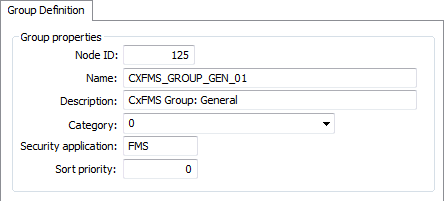
The Group Properties dialog box displays properties for existing FMS General Group Nodes. Use this feature to view and edit General Group Node properties. This dialog box corresponds to the General Group Node properties viewable from any of the following locations.
The following subsections list and describe the fields found on the Group Properties pages.
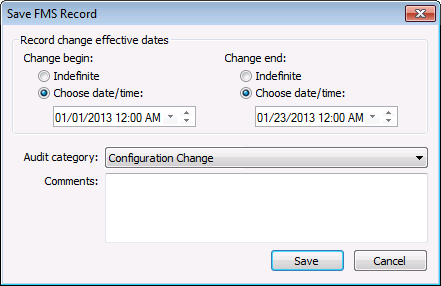
When any edits are made, access the Save FMS Record dialog box to save a record of the change.
See Creating General Group Nodes for more information about creating new Nodes in your system.
| Property | Description |
|---|---|
|
Node ID |
The system-assigned Node ID for the group. When creating new groups this will indicate NEW. |
|
Name |
Type in the name for the new group. The name must be a unique Node identifier system-wide. Valid characters (maximum of 20) are as follows. A-Z, a-z, 0-9, . (period), #, $, &, (, ), +, -, \, /, :, <, >, =, @, [, ], ^, {, }, _ (underscore), !, ~ (tilde). Spaces are acceptable, when they are not leading or trailing. This parameter is required. |
|
Description |
Type in a free-form description for the group. This parameter is optional. |
|
Category |
This property enables you to assign an existing category to the group, or to assign a new one. The category places the group within a manually sortable list of groups. When using CygNet Dispatch, the category property allows groups to be filtered for use with the Dispatch feature set. This parameter is required when using CygNet Dispatch; otherwise it is optional. See CygNet Dispatch for more information. |
|
Security application |
Enter the security application used to validate users of the group. Use this setting to control user access, for example, to only give certain users access to particular groups. See FMS Security for more information. This parameter is optional. |
|
Sort priority |
Type in the Sort priority number to assign to the group Node. The priority number assigned places it within a manually sortable list. Higher numbers place a Node higher up on a list. Default value is 0. This parameter is optional. |
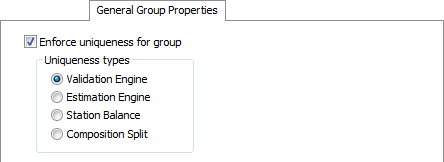
Uniqueness properties can be viewed but not edited; they are read-only after group creation.
| Property | Description |
|---|---|
|
Enforce uniqueness for group |
If used, all groups of the same Uniqueness Type (see entry below) must also have unique members. |
|
Uniqueness types |
If Enforce uniqueness for group is selected, the uniqueness type will be one of the following.
|
| Property | Description |
|---|---|
|
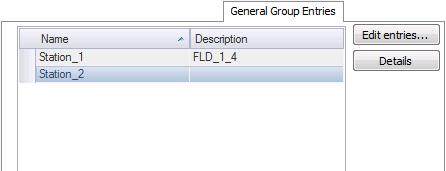
Name |
Lists the Nodes in this general group |
|
Description |
Lists descriptions of the Nodes in this general group |
|
Edit entries |
Click Edit entries to access the Add Nodes to Group dialog box |
|
Details |
Click to select a Node name, and then click Details to access the Record Details dialog box |
| Property | Description |
|---|---|
|
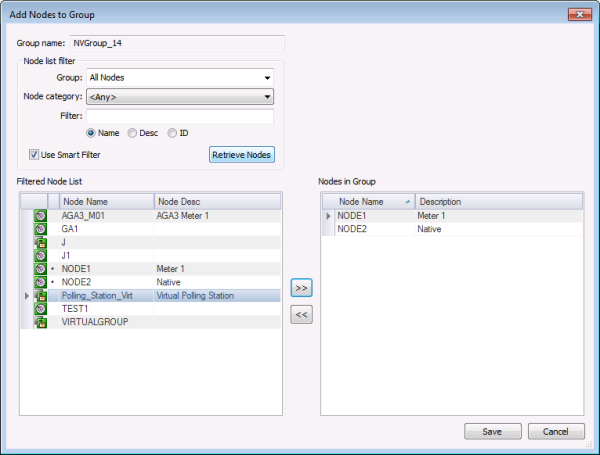
Group name |
Displays the name of the group to which you are adding Nodes. |
| Node list filter | |
|
Group |
Click to select the Group filter from the drop-down menu. Options are as follows.
Default value is All Nodes. |
|
Node category |
Click to select the Node category filter from the drop-down menu. Options are as follows.
Default value is <Any>. |
|
Filter |
Type a filter into the text box, and click the filter type desired. Options are as follows.
Defaults are * (multiple character wildcard) and Name. |
|
Use Smart Filter |
Note: This option is not available when using Point in Time mode. Click the check box to select/clear the use of smart filters to filter Node results. Selection of this option will attempt to display only the Nodes available to be added to the group. Note: Be aware that this option may not always be entirely accurate, due to the complexities of the historization feature. |
|
Retrieve Nodes |
Click to apply the filters selected for Group, Node category, and Filter, and view the results in the Filtered Node List. |
|
Filtered Node List |
Lists the filtered Node results, including the following, for each Node listed
|
|
Node Name |
Lists the Node names that meet the defined filter criteria |
|
Node Desc |
Lists the descriptions of the Nodes that meet the defined filter criteria |
| Nodes in Group | |
|
Node Name |
Lists the Nodes which have been selected to be in the group |
|
Description |
Lists the Node description |
|
>> |
Click >> to move selected Nodes from the Filtered Node List to the Nodes in Group list. |
|
<< |
Click << to move selected Nodes from the Nodes in Group list to the Filtered Node List. |
|
Save |
When all Nodes are selected, click Save to add the Nodes and return to the Group Entries dialog box. |
|
Cancel |
Click Cancel to close the dialog box without editing entries. |
Saved groups will appear in the General Group Entries page.
Each page of the General Group Properties dialog box contains a historization navigator. Use the historization navigator to access sequential historized records for the same Node, where applicable.
The following fields are displayed in the historization navigator.
| Field | Description |
|---|---|
|
<< |
Click << to navigate to the previous historized record, if applicable. |
|
[Begin date] |
Displays the effective begin date, in Contract time (C), of the historized record currently selected. |
|
[End date] |
Displays the effective end date, in Comntract time (C), of the historized record currently selected. |
|
>> |
Click >> to navigate to the next historized record, if applicable. |
|
Record details |
Use the << and >> navigation buttons to select a historized record date span, in Contract time (C), for which you want to view record details. Next, click Record details to view details of the record such as who made the change, the date and time it was made, and optionally the audit category and/or any comments entered regarding the change. See Viewing Record Details for more information. |
|
Audit history |
Click Audit history to view detailed history of audit trail value changes for the Node in its entirety. See Viewing Audit History for more information. |
When editing any Node properties, you'll be asked to save your changes via the Save FMS Record dialog box. Configure the date and audit information requested to historize the changes in your system.
| Property | Description |
|---|---|
|
Change begin |
Set the effective date and time for the record change to begin. Options are as follows.
|
|
Change end |
Set the effective date and time for the record change to end. Options are as follows.
|
|
Audit category |
Select an appropriate Audit category from the drop-down menu. The audit category type for this kind of edit is Configuration Change. Audit categories are configured on the Admin menu. See Configuring Audit Categories for more information. |
|
Comments |
Type Comments regarding creation or modification of the rule or Node in the text box. Although comments are optional, they become part of the record and can be helpful when auditing or reviewing records. |