Catalog
The Catalog feature provides a method for you to create collections of screen elements. The Catalog window can be accessed by clicking the Catalog option on the View menu.
Creating and Using Catalogs
A Catalog provides a method for you to store frequently used objects or screen layouts. A Catalog can be stored in the BLOB File System or the standard file system. See this example for a suggested use for a catalog.
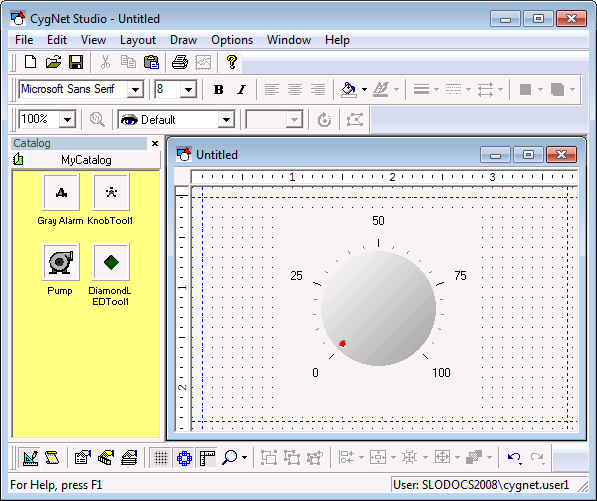
An object placed in a catalog retains all of its property values. So, when you add an item from the Catalog to TheView the property values are set. You can change the properties of the object on TheView.
To Create and Save a Catalog
- On the View menu, click Catalog (or press F6).
- Right-click in the Catalog window, then click Catalog, and then click Save As.
- Select a file system and browse to the location where you want the catalog saved.
- Enter a file name for the catalog. The file name is shown in the Catalog title bar.
- Click Save.
To Open a Catalog
- On the View menu, click Catalog (or press F6).
- Right-click in the Catalog window, then click Catalog, and then click Open.
- Browse to the storage folder, click the file name, and click Open.
To Add Objects to a Catalog
- Open the catalog to which you want to add the object.
- Click to select the object or objects on TheView.
- On the Edit menu, click Copy.
- Right-click in the Catalog window and click Paste.
To Delete an Object from a Catalog
- Open the catalog from which you want to delete the object.
- Click to select the object.
- Right-click in the Catalog window and click Remove.
To Add an Object to TheView from a Catalog
- Click and drag the object from the Catalog to TheView.


