 , then click on TheView.
Note: Configuration settings may be made in Run mode for this tool. However, such settings typically do not persist beyond the active runtime session. Once you close the CygNet Studio screen on which the tool resides, the tool's settings may revert to those originally configured in Edit mode.
The following procedure describes a basic workflow for configuring a CygNet Dynagraph Control. The specific appearance and functionality of the CygNet Dynagraph Control you create depends on your needs and implementation of the tool's properties.
To configure your CygNet Dynagraph Control, you must at least associate the control with a relevant UIS and facility ID. Although more than one way to do this exists, a straightforward way is to use the (OCXProperties) option on the control's Property Sheet. The (OCXProperties) property opens the CygNet Dynagraph Control Properties dialog box, which includes two pages: General and Options. Optionally, you can make configuration changes directly in the Property Sheet or by using script.
For a useful example of a CygNet Dynagraph Control implemented in a pre-designed screen, open DYNAGRAPH.csf in the APPS SCREXAMP folder.
To Configure the CygNet Dynagraph Control
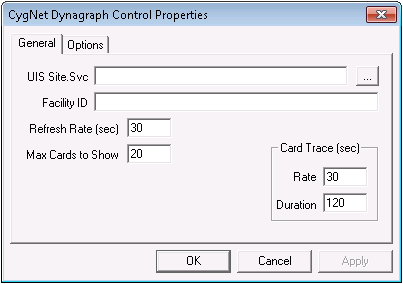
, then click on TheView.The General page enables you to associate the control with a data source as well as defining other settings, like the control's Refresh Rate.
|
| Example General Page |
The following tables lists and describes options on the General page.
| Option | Description |
|---|---|
|
UIS Site.Svc |
Enter the relevant UIS Site.Service combination from which to retrieve dynagraph data. |
|
Facility ID |
Type the ID of the relevant facility here. This facility is typically that of the dynagraph-enabled remote device from which you want to collect dynagraph data. |
|
Refresh Rate (sec) |
The rate (in seconds) by which to automatically refresh the displayed card(s). |
|
Max Cards to Show |
The maximum number of cards that can be displayed on a control. Option must be an integer from 5 to 50. If you exceed the user-defined maximum, existing card(s) are removed from the control to accommodate the new card(s). |
|
Card Trace (sec) |
The card trace option enables you to configure the control to poll current cards at the specified interval for a specified duration. This is useful for closely monitoring a well for a short period of time. To activate the card trace, right-click the control in Run mode, select Card Trace, then select Start Trace. The trace automatically stops once the duration expires. Polled cards overlay one another and entries for each display in the card key. Transactions are retained in the transaction log of the relevant remote device in the Device Definition Service (DDS). |

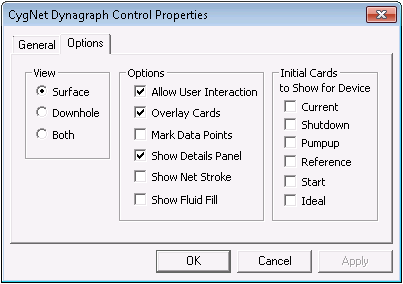
The Options page enables you to define the control's View type as well as other settings, like which card(s) to show at session startup.
|
| Example Options Page |
The following tables lists and describes options on the Options page.
| Option | Description |
|---|---|
| View | |
|
Surface |
Limits the card view to only surface card(s). |
|
Downhole |
Limits the card view to only downhole card(s). |
|
Both |
Enables you to view both surface and downhole cards. Intuitively, the surface card displays above the downhole card. |
| Options | |
|
Allow User Interaction |
Check to allow users to use the context menu and adjust graph settings, like POC and MAL. Otherwise, they can only view the displayed card(s). |
|
Overlay Cards |
Check to overlay cards on top of one another. This enables you to compare different rod pump cycles from the same card type at once. Otherwise, only one selected card can be viewed at a time. Click the desired card key entry on the right side of the screen to bring one card to the foreground over the other(s). |
|
Mark Data Points |
Check to display load-pair points along the pump-cycle line. Marked points display at regular intervals and are specific to the device configuration. You can roll-over each point for coordinates. You can also click each point to open a dialog box with relevant details for that load pair. |
|
Show Details Panel |
Check to display a table of rod pump details on the left of the control. For a list of relevant UDCs required to fully configure this feature, see Details Panel UDCs below. |
|
Show Net Stroke |
Check to show a vertical white line that marks a calculated net stroke on a downhole card. You can drag the line along the x-axis to change net stroke data. Moving the line does not affect field device configuration; it is for visual display purposes only. When you move the mouse over the line, a tooltip appears with the net stroke value at the given position. The displayed net stroke value is calculated using the following formula:
Pump speed is retrieved from the card if available or from the details panel. The pump speed UDC is WPCSPEED00. The pump coefficient is found in the "Well Configuration" data group. It must be mapped to a UDC and a point must be created for it. The pump coefficient UDC is WLPUMPCO00. Its Point Type in the PNT is analog input. |
|
Show Fluid Fill |
Check to display a horizontal white line on a surface card that marks the fluid fill as well as the point at which fluid fill begins to occur. This option is not available for all remote device types. |
| Initial Cards to Show for Device | |
|
Current |
Check to display available current card(s) at startup of the dynagraph screen. If other cards are also selected to show initially, the cards overlay. Additional cards can be added in Run mode. |
|
Reference |
Check to display available reference card(s) at startup of the dynagraph screen. If other cards are also selected to show initially, the cards overlay. Additional cards can be added in Run mode. |
| Start |
Check to display available start card(s) at startup of the dynagraph screen. If other cards are also selected to show initially, the cards overlay. Additional cards can be added in Run mode. |
|
Alarm |
Check to display available alarm card(s) at startup of the dynagraph screen. If other cards are also selected to show initially, the cards overlay. Additional cards can be added in Run mode. |
|
Shutdown |
Check to display available shutdown card(s) at startup of the dynagraph screen. If other cards are also selected to show initially, the cards overlay. Additional cards can be added in Run mode. |
|
Pumpup |
Check to display available pumpup card(s) at startup of the dynagraph screen. If other cards are also selected to show initially, the cards overlay. Additional cards can be added in Run mode. |
|
Ideal |
Check to display available ideal card(s) at startup of the dynagraph screen. If other cards are also selected to show initially, the cards overlay. Additional cards can be added in Run mode. |
|
Failure |
Check to display available failure card(s) at startup of the dynagraph screen. If other cards are also selected to show initially, the cards overlay. Additional cards can be added in Run mode. |
In order for the Details Panel to display available status data details, relevant UDCs must be mapped for the associated remote device. Be sure to first map the UDC for the relevant data group for the correct remote device in the Device Definition Service (DDS), then create points for each required UDC in the Point Service (PNT).
Important: The information in the table below varies based on remote device type and field device configuration. If a data group element in the DDS is unavailable for UDC mapping, data for that element cannot be displayed in the relevant CygNet Dynagraph Control. Also, additional UDCs might apply.
| Detail | Data Group | Data Group Element | UDC | Point Type |
|---|---|---|---|---|
|
% Runtime |
Status Data |
PrtmCur |
WPCPRT00 |
Analog Input |
|
Comm Status |
System Information UDC |
N/A |
SYCSSTAT |
String Input |
|
Downtime |
Program Data |
DowntimeT |
TDDOWNT |
String Input |
|
Prime Mvr |
Well Configuration |
PrimeMover |
WLPMVR00 |
String Input |
|
Pump Unit |
Well Configuration |
PumpUnit |
WLPMPUNT00 |
String Input |
|
Pump Speed |
Status Data |
PumpSpeed |
WPCSPEED00 |
Analog Input |
|
Rod Type |
Well Configuration |
RodType |
WLRODTYP00 |
String Input |
|
Stabilize |
Program Data |
StabilizeT |
TDSTABT |
String Input |
|
Time in State |
Status Data |
StateTimeT |
TDSTATET |
String Input |
|
Vol Yest |
Status Data |
IPYest |
VOY |
Analog Input |
|
Well State |
Status Data |
WStateText |
SWELLT |
String Input |
|
|
|

