Note: Configuration settings may be made in Run mode for this tool. However, such settings typically do not persist beyond the active runtime session. Once you close the CygNet Studio screen on which the tool resides, the tool's settings may revert to those originally configured in Edit mode.
The CygNet Dynagraph Control has several Run mode options that are accessed in various ways. You can use the context menu, Pump-Off Configuration dialog box, or double-click any load-position pair point on the slope or double-click the relevant entry in the card key to open card details for the displayed rod pump cycle.
See the following subsections for more information:
For information about configuration options not listed here, see Configuring the CygNet Dynagraph Control.
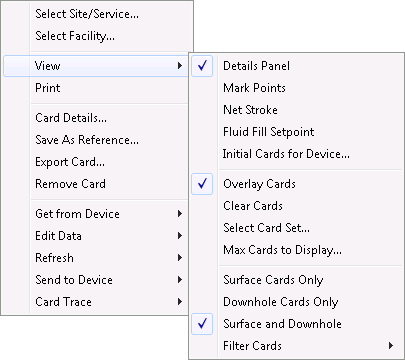
To access most Run mode options, right-click a dynagraph control's grid in Run mode to open its context menu. Then make settings adjustments as appropriate.
|
|
| Sample CygNet Dynagraph Control Context Menu |
The following table lists and describes options available in Run mode for the CygNet Dynagraph Control.
For more information about the following options, see Configuring the CygNet Dynagraph Control.
| Option | Description |
|---|---|
|
Select Site/Service |
Click to select the relevant Site.UIS combination from which to retrieve dynagraph data. |
|
Select Facility |
Click to select the relevant facility from which to retrieve dynagraph data. Doing so opens the Choose Pump-Off Control Facility dialog box, which displays all dynagraph-enabled device facilities for the selected Site.UIS combination. |
|
View |
The View option includes the following options:
|
|
|
Enables you to print the selected card(s). |
|
Card Details |
Opens the Dynagraph Card Details dialog box where you can view data relevant to the currently selected card, including load position pairs. This data derives from the relevant remote device in the Device Definition Service (DDS). |
|
Save As Reference |
Opens the Save as Reference Card dialog box where you can specify a description of the currently selected card and save it for future reference. Once saved, the card can be accessed by means of the Choose Cards to View dialog box. |
|
Export Card |
Opens the Export "Dynagraph Card n" dialog box where you can select one of three export file formats by which to export the currently selected card. The file format previews in the File Format Description field. |
|
Remove Card |
Removes the currently selected card from the available set. (The currently selected card is visually represented by the thickest slope on the grid or on the card key.Click on a slope to select it.) |
|
The Get from Device option includes the following options:
|
|
|
The Edit Data option includes the following options:
|
|
|
Refresh |
The Refresh option includes the following options:
|
|
Send to Device |
The Send to Device option includes the following options:
|
|
Card Trace |
The Card Trace option includes the following options:
|

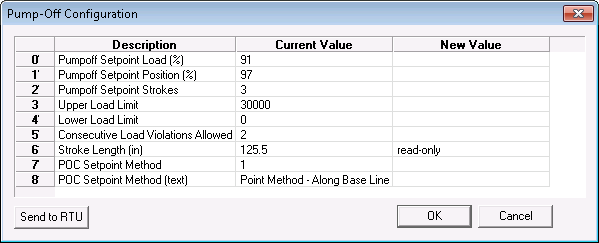
To Edit the Pump-Off Configuration
Dynagraph cards and their slopes are identified in various ways. Cards are displayed by abbreviation and slope color in the card key to the right or bottom of cards. Uniform slope colors represent device-specific well states, which are mapped to the device driver.
The following table lists and describes all alphabetical card abbreviations.
|
C |
Current Card |
|
S |
Shutdown Card |
|
P |
Pump-up Card |
|
R |
Reference Card |
|
T |
Start Card |
| I | Ideal Card |
Numbers are added to these letters when appropriate. Numbers next to current cards and shutdown cards relate to the number of these cards requested in one command. If only one card is requested, a 1 is appended to the identifying letter. If a card is part of a requested set, a card is identified by its number relative to the number of cards in the set (for instance 1/5).
An "*" next to a card key entry indicates that there are no data points for that card.
The following tables lists and describes all available slope colors.
| Category | Color | |
|---|---|---|
| Alarm |

|
Red |
| Alert |

|
Yellow |
| Pump-up |

|
Green |
| Normal |

|
White |
| Pump-off |

|
Turquoise |
| Control other than RTU |

|
Magenta |
| Runtime violation |

|
Blue |
| Unable to determine |

|
Gray |
|
|
|

