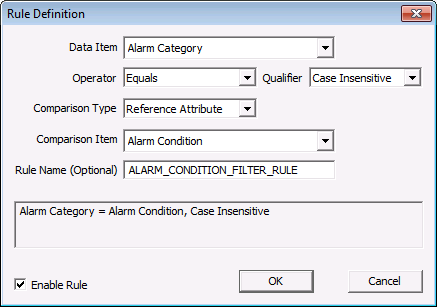
Click Add on the Filter dialog box to access the Rule Definition dialog box. You can also double-click on an existing rule to open the Rule Definition dialog box.
Use the Rule Definition dialog box to create a filter logic rule to assist in grouping items together, comparing items against each other, or any combination of filter logic to assist with filtering the selected data.
The properties on the Rule Definition dialog box are described below.
| Parameter | Description |
|---|---|
|
Data Item |
Select a reference Attribute (any Attribute may be used to create the first variable for the filter rule to use). See Filter Attributes for a complete list. |
|
Operator |
Select a filter operator to use in the equation that will assist users to build a complete statement for the filter rule logic. Filter options include:
|
|
Qualifier |
Select a Qualifier value that the definition is expecting to read from the Data Item. Qualifier options include: Case Insensitive, Case Sensitive, Integer, Real Number, Timestamp. |
|
Comparison Type |
Select the filters-by option:
|
|
Comparison Item |
|
|
Rule Name (Optional) |
Enter an optional name of the filter rule. This can be used to easily identify template or default rules. Note: Some implementations of filter rules in CygNet Software do not allow the naming of child rules. Only the root compound rule may be named. |
|
Text Box |
Displays a visual reference of how the filter rule will be displayed in a multi-line textual string. |
|
Enable Rule |
Click to enable the selected rule. |

|
|
|

