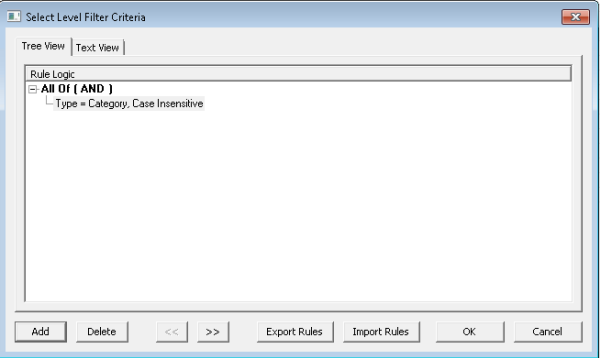
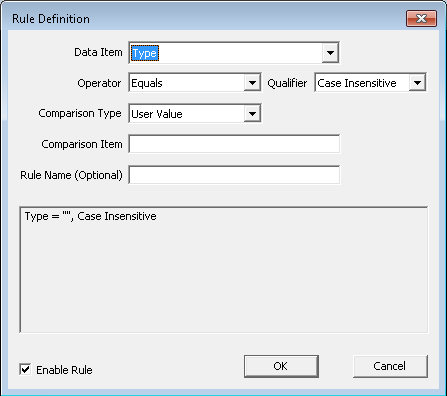
Note: To list Group Navigation Bar Custom Attributes, select Reference Attribute as the Comparison Type, then view the Comparison Item field.
The first step in configuring the drop-down levels is to use the Auto Configure Max Levels per View check box on the General page to indicate whether the levels will be auto-configured or you will manually configure them.
To manually configure the levels, clear the Auto Configure Max Levels per View check box.
To auto-configure the levels, select the Auto Configure Max Levels per View check box. When levels are auto-configured:
This topic describes how to manually configure drop-down levels for the Group Navigation Bar tool. It includes the following sections:
You use the Levels page in the CygNet Group Navigation Bar Control Properties dialog box to manually configure drop-down levels.
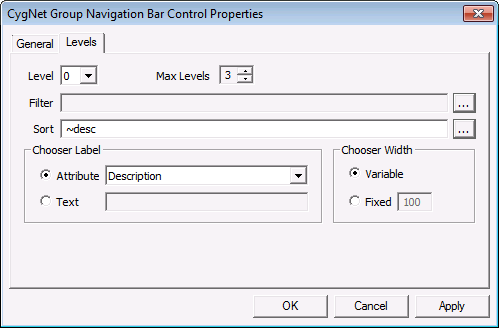
The following table describes the Levels page properties:
| Property | Description |
|---|---|
|
Level |
Identifies the drop-down level being configured. |
|
Max Levels |
Specifies the total number of drop-down levels in the tool. The default is 3. |
|
Filter |
Defines the filter criteria for the drop-down level. For more information about filters, see Filtering and Sorting a Drop-Down, below. |
|
Sort |
Defines the sorting criteria for the drop-down level. For more information, see Filtering and Sorting a Drop-Down, below |
|
Chooser Label |
Defines a label for the drop-down level.
|
|
Width |
Specifies the width (in pixels) of the drop-down level.
|
To manually configure a drop-down level, apply one or more filters and define the sort criteria.
Note: Filter and Sort Criteria are Group Service attributes, not Facility Service Attributes.
Although some Group Service node attributes are based on Facility Service attributes, be sure to define the filter or sort with Group Service node attributes in mind.
The following table lists the Group Service node attributes that are based on Facility Service attributes:
|
Group Service Node Attribute |
Facility Service Attribute |
|---|---|
|
Attribute0 (~attr0) |
Facility ID |
|
Attribute1 (~attr1) |
Facility Type |
|
Attribute2 (~attr2) |
Custom use. No mapping. |
|
Attribute3 (~attr3) |
Facility Description |
|
Attribute4 (~attr4) |
Facility Text Attribute 0 |
|
Attribute5 (~attr5) |
Facility Text Attribute 1 |
|
Attribute6 (~attr6) |
Facility Info 0 (Facility Location) |
|
Attribute7 (~attr7) |
Facility Info 1 (Facility Contact) |
|
Attribute8 (~attr8) |
Custom use. No mapping. |
|
Attribute9 (~attr9) |
Custom use. No mapping. |
A drop-down level only includes facilities that meet the filter criteria.
When you define a filter, be sure to define it at the correct level.
For example, imagine that your navigation view included the attributes State, Route, and Type. If you wanted to filter the drop-down level to include only facilities that had an attribute value of “SWD,” the levels would be:
You would define the filter on Level 3.
To configure a filter
Note: To list Group Navigation Bar Custom Attributes, select Reference Attribute as the Comparison Type, then view the Comparison Item field.
By default, drop-down levels are sorted in alphabetical order by the Description attribute of the Group Node. You can change this default sort order as follows.
Note: When you define a sort order, be sure to define it at the correct level.
To configure a sort

|
|
|

