Text Tool
 The Text Tool can show static text, such as a label, or dynamic text, such as an attribute of a point, or a combination of static text with the point state. The Text Tool object’s [DisplayItem] property determines the item to be displayed. If this property is set to Text, the text listed in the Text property will be displayed. All other options in the [DisplayItem] property are point attributes. These attributes include point configuration attributes, point CVS record attributes, and facility attributes.
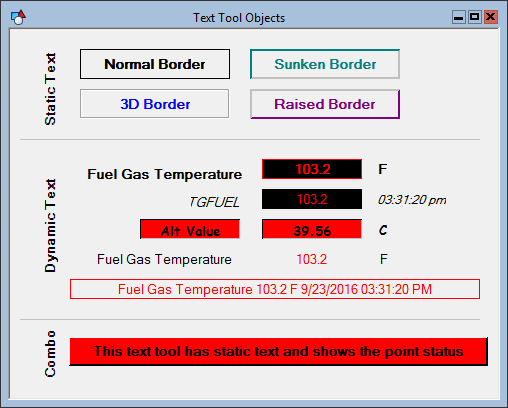
To associate the object with a point use the point identifier properties to form a fully qualified CygNet tag string. The point identifier properties are [1:SiteService], [2:Point ID], [3:Long Point ID], [4:Facility ID], and [5:UDC]. If the object is on a templated screen, only use the [5:UDC] property.
The Text property of a Text Tool object can contain both static and dynamic text. The dynamic portion of the string is built using tokens. The use of the Text property with tokens provides a method for you to include more than one dynamic item in a single Text Tool object. See Using Text Tokens for more information about tokens and formatting token strings.
The foreground (text) and background colors of the object are dependent upon the ForeColor, BackColor, [AlarmElement], [CustomStateColors], and [UseCustomStateColors] properties. The [AlarmElement] property can be set to show the point state color in the object’s Background Color, the Foreground Color, or not at all (None). When set to None, the color specified for each component is shown. If set to one of the other options, the component color is replaced with the point state color.
The [UseCustomStateColors] property enables the object to use its own custom point state colors. If set to 1 - Yes, the colors used are those defined by the object’s [CustomStateColors] property. If set to 0 - No, the colors are those defined by the TheView’s [CustomStateColors] property.
The Alignment property can be used to horizontally align the text left, right, or center and the VerticalAlignment property can be used to vertically align the text top or center.
A border can be added to the object using the BorderStyle property. If the BorderStyle is set to Normal, Sunken, or Raised, the width of the border can be set using the PenWidth property. If using the Sunken or Raised style, you may have to change the Hilite color to see the desired effect.
The format of the data being displayed can be changed using the [DisplayFormat] property. For example, if the point’s value is 12.385 and you want it to show 12.4, set the [DisplayFormat] property to 0.0. See [DisplayFormat] property for more information about format strings.
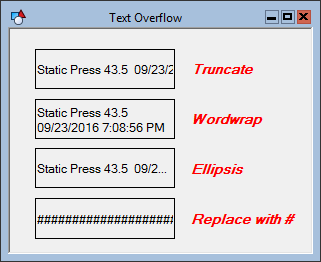
The TextOverflow property defines what happens to the text box when the text in Run mode exceeds the boundaries of the object. Note that regardless of the style, the boundary of the object does not resize.
More:
 Text Tool - Properties, Events, and Methods


