
A UIS Command Button can be configured to prompt a user for a value or a confirmation. The prompt is defined by the [CommandPrompt] property, which displays the Customize Prompt dialog box. When prompting for a value, you can also specify a default value for the prompt.
|
|
| Customize Prompt |
|
[CommandPrompt] Item |
Description |
|---|---|
|
Prompt Type |
|
|
Default Value |
When prompting for a value, this option provides a method for you to specify the value that shows up as the default in the prompt. See Selecting a Default Value below. |
|
Show Command Confirmation Message |
A command confirmation message is a pop-up that confirms that inter-service communication was successful. That is, that the command was successfully sent from the DDS to the UIS. It does not mean that the command was successfully sent to the device. |
The Confirm Command pop-up title, caption, text, font and colors can be customized by clicking Customize…. Set the desired text, fonts and colors, then click Preview to test the prompt.

|
| Command Confirmation Prompt Configuration |
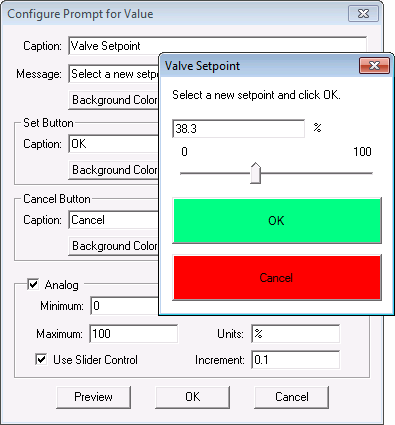
The Value Prompt pop-up title, caption, text, font and colors can be customized by clicking Customize…. When prompting for a value, you can limit data to a numerical entry by clicking the Analog option. Once this option is enabled, you must specify the valid data range using the Minimum and Maximum options. You can also limit the user entry by enabling the Use Slider Control option. The range of the slider is set by the Minimum and Maximum properties and the increment is specified by the Increment property. The Units are displayed next to the value box and is for display purposes only.
|
| Customized Prompt for Value |
If prompting for a value, be aware that the data type (integer, float, discrete, date, string) is dependent upon the command.
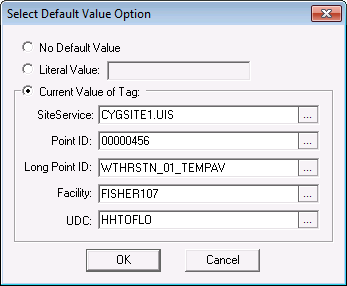
The Default Value can be a literal value (that is, a static value you specify) or it can be the current value of a point. If using a current value, you must use the point identifier properties to form a fully qualified tag string. If the command button is on a templated screen, use just the UDC to identify the point.
|
| Select Default Value Option |

|
|
|

