 ) around the perimeter of an object. When objects are connected via snap points, they can be moved to different locations without losing the connection.
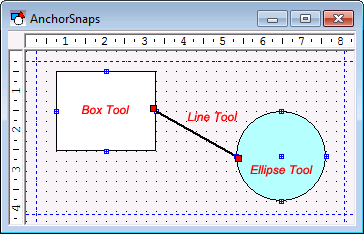
Many tools contain snap points which can be used for connecting other objects via the line tool. Snap points (or anchor snaps) appear by default as blue squares () around the perimeter of an object. When objects are connected via snap points, they can be moved to different locations without losing the connection.
|
| Anchor Snaps |
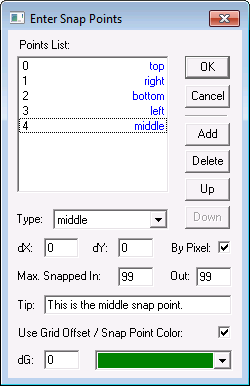
Object handles that are snapped are red. An object’s snap points can be configured using its AnchorSnaps property on the Normal page of the tool's property sheet. You can configure the locations of the object’s snap points using the Enter Snap Points dialog box.
|
| Snap Points for an Ellipse Tool |
|
Snap Points Property |
Description |
|---|---|
|
Points List |
The current snap points on the object. Select a specific snap click change its properties. Snap points are indexed by number, listed on the left. |
|
Type |
The location of the selected snap point. Choose from the list to change its location. Changes are reflected in the Points List. |
|
Add |
Adds a new snap. Default position is top left. |
|
Delete |
Deletes the selected snap point. |
|
Up/Down |
Moves the selected snap point up or down in the list. |
|
dX |
The offset of the selected snap point along the x-axis. A positive integer will offset the snap to the right while a negative integer will offset the snap click the left. |
|
dY |
The offset of the selected snap point along the y-axis. A positive integer will offset the snap to the bottom while a negative integer will offset the snap click the top. |
|
By Pixel |
When selected, the selected snap point will be offset by pixels, otherwise by percent. It is suggested that you offset by percent for objects that are sizable to ensure that the snap points remain in their appropriate positions. |
|
Max. Snapped In Max. Snapped Out |
The number of connections that can be made to or from the selected snap point. |
|
Tip |
The tooltip text for the snap point. |
|
Use Grid Offset/Snap Point Color |
Enables the dG and SnapPoint color fields (below). |
|
dG |
Integer offset of the connector to prevent overlapping. |
|
Snap Point Color |
Select the color of the selected snap point. |
| Method | Description |
|---|---|
|
GetPointX(Point As Long) As Long |
Returns the distance from the left edge of TheView of the given point. Points are indexed 0 to N-1, where N is the number of points on the connection path (see the NumberOfPoints method below). |
|
GetPointY(Point As Long) As Long |
Returns the distance from the top edge of TheView of the given point. Points are numbered 0 to N-1, where N is the number of points on the connection path (see the NumberOfPoints method below). |
|
NumberOfPoints() As Long |
Returns the number of points in the connection path. A point is considered to be a location at which the path changes direction, or an end point. |
|
SetPoint(Point As Long, X As Long, Y As Long) |
Sets the position of a point along the connection path. Point is the index of the point to set, numbered 0 to N-1. The values X and Y are the new left and top positions of the point. The method can be used when you want to create custom routes for connection paths. |

|
|
|

