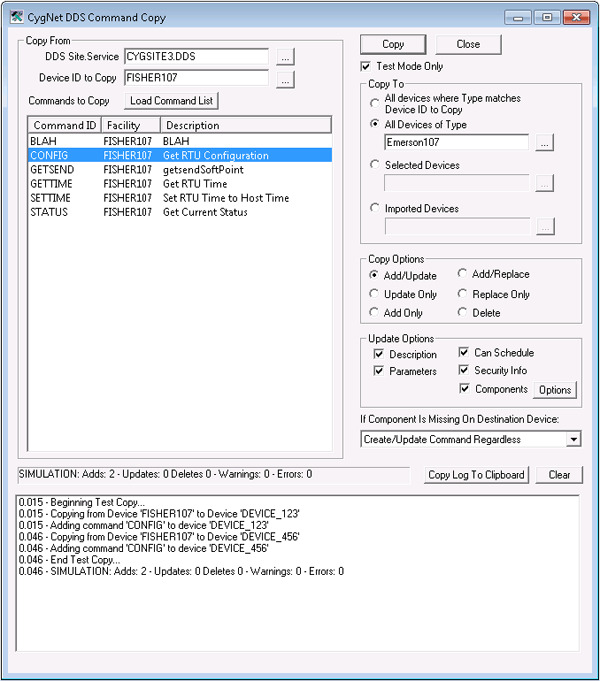
Use the CygNet DDS Command Copy utility (DdsCommandCopy.exe) to copy UIS commands from one remote device to other devices within the same Device Definition Service (DDS). You can make several different kinds of changes in a single copy action, including updating one or many commands within a single remote device, selected remote devices, or all remote devices of a certain type; deleting replaced commands; and updating command components in destination commands.
Best practice recommends that you first perform a copy in Test Mode Only. This produces a report at the bottom of the CygNet DDS Command Copy dialog box listing what changes would occur upon execution, and gives you the opportunity to make any necessary adjustments before proceeding.
The CygNet DDS Command Copy utility file (DdsCommandCopy.exe) is stored in the CygNet\Utilities directory on your host server.
Note: If you want to make similar changes to data groups, see CygNet DDS Data Group Copy Utility.
To install and launch (start) the application or utility using version management:
-OR-
Alternatively, browse to the CygNet\Utilities directory using Windows Explorer and double-click the program icon. You can also start an application or utility from a command line. These methods do not provide version management.
The CygNet DDS Command Copy dialog box appears.
|
|
| Sample CygNet DDS Command Copy Dialog Box |

Using the CygNet DDS Command Copy Utility involves deciding which UIS commands you want to copy to which remote device(s) and with what effects on the destination remote device(s).
Specifically, use the CygNet DDS Command Copy Utility to add, update, replace, and delete commands. The difference between updating a command and replacing a command is that with updating you can specify a subset of items to update within the command, whereas replacing the command is identical to deleting the command and adding it again.
When the Add/Update or Update Only options are selected in the Copy Options panel, the Update Options become available. You can select to update any or all of these items. If none of these items are selected, no changes are made to the command in the destination remote device.
To Copy Commands
Note: Best practice recommends copying commands in Test Mode Only first. Then, when you are ready to copy to a live remote device, copy to a single remote device and verify your results before copying to multiple remote devices.
Note: Best practice recommends selecting only one remote device for your first live copy.
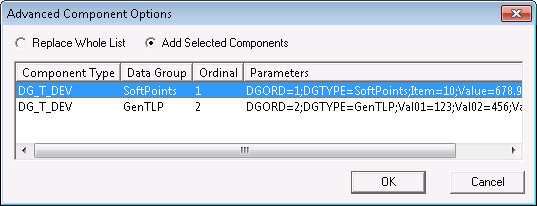
To Select Specific Command Components for Copy
The following table provides details about the properties of the CygNet DDS Command Copy dialog box.
| Property | Description |
|---|---|
| General | |
|
Copy |
Click to perform a copy of all selected commands within the Commands to Copy field. |
|
Close |
Click to close the CygNet DDS Command Copy dialog box. |
|
Test Mode Only |
Check to enable Test Mode. When running in Test Mode, the status bar towards the bottom of the dialog box identifies the action as SIMULATION. The numbers next to each operation are the elapsed processing time in seconds. |
|
Copy Log to Clipboard |
Click to copy a log to the clipboard for output to a text file of your choice. |
|
Clear |
Click to clear the copy log between copies. |
|
Three options are available when copying commands when a command component is missing on the destination device:
|
|
| Copy From | |
|
DDS Site.Service |
The site and DDS service from which you want to copy commands or some of their properties. |
|
Device ID to Copy |
The device ID of the remote device you want to use as your command source remote device. |
|
Commands to Copy |
This field lists all commands individually or by type for a specified device ID. Includes ordinal, description, and facility. |
|
Load Command List |
Click to display all commands individually or by type for a specified device ID. |
| Copy To | |
|
All devices where type matches device ID to copy |
All remote devices of the same remote device type as the source device. This is the most common option. |
|
All devices of type |
All remote devices of a designated type, but which are not the same as the source remote device type. Note: When copying commands from one remote device type to another, be sure that the destination device(s) support the copied commands. Copying from one type to another is usually only valid for remote device types from the same manufacturer or for user-configured remote devices, like Modbus remote devices. |
|
Selected devices |
A list of specific, individual remote devices. Multiple individual devices can be selected at once. Note: When copying commands from one remote device type to another, be sure that the destination device(s) support the copied commands. Copying from one type to another is usually only valid for remote device types from the same manufacturer or for user-configured remote devices, like Modbus remote devices. |
|
Imported devices |
|
| Copy Options | |
|
Add/Update |
If a source command is present in the destination device, update the command. Otherwise, add the command. Selecting this option enables Update Options. See If Component Is Missing on Destination Device for information on how command components are handled when missing on the destination device. |
|
Update Only |
If a source command is present in the destination device, update the command. Otherwise, do nothing. Selecting this option enables Update Options. See If Component Is Missing on Destination Device for information on how command components are handled when missing on the destination device. |
|
Add Only |
Add the source command to the destination remote device if it does not already exist. If it does exist, do nothing. |
|
Add/Replace |
If a source command is present in the destination remote device, replace the command with the source command. Otherwise, add the command. |
|
Replace Only |
If a source command is present in the destination remote device, replace the command with the source command. Otherwise, do nothing. |
|
Delete |
If a source command is present in the destination device, delete the command from the destination device. Otherwise, do nothing. |
| Update Options | |
|
Description |
Check to update the destination command description with the source command description. |
|
Parameters |
Check to update the destination command parameters with the source command parameters. |
|
Can Schedule |
Check to update the destination Can Schedule option with the source Can Schedule option. |
|
Security Info |
Check to update the destination command security settings with the source command security settings. |
|
Check to update the destination command components with the source command components. When selected, the Options button becomes available. |
|
|
Options |
When Components is selected, click Options to access selection of specific command components to update. Use this option to change or add components to the destination device. For more information, see To Select Specific Command Components for Copy. |
The following table provides details about common error and warning messages of the CygNet DDS Command Copy dialog box.
| Message | Description |
|---|---|
| Error Message | |
|
DDS has uninitialized facility ordinals. Run DDS Load to correct. |
This message is displayed if a destination remote device has facilities for which the ordinal is -1. See CygNet DDS Import/Export Utility. |
|
Advanced Component Options unavailable if more than one From command selected. |
Occurs when the Options button is pressed, but more than one command is selected. Select one command at a time to use advanced UDC options. |
| Log Error Message | |
|
You must have DDS Database administrator rights to run this program. |
This is a security issue. You must have administrator permission for the DDS ACCESS event to run this program. Contact your CygNet system administrator. |
|
|
|

