Use Balancing Redistribution to conditionally distribute a calculated forecast value for a group of meters based on whether the difference of two summed sets of meters is positive or negative. The two sets of meters represent a Sum of Receipts ( S Receipts ) and a Sum of Deliveries ( S Deliveries ). For example, this method of redistribution can assist you to make decisions about moving gas to and from storage as needed, or balancing gas receipts and deliveries across a pipeline.
For a Positive Value Distribution, if the S Receipts S Deliveries > 0 (is positive), the aggregated forecast value for a group of meters will be distributed to the configured set of child meters.
For a Negative Value Distribution, if the S Receipts S Deliveries < 0 (is negative), the aggregated forecast value for a group of meters will be distributed to a different configured set of child meters.
The distribution supports both a configured percentage assignment value (Fixed Quantity Assignment method) and a historical time offset forecast profile method (Balance from Historical Profile Assignment method). See Configuring Assignment From Parent for more information.
Note: See Configuring Expression Redistribution for information about Redistribution by expression.
To Configure Balancing Redistribution
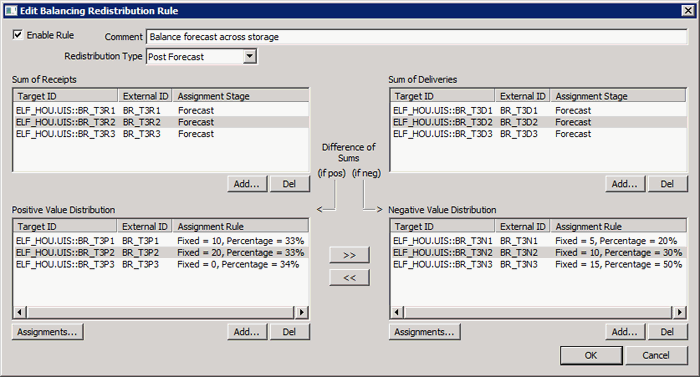
The properties and buttons on the Edit Balancing Redistribution Rule dialog box are described below.
| Parameter | Description |
|---|---|
|
Click to enable or disable the balancing redistribution rule. |
|
|
Type an optional description or reason for the balancing. Maximum length is 80 characters. |
|
|
Select the redistribution type to indicate when during the forecasting process to have redistribution occur. Options include:
|
|
|
Specifies the source meters in the Sum of Receipts group. Columns include the Target ID, External ID, and Assignment Stage for each meter.
Note: The Assignment Stage for the source meter(s) must match the Redistribution Type. |
|
|
Specifies the source meters in the Sum of Deliveries group. Columns include the Target ID, External ID, and Assignment Stage for each meter.
Note: The Assignment Stage for the source meter(s) must match the Redistribution Type. |
|
|
If the S Receipts S Deliveries > 0 (is positive), the aggregated forecast value will be distributed to this set of child meters. Columns include the Target ID, External ID, and Assignment Rule for each meter.
|
|
|
If the S Receipts S Deliveries < 0 (is negative), the aggregated forecast value will be distributed to this set of child meters. Columns include the Target ID, External ID, and Assignment Rule for each meter.
|
|
|
|
Click to move a destination meter from a positive distribution to a negative distribution, or from a negative distribution to a positive distribution. |
If the balancing redistribution rules are misconfigured in any way, validation errors will be displayed at the bottom of the dialog box. Errors must be resolved before OK is enabled.

|
|
|


