Energy Load Forecasting > Using CygNet ELF > CygNet ELF EIE Editor > Configuring System Settings > Configuring Data Filling Rules

Configuring Data Filling Rules

Before training occurs, the data that is designated as inputs to the training process must be filled if necessary. As each hour is imported into the system, filling rules are applied first, followed by validation rules.

Data filling settings must be associated with a particular Input Item Type (Ordinal or Categorical). If provided, the Input data filling parameters will be used to fill in the entry for an hourly interval when the hourly interval is missing from the import file. Missing hours will be filled with a placeholder with no value by the import process.

The import process detects missing hours by using the defined beginning and ending range in the import file. The adding of placeholder values during the import ensures a continuous stream of hourly data for the import data range. However, it is possible that training time ranges may specify a broader range for which there may be missing input data. Data filling will also occur for any additional missing hours that are specified in the training input ranges.

Values that are filled will be modified in the VHS. To indicate that the value was edited due to data filling, the ELF driver will flag a user bit on the stored entry for the hour. The particular Filled Value Bit is configurable on the System Settings page.

To Configure Data Filling Rules

This dialog box is accessible in two ways:

  1. Click the System Settings page of the ELF Editor.
  2. Configure the system properties as described in Configuring System Settings.
  3. Click Gas Load Settings.
  4. Click next to the Filling Rules text box to view the Data Filling Settings dialog box.
  5. Configure the rules using the properties described below.
  1. Click the Input Items page of the ELF Editor.
  2. Click Add Item or Edit Item to view the Add/Edit Input Data Item dialog box.
  3. Click next to the Filling Rules text box to view the Data Filling Settings dialog box.
  4. Configure the rules using the properties described below.
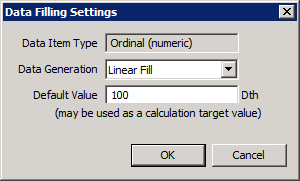
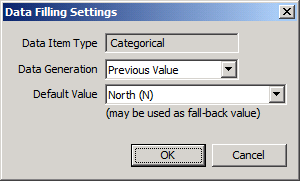
Data Filling Settings for Ordinal Data Item Type   Data Filling Settings forCategorical Data Item Type

Data Filling Settings for
Ordinal Data Item Type


Data Filling Settings for
Categorical Data Item Type

The properties on the Data Filling Settings dialog box are described below.

Field Name Description

Data Item Type

Data filling settings must be associated with a particular Data Item Type (Ordinal or Categorical).

Data Generation

For Ordinal data item types, the available data filling actions include the following:

Data Filling Action Description
No Action No value will be written to the VHS for the missing hour.
Default Value Provide a default value to be directly written to the VHS.

Previous Value

Write the value for the previous hour. If the previous value was filled, then that filled value will be used. This value may be used as fall-back value.
Linear Fill

Write a value to the VHS using a linear fill calculation method. This value may be used as a calculation target value.

Linear Fill will generate hourly values where there is a hole in data by linearly interpolating the gap between the points on either side of the hole. For example, there is a gap between the 9:00 a.m. (100) and 11:00 a.m. (300) in an import file. To fill a value for 10:00 a.m., the filling infers the value between 100 and 300, and writes 200.

If there is no value to be found before or after the hole in the data, and Linear Fill has been selected for data generation, the Default Value will be used to calculate the linear fill value. For example, an import file contains the following values:

Time Import Values Values Written to the VHS

7:00 a.m.

no value

no value

8:00 a.m.

no value

550

9:00 a.m.

100

100

10:00 a.m.

no value

550

11:00 a.m.

no value

no value

The engine will check the VHS to see if there is already a value prior to 8:00 a.m. If no value is found, the Default Value setting (1000) will be used as the previous value from which to linearly fill (although not written to the VHS). Since there is no previous value for 7:00 a.m. in the import file (and no value in the VHS for 7:00 a.m.), the Default Value of 1000 is used for the 7:00 a.m. value. The value written for 8:00 a.m. is linearly interpolated from 1000 to 100, so 550 is written.

The same thing happens for the next missing value. If a value is needed to fill a missing value at 10:00 a.m. and there is no value at 11:00 a.m. from which to interpolate, the Default Value will be used in the calculation for the interpolation, but not written out for 11:00 a.m.

Leave Blank An entry will be written to the VHS for the missing hour but the value of that entry will be empty.

For Categorical data item types, the available data filling actions include the following:

  • No Action — no value will be written to the VHS for the missing hour.
  • Default Value — provide a default value to be directly written to the VHS.
  • Previous Value (may be used as fall-back value) — assign the value for the previous hour. If the previous value was filled, then that filled value will be used.

Note: For any value that is filled, the Filled Value Bit will be set if configured on the System Settings page.

Default Value

Enter a Default Value.

Back to top

Let us know how we can improve this topic.

CygNet at weatherford.com

© 2020 Weatherford. All rights reserved.