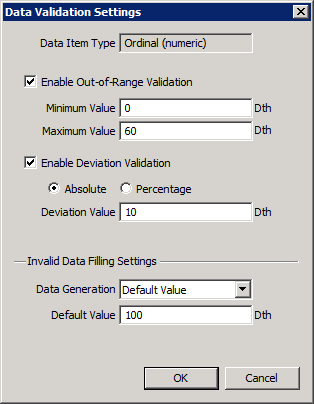
Before training occurs, the data that is designated as inputs to the training process must be validated. As each hour is imported into the system, filling rules are applied first, followed by validation rules.
Data validation settings must be associated with a particular Input Item Type (Ordinal or Categorical). If provided, the validation settings are used to check each input value. If a value does not comply with the validation settings, it will not be used for the corresponding hour interval. Instead, a value will be assigned for the hour based on the configured data filling settings.
To Configure Data Validation Rules
This dialog box is accessible in two ways:
|
|
The available data validation methods for Ordinal data item types are Out-of-Range Validation and Deviation Validation. These methods are not mutually exclusive, and if both are enabled then the failure of either method will cause the value to be rejected.
The properties on the Ordinal Data Validation Settings dialog box are described below.
| Parameter | Description | ||||||||||
|---|---|---|---|---|---|---|---|---|---|---|---|
|
Enable Out-of-Range Validation |
|
||||||||||
|
Enable Deviation Validation |
Click Enable Deviation Validation to configure the allowed deviation from the previous hour’s value in the import file. The deviation validation method can be specified as an absolute deviation value or a percentage deviation value.
|
||||||||||
|
Invalid Data Filling Settings |
If a value does not comply with the configured validation settings, it will not be used for the corresponding hourly interval. Instead, a value will be assigned for the hour based on the following data filling settings. |
||||||||||
|
Data Generation |
For Ordinal data item types, the available data filling actions are the following:
|
||||||||||
|
Default Value |
Enter a Default Value. |
||||||||||
|
OK |
The OK button will only become enabled when valid Out-of-Range (OOR) or Deviation values are configured. See the note to the left of the OK button for user assistance. |
For Categorical data item types, the possible values for each particular input type must be configured. A Categorical value must exist in the configured table, or else it will be rejected. This will be verified at the time when a categorical input is imported, so validation is not needed at this point.
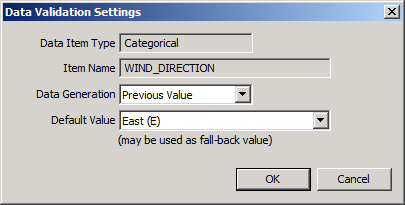
The properties on the Categorical Data Validation Settings dialog box are described below.
| Parameter | Description | ||||||||
|---|---|---|---|---|---|---|---|---|---|
|
Data Generation |
For Categorical input data items, the available validation actions are the following:
|
||||||||
|
Default Value |
Select a Default Value. |

|
|
|

