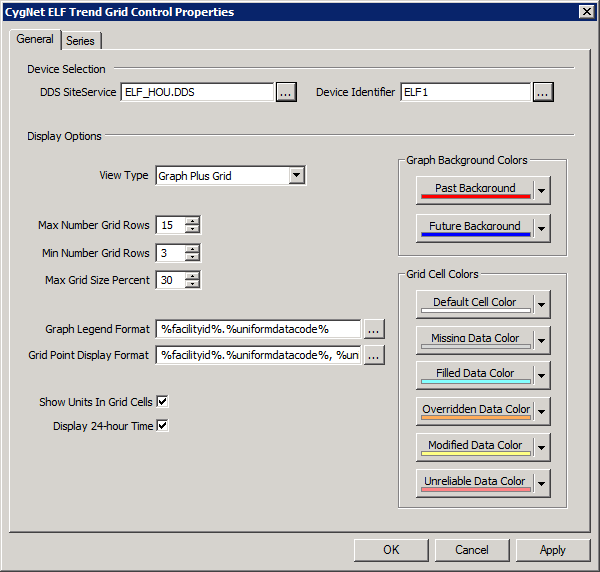
The General page contains the device selection and display options for the ELF Trend control.
| Parameter | Description |
|---|---|
|
DDS SiteService |
Specifies the DDS site and service from which to get the facility information to display in the tree (in “site.service” format). Click … to select a service. |
|
Device Identifier |
The device ID of the ELF device in the DDS. Click … to select an ELF device. |
| Parameter | Description |
|---|---|
|
View Type |
Specifies the type of view to display. Select Graph Only, Grid Only, or Graph Plus Grid. |
|
Max Number Grid Rows |
Specifies the maximum number of rows to display in the trend grid. The default is 15. |
|
Min Number Grid Rows |
Specifies the minimum number of rows to display in the trend grid. The default is 3. |
|
Max Grid Size Percent |
Specifies the maximum space allocated for the grid. The default is 30. |
|
Graph Legend Format |
Specifies the format of the graph legend using tokenized text. Click … to specify a Display Format. Select an item to display, including: Description, Long Point ID, Facility ID (FAC), Facility Description, UDC, UDC Description, and Units. The default is %facilityid%.%uniformdatacode%. See Using Text Tokens for general information about tokenized text. |
|
Grid Point Display Format |
Specifies the format of the grid legend using tokenized text. Click … to specify a Display Format. Select an item to display, including: Description, Long Point ID, Facility ID (FAC), Facility Description, UDC, UDC Description, and Units. The default is %facilityid%.%uniformdatacode%, %units%. See Using Text Tokens for general information about tokenized text. |
|
Show Units in Grid Cells |
Click to indicate whether to display units in cells. |
|
Display 24-Hour Time |
Click to indicates whether to display data in 24-hour time. |
| Graph Background Colors | |
|
Past Background (Graph) |
Select a color for the background color for past data points in the ELF trend graph. The default color is red (RGB 255.0.0). |
|
Future Background (Graph) |
Select a color for the background color for future data points in the ELF trend graph. The default color is blue (RGB 0.0.255). |
| Grid Cell Colors | |
|
Default Cell Color (Grid Cell) |
Select a color for the default cell color. The default color is white (RGB 255.255.255). |
|
Missing Data Color (Grid Cell) |
Select a color to specify the cell color to indicate that an hourly historical or forecast input value was missing from the import file and a placeholder value was added instead. The default color is a gray (RGB 212.212.212). |
|
Filled Data Color (Grid Cell) |
Select a color to specify the cell color to indicate that an hourly historical or forecast input value was modified by data filling parameters. The default color is aqua (RGB 128.255.255). |
|
Overridden Data Color (Grid Cell) |
Select a color to specify the cell color to indicate that forecasted hourly values are overridden with externally provided forecast values. The default color is orange (RGB 255.174.87). |
|
Modified Data Color (Grid Cell) |
Select a color to specify the cell color to indicate that an hourly historical or forecast input value was modified due to failed validation. The default color is pale yellow (RGB 255.255.128). |
|
Unreliable Data Color (Grid Cell) |
Select a color to specify the cell color to indicate that an unreliable bit was set on a calculated forecast point. The default color is a pale red (RGB 255.128.128). |

|
|
|

