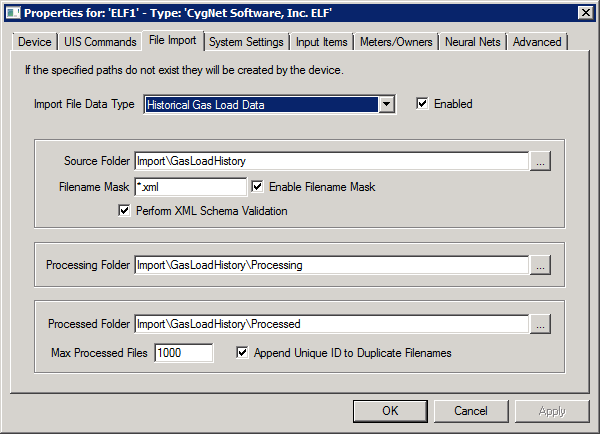
The File Import page is used to configure the import settings for each of the four ELF file import types: historical gas load data, forecast gas load data, historical input data, and forecasted input data. Note that the most recently imported data for an hour will replace the data for that hour imported from a previous import file.
Use this page to set and enable the following file system locations:
You can use fully qualified or relative folder paths. If a relative path is used, the path will be relative to the CygNet Software host machine’s configured data directory of the UIS under which the ELF driver instance is running.
If desired, you can choose to validate the import source file against the XML schema as part of the import process.
Files in the input folders are processed in sequential alphanumeric order, so if several files are dropped into an input folder at the same time, then the last file processed in that order will be the latest forecast data used if there is any date-range overlap among those files.
When importing Forecast Gas Load Data and Forecast Input Data into the system, the most recent file imported is assumed to be a more accurate forecast. The system will always use the most recent forecast data imported for an hour, with the assumption that it is better than the last one received.
Note: See Gas Load Import for more information about importing sparsely populated hourly entries without applying defined filling rules.
The Forecast Gas Load Data import type is available to allow forecasted hourly values to be overridden by externally provided actual forecast values so that the best gas load values for meters and meter groups with a known gas load schedule can be used as the forecast. See Configuring Value Adjustment and Configuring Gas Load Settings for more information about forecast overrides.
The properties for each section of this page are described below.
| Parameter | Description |
|---|---|
|
Import File Data Type |
Select the import file type:
|
|
Enabled |
Select to enable or disable the import file data type for the selected device instance. |
For each Import File Data Type, configure the following source folder settings.
Note: It is highly recommended that you use separate Source, Processing and Processed folders for each type of import data type, although it is possible to use common folders. If you do choose to overlap folders the retention quantity for each folder will resolve to the largest retention value configured for any of the import types.
| Parameter | Description |
|---|---|
|
Source Folder |
The fully qualified or relative path to the folder that contains the source import file. Accept the default or click … to navigate to the folder location. |
|
Filename Mask |
Specify an optional file name mask to use when selecting input files that match a certain naming convention. |
|
Enable Filename Mask |
Select to enable the file name mask. |
|
Perform XML Schema Validation |
Select to validate the import file against the XML schema as part of the import processing. |
For each Import File Data Type, configure the following processing folder settings.
| Parameter | Description |
|---|---|
|
Processing Folder |
The fully qualified or relative path to the folder where the import file will be written while it is being processed. Accept the default or click … to navigate to the folder location. |
For each Import File Data Type, configure the following processed folder settings.
| Parameter | Description |
|---|---|
|
Processed Folder |
The fully qualified or relative path to the folder where the processed import file will be written once processing is completed. Accept the default or click … to navigate to the folder location. |
|
Max Processed Files |
The maximum number of files that can be written to the “processed” folder. When the configured maximum number of files is reached, older files will be deleted to make room for newer ones. |
|
Append Unique ID to Duplicate File names |
Select to append a unique identifier to the end of the new processed file to avoid duplicate file names. |
Adding an invalid import file to a Source folder will cause that file to be sent to the corresponding Processed folder. If the Source folder is shared across all three import types, then the file will be sent to the "Gas Load" Processed folder.
If an import file is actively being written to a Source folder and the EIE attempts to move the file, the move will fail. The failed attempt will be reported as failed transaction record with an appropriate error message. If the problem persists, it will be re-reported in one hour. See the Data Import Transaction Log on the Device page.
If filling rules are not configured and there are holes in your data the import will succeed with warnings. If you get import errors, add a filling rule to handle missing data, or fix errors in the data, replace the data file in source, and the import will occur again.

|
|
|

