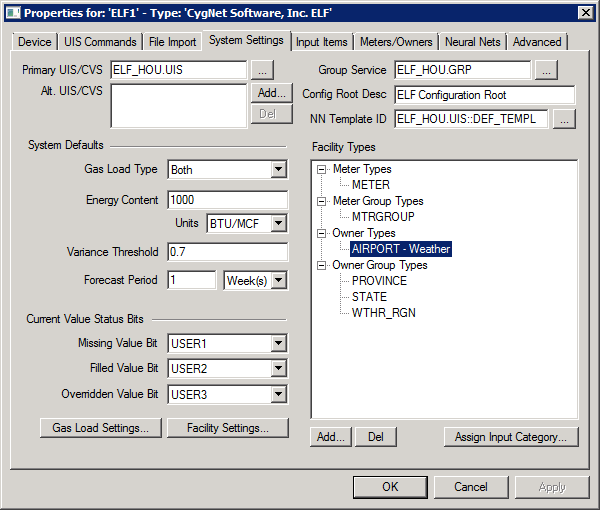
The System Settings page is used to configure default system attribute values, including those related to CygNet service and group specification, system defaults, status bits, gas load units and storage UDCS, forecast override UDCs, validation rules, filling rules, facility attributes, meter hierarchy attributes, default neural network template, default facility types, and other general settings. Default system attributes are used by the ELF driver, if they are not overridden at another level, such as a neural network definition or for a meter or meter group.
This dialog box is divided into several sections and buttons. Each section is described below:
The properties for each section or button on this page are described below.
| Parameter | Description |
|---|---|
|
Primary UIS/CVS |
The primary CVS service in which the record owner, record owner group, and neural network definition facilities are maintained. The default value is the UIS that is hosting the specific ELF driver instance. Click … to select a Current Value Service. |
|
Alt. UIS/CVS |
By default, there is no alternate CVS defined. This will instead use the Primary UIS that is hosting the specific ELF driver instance.
|
|
Group Service |
The GRP service that is used to store neural network templates and neural network definitions. The default value is the Site portion of the UIS that is hosting the specific ELF driver instance with a concatenated “.GRP”. Click … to select a Group Service. |
|
Config Root Group Node Desc |
A description of the configuration root group node, for example, ELF Configuration Root. |
|
NN Template ID |
The Facility ID of the default neural network template that is initially assigned to new neural network definitions. Click … to choose a default Neural Network Template. Note: You can also filter the default Neural Network Templates by up to six facility attributes filters. Click Advanced Filter. |
| Parameter | Description |
|---|---|
|
Gas Load Type |
For all gas load values imported or generated by the system, this global setting indicates if the values will be stored in points configured in Energy units, Volume units or Both in two separate points; one with Energy units, one with Volume units. |
|
Energy Content |
The default energy content factor value used to convert a meter or meter group’s defined units to and from Energy and Volume units for the historic gas load input data. This value may be overridden at the meter or meter group facility. |
|
Units |
Specifies the base units for all gas load values stored in the system; either Energy, Volume, or Both. This will dictate whether the gas load historical and forecast data will be stored in points with the specified Energy and/or Volume UDCs. If the Gas Load Type is set to Energy or Both, this global setting indicates the common Energy-based units that must be configured for all corresponding points that store Energy values. If the Gas Load Type is set to Volume or Both, this global setting indicates the common Volume-based units that must be configured for all corresponding points that store Volume values. If historical or forecast gas load data is provided in the import file with valid Energy or Volume units other than those configured for the system, the import will perform a conversion to the appropriate units making use of the provided or default energy content factor before storing the value. If the units are not recognized or cannot be converted, the imported values will be rejected. |
|
The default minimum calculated variance threshold that triggers the retraining of a neural network definition. For example, a value of 0.7 means that the forecast is 30% accurate. This value may be overridden at the meter or meter group facility. |
|
|
Forecast Period |
The default maximum number of hours, days or weeks into the future for which a load forecast will be generated. |
For all real-time values imported or generated by the system, these settings will indicate status bits to set if hourly historical or forecast input values are missing or need to be filled.
The import process detects missing hours by using the defined beginning and ending range in the import file. A placeholder value will be added during the import to ensure a continuous stream of hourly data for the import data range. However, it is possible that training time ranges may specify a broader range for which there may be missing input data. Data filling will also occur for any additional missing hours that are specified in the training input ranges.
Values that are filled will be modified in the VHS. To indicate that the value was edited due to data filling, the ELF driver will flag a user bit on the stored entry for the hour.
| Parameter | Description |
|---|---|
|
Missing Value Bit |
Select a user status bit from the drop-down menu to indicate that an hourly historical or forecast input value is missing from the import file and a placeholder value will be added instead. See Configuring Data Filling Rules for more information. |
|
Filled Value Bit |
Select a user status bit from the drop-down menu to indicate that an hourly historical or forecast input value will be modified by data filling parameters. See Configuring Data Filling Rules for more information. |
|
Overriden Value Bit |
Select a user status bit from the drop-down menu to indicate that an hourly forecast value has been overridden and stored in the Latest UDC. See Configuring Value Adjustment for more information about forecast overrides. |
The Gas Load Settings button opens a dialog box where you can configure gas load units and several storage UDCs, primary and secondary forecast override UDCs, and Validation and Filling Rules for input data. See Configuring Gas Load Settings for more information.
The Facility Settings button opens a dialog box where you can configure the CygNet facility attributes used to store several value attributes used by the ELF system. This is also where you configure facility attributes for Meter Hierarchies and Hierarchy Descriptions. A single ELF facility (meter or meter group) can be a member of up to ten distinct hierarchies (parent groups).
Additionally, you can indicate whether or not to import the Description, Energy Content Factor, Parent ID, and Meter Parent IDs from the import files on this dialog box. This will protect a specific manually-entered facility attribute value from being over-written unexpectedly. See Configuring Facility Attribute Settings for more information.
The Facility Types hierarchical tree displays the valid CygNet facility types used to identify valid Meter Types, Meter Group Types, Record Owner Types, and Record Owner Group Types facilities.
Note: The terms “Input Owner” and “Record Owner” are used interchangeably throughout the ELF system and in this documentation. See External Input Data Import for more information about this entity.
|
Button Name |
Description |
|---|---|
|
Add |
Click Add to add a new Facility Type from the TRS table. |
|
Del |
Click Del to delete a Facility Type. |
|
Assign Input Category |
For the Owner Facility Types you can assign a data relationship between record owner facility types and an input item category. Click Assign Input Category. |
More:
 Configuring Facility Attribute Settings

|
|
|

