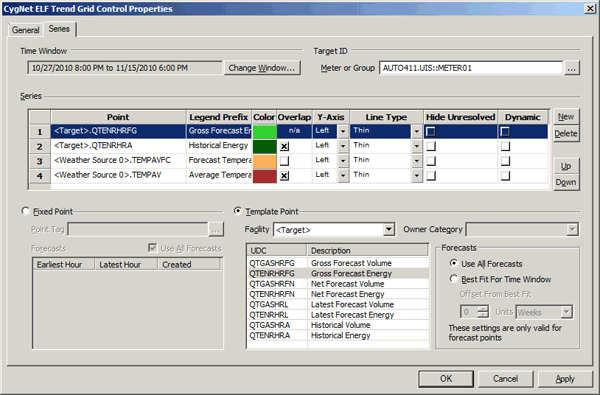
The Series page is where you configure the series that will present historical and forecasted data in the ELF trend control. Each series represents a CygNet point for a target meter or meter group. A series may present a fixed or a template point.
| Parameter | Description |
|---|---|
|
Specifies the Time Window to display data in the trend graph and table. Options include Fixed Time or Dynamic Time. |
|
|
Change Window |
The time range for displayed data can be either fixed or dynamic. Click Change Window to configure the date range for displayed data.
|
|
Specifies the Target Meter or Group for which to display data. Click … to select the target Facility ID. |
| Column, Field, or Button Name | Description |
|---|---|
|
Point |
Specifies the Fixed Point or Template Point to be displayed in the series. See Fixed Point or Template Point below. |
|
Legend Prefix |
Specifies a prefix to add before the Point ID in the graph legend and the table. |
|
Color |
Specifies the color of the trend line. |
|
Overlap |
Click to indicate whether or not to overlap the series; selected means overlap; cleared means display separately. |
|
Y-Axis |
Click to indicate if the Y-Axis is on the Left or the Right. The default is Left. |
|
Line Type |
Select the line type for the trend line. Options include: Thin, Medium, Thick, Medium Thin, Medium Thick, Extra Thick, Extra Thin, and Extra-Extra Thin. The default is Thin. |
|
Hide Unresolved |
When checked, if the point tag (fixed or template) is not resolved to a valid existing point in the VHS, then the point is ignored and no graph is displayed for the series at all. When unchecked an unresolved point would show up in the graph, with no data, and “(unresolved)” will follow its label. |
|
Dynamic |
This check box is used in conjunction with choosing a dynamic time window. When determining the dynamic time window, the control will look at all series with Dynamic checked, and find the latest hour containing data, and use that hour as the end of the time window. |
|
New |
Click to add a new series to the graph. |
|
Delete |
Click to delete a selected series. |
|
Up/Down |
Select a series and click Up or Down to reposition the series. |
| Field or Column Name | Description |
|---|---|
|
Point Tag |
Click … to select a fixed point for the series. |
|
Use All Forecasts |
Click to use all available forecasts or select the desired forecast to display in the series. |
|
Earliest Hour |
Shows the earliest hour for the selected forecast. |
|
Latest Hour |
Shows the latest hour for the selected forecast. |
|
Created |
Indicates the date the forecast was created. |
| Field or Column Name | Description |
|---|---|
|
Facility |
Select the target facility, owner category, or other owner for the template point for the series. |
|
Owner Category |
Select another owner category from the drop-down menu. |
|
UDC/Description |
The available UDCs and descriptions are displayed. See CygNet ELF Device Statistics for a definition of the built-in UDCs. |
|
Use All Forecasts |
Click to use all available forecasts or select a best fit and offset to display individual forecasts. These settings are only valid for forecast points. |
|
Best Fit for Time Window |
Select to display the forecast whose time span best fits the selected time window. |
|
Offset From Best Fit |
Select a positive or negative offset value in hours to display the forecast whose time span best fits the “offset” time window. |

|
|
|

