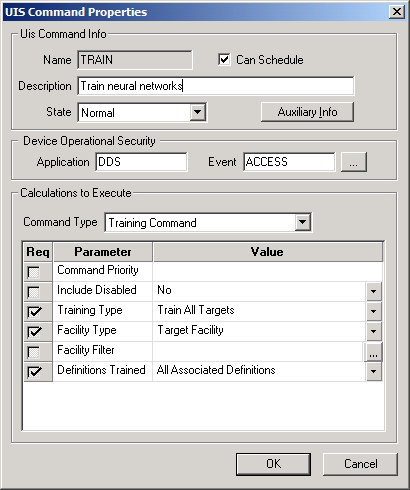
To Add a New UIS Command
Note: If you select an existing command and click Add that command will be used as a template.
To Modify an Existing UIS Command
The properties for each section of the UIS Command Properties dialog box are described below.
| Parameter | Description |
|---|---|
|
Name |
The name of the UIS Command. See Command Names for more information. |
|
Description |
Type a description of the UIS Command. This is a free-form text field. |
|
State |
Select the desired alarm state for the UIS Command: Normal, Warning, or Disabled. |
|
Can Schedule |
Check to allow the UIS Command to be scheduled in the Master Scheduling Service. |
|
Auxiliary Info |
Click to access the Auxiliary Information for this UIS Command. |
| Parameter | Description |
|---|---|
|
Application |
Defines the ACS security application name for the UIS Command. |
|
Event |
Defines the ACS security event for the UIS Command. Click … to select the security setting. |
A list of the calculations to perform for the selected UIS Command Type.
| Parameter | Description |
|---|---|
|
Command Type |
Select the type of UIS Command:
|
|
Req |
Check if this parameter is required for the selected command type. |
|
Parameter |
The training, forecasting, and variance analysis commands can optionally contain parameters that may be used to refine task behavior. They may be used in environments that can supply UIS command parameters to direct the command processing. For example, sending a command with the SendUisCommand method in CxScript.GlobalFunctions allows command parameters to be sent from script. However, issuing a UIS command from the MSS does not include the ability to send parameters. In this case, the ELF EIE editor allows command component parameters to be configured so that they can already be set when the command is received from the MSS. For the training and variance analysis command components, optional parameters may identify neural network definitions by a unique neural network definition ID, a meter ID, attributes of a meter record, a group ID, or attributes of a group record. For the forecast and variance analysis command components, optional parameters may specify the time range over which the forecast will be generated or analysis will be performed. See Command Type Parameters below. |
|
Value |
Type or select an appropriate value. See Command Type Parameters below. |
The parameters associated with each UIS command type are listed in the following table.
| Parameter |
|
|
|
Description/Value |
|---|---|---|---|---|
|
Command Priority |
|
|
|
The UIS command priority (CmdPriority). The UIS queues commands based on this value: High, Medium, or Low. Note: Training, forecasting or analysis can be performed on demand from the EIE editor, in which case the task will be given the highest priority. |
|
Include Disabled |
|
Include disabled neural network definitions in this Training command. Select Yes or No. |
||
|
Training Type |
|
Select to Train All Targets or Train Single Target. Optionally you can filter all targets (see Facility Filter) or choose the target (see Facility Tag) to train. |
||
|
Facility Type |
|
Select Target Facility or Neural Network Definition. Optionally you can filter the target facility (Facility Filter) or choose the neural network definition (Facility Tag) to train. |
||
|
Facility Filter |
|
|
Click … to set a facility filter. See Set Facility Filter. |
|
|
Facility Tag |
|
Click … to select a facility tag for the Target Facility or Neural Network Definition. |
||
| Definitions Trained |

|
Select to train All Associated Definitions or those definitions Outside Variance Threshold Only. Variance Threshold is configured on the System Settings page. |
||
|
Start Time |
|
|
Click … to select the starting time for the forecast or the variance analysis task. See Select Date and Time. Note: All relative times will be resolved to the local time of the location where the ELF device and services are running. |
|
|
End Time |
|
|
Click … to select the ending time for the forecast or the variance analysis task. See Select Date and Time. Note: All relative times will be resolved to the local time of the location where the ELF device and services are running. |
|
|
Analysis Type |
|
Select Analyze All Targets or Analyze Single Target. Optionally you can filter all targets (see Facility Filter above) or choose the target (see Facility Tag) to analyze. |

|
|
|


