An adjustment will occur whenever a meter or meter group’s gross point value is set by any of the defined Value Assignment Type methods. The adjustment is applied to the gross forecast value immediately upon the gross value being assigned, and output to the meter or meter group’s net forecast point. This will ensure that all adjustments are completed before redistributions are processed.
Adjustment rules can be configured as one of the following settings:
Note: If no adjustments are currently active, the default action will be to copy the gross forecast to the net forecast value. The default adjustment rule will never expire, unless the end time is bounded.
To Configure Value Adjustment
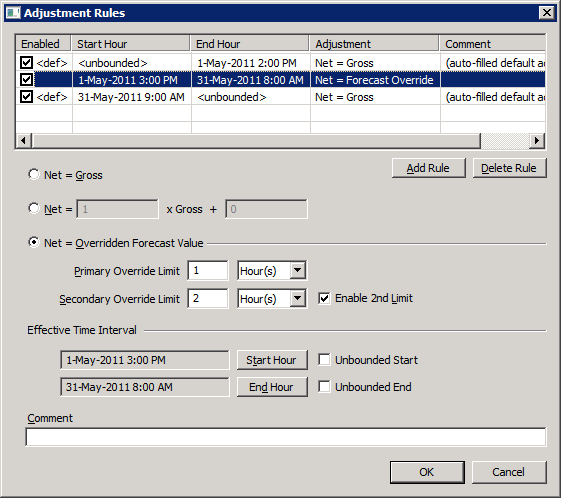
The Adjustment Rules dialog box shows a list of defined rules. Properties displayed include: Enabled, the time range of the rule, the specified Adjustment setting, and an optional Comment.
The properties on the Adjustment Rules dialog box are described below.
| Parameter | Description |
|---|---|
|
Select this option to copy the Gross forecast value to the Net forecast value. This is the default. |
|
|
Select this option if a Linear Equation adjustment type is desired. Type two numeric coefficients in the linear formula: net = A * gross + B |
|
|
Select this option if a Override adjustment type is desired. It is possible to override forecasted hourly values with externally provided forecast values, so that the best gas load values for meters or meter groups with a known gas load schedule are used as the forecast. See Configuring File Import Settings for more information about setting up the import of external forecast values. Two override sources are supported (primary and secondary), one each for Energy and Volume values, to allow a staged override of forecast values. The override storage UDCs are configured on the Gas Load Settings dialog box. A forecast value can be prioritized and configured to indicate the amount of time to override with the lower priority source (secondary), after the higher priority source (primary) has been used for a specified amount of time. Overridden forecast values can be viewed in the CygNet ELF Trend Grid Control. Non-overridden generated forecast values can be viewed alongside each source of overridden values. Forecast values that have been overridden and stored in the “latest” forecast UDC will be flagged with the Overridden value user status bit (configured on the System Settings page). |
|
|
Primary Override Limit |
Select the time period to which the first override source applies. Type a time value and select the units for the interval. Note: The Primary Override Limit UDC used by meters or meter groups to retrieve the primary override values is configured on the Gas Load Settings dialog box. |
|
Secondary Override Limit |
Select the time period to which the secondary override source applies. Type a time value and select the units for the interval. Note: The Secondary Override Limit must be greater than the Primary Override Limit. The Secondary Override Limit UDC used by meters or meter groups to retrieve the secondary override values is configured on the Gas Load Settings dialog box. |
|
Enable 2nd Limit |
Click the check box to enable the secondary override limit. The first override limit must be configured in order to enable the secondary limit. |
| Parameter | Description |
|---|---|
|
Start Hour |
Click Start Hour to configure an absolute start hour when the adjustment becomes active. Select a date and time from the Choose Date and Time dialog box. Note: The effective period must not overlap with another adjustment rule for a meter or meter group. |
|
Unbounded Start |
Click to indicate that the adjustment rule is active for an unlimited amount of time into the past. |
|
End Hour |
Click End Hour to configure an absolute end hour when the adjustment expires. Once an adjustment has expired, it will still exist in the configuration so that it can be viewed and possibly updated at a later date. Select a date and time from the Choose Date and Time dialog box. Note: The effective period must not overlap with another adjustment rule for a meter or meter group. |
|
Unbounded End |
Click to indicate that the adjustment rule is active for an unlimited amount of time into the future, that is, it will never expire. |
Type an optional description or reason for the adjustment. Maximum length is 80 characters.
If the adjustment rules are misconfigured in any way, errors will be displayed at the bottom of the dialog box. Errors must be resolved before OK is enabled.

|
|
|

