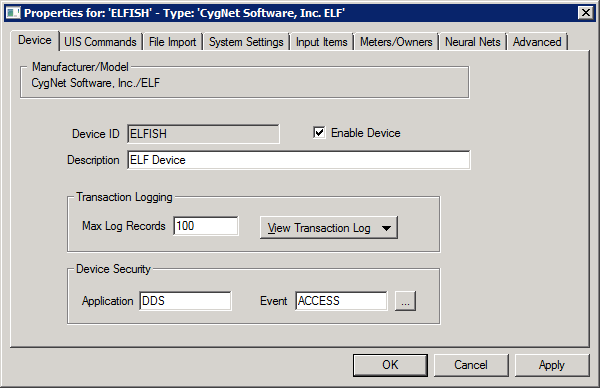
The Device page is used to configure general information about the device such as the ELF device name, description, transaction logging, and device security.
The properties for each section of this page are described below.
| Parameter | Description |
|---|---|
|
Device ID |
The unique identifier of an instance for this device. This free-form name must be unique in the DDS and the FAC. That is, it must be a name not used by any other communication device, import/export device, remote device, or facility. Valid characters are A-Z, 0-9, dash (-), underscore (_), and tilde (~). No spaces are allowed. 20 character maximum. Note: Tilde (~) is a valid character for both devices and facilities, but its use is not recommended. |
|
Description |
A free-form description of the device. 32 character maximum. |
|
Enable Device |
Check to enable or disable the device. The default setting is disabled. The device will automatically disable if an invalid configuration is detected. The device can be re-enabled after the invalid configuration is fixed. |
When an ELF operation (import, training, forecasting, or variance analysis) is performed, a DDS transaction is generated detailing the results of the operation. This transaction history can be stored in the DDS or it can be written to file. If written to the file system, one log file is created for each ELF transaction. Log file names will include the corresponding processed file name, a timestamp, and a .log extension.
| Parameter | Description |
|---|---|
|
Max Log Records |
The maximum number of transaction history records that can be maintained for the device. Each UIS command executed by the device will generate a single transaction log. If the device is setup for active monitoring, one transaction will be created whenever a new file is detected. If multiple files are detected at the same time, it will still result in one transaction. |
|
View Transaction Log |
Click to view transaction and status log entries. See Transaction Log below. |
The security fields define the application and event that controls which user(s) can perform the import. See Component-Level Security - Text Import Device for more information about component-level security.
| Parameter | Description |
|---|---|
|
Application |
Defines the ACS security application name used to validate the users of this device. See Applications, Events, Permissions. |
|
Event |
Defines the ACS security event used to validate users of this device. Click … to select the security event. See Applications, Events, Permissions. |
Click View Transaction Log and the desired log type to see the transaction record.
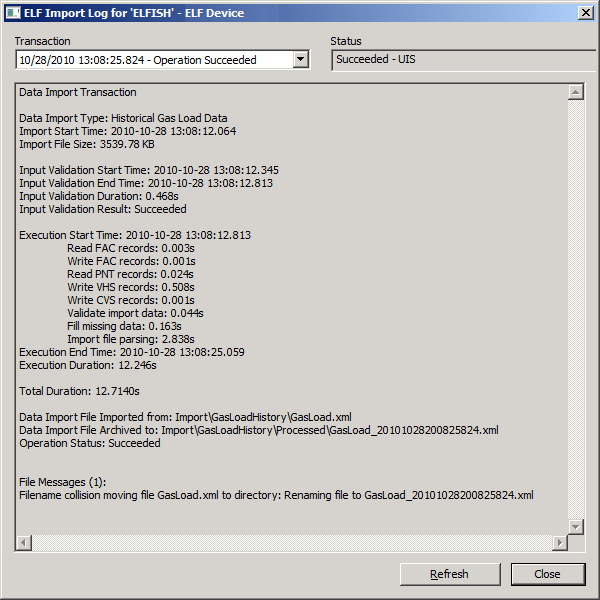
The properties on the Training Log dialog box are described below.
| Parameter | Description |
|---|---|
|
Transaction |
Select the transaction you want to view. |
|
Status |
The status of the operation: Succeeded or Failed. |
|
Log |
The main part of the window displays information about the operation, including: start and end time, duration, warnings, messages, and errors. |
|
Refresh |
Click Refresh to refresh the log. |
|
Close |
Click Close to close the Transaction Log dialog box. |

|
|
|

