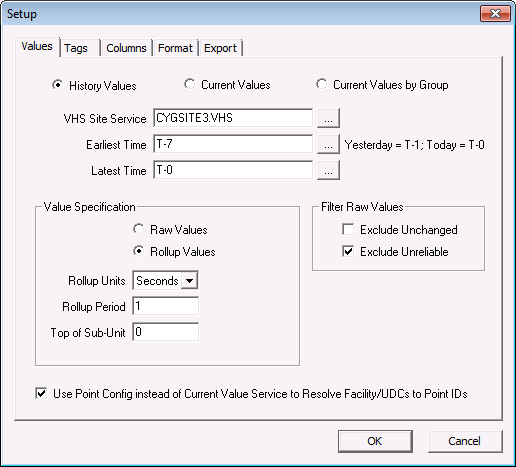
The VHS report retrieves values for points for a specified date range from the VHS. The raw data can be included in the report or a rollup applied.
If you have rollups enabled, you must specify the rollup type for each item listed on the Tags page. See History Rollups for more information about rollups and rollup types.
To Set Up a History Values Report
| Property | Description |
|---|---|
|
VHS Site Service |
The name of the Value History Service from which to retrieve data. Use … to select the service. |
|
Date/Time Range |
Type a value in the field or click … to display a calendar. The default time is midnight if a time is not specified. The date range can be specific or you can use date wildcards. A date wildcard allows the export to be dynamic and eliminates the need to edit the date parameters every time the export is run. The date wildcard is "T" (for "today"). You can subtract from T to go back. T-7 represents seven days ago. Therefore, a range of “T-7 to T” would be seven days ago to today. Note: See Date and Time Wildcards for more information about using wildcards. |
|
Value Specification |
Specifies the type of values to include in the report.
Rollup Units and Rollup Period specify the period to which the data will be calculated or thinned. Rollup Types are defined on the Tags page. Example 1 If you set the Rollup Type to Raw or any Calculated type, and the date range on the report is 14 days, and you set the Rollup Units to Minutes and the Rollup Period to 30, the data would be rolled up to 30 minute periods for the 14 days.
Example 2 If you set the Rollup Type to any thinned type, and the date range on the report is 14 days, and you set the Rollup Units to Minutes, and the Rollup Period to 30, the raw data would be thinned to data values for every 30 minute period for the 14 days:
Top of Subunit is an offset from the normal date/time. It provides a method to allow for start of day, time zone, or scheduling differences. For example, if you are using a rollup period of 1 day, and your data day starts at 8:00 A.M. (instead of midnight), you can offset the period by entering an "8" in this field. Note that this field uses 24-hour time. |
|
Filter Raw Values |
Two filter options are available: Exclude Unchanged and Exclude Unreliable. When the UIS cannot communicate with a device, the last known values from the device are marked as unreliable. When Exclude Unreliable is enabled, only reliable data is exported. By default, data is reported to the historian on an exception basis (value or status change). If you override this setting for a point by using different reporting options in the Point Service (PNT), the history service may have unchanged data. When Exclude Unchanged is enabled, only changed values are exported. |
|
Use Point Config instead of CVS to Resolve Facility/UDCs to Point IDs |
Specifies to use the Point Service to resolve Facility/UDCs to point IDs. A VHS does not have knowledge of facilities/UDCs. It stores values using the Point ID/Long Point ID. By default, the report uses the current value service to resolve a Facility ID and UDC to a point ID. If this option is enabled, the point IDs will be resolved using the PNT service instead. This may be desirable if the PNT is closer to the VHS and thus has a better response time. |
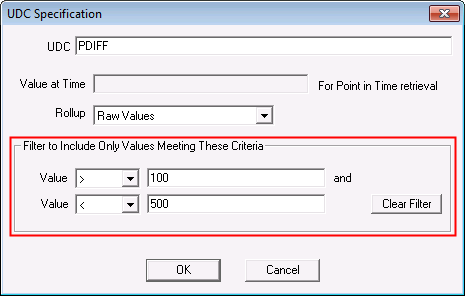
For each point included in the History Values report, you can specify a filter so that only certain data is returned. The filter can be a single value/operator or a combination of two values/operators. In the example below, the value must be greater than 100 but less than 500.
|
| History Values Filter Sample |

|
|
|

