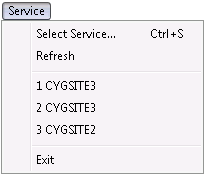
The Group Manager utility contains five fixed menus providing options for managing the grouping of nodes. Additionally, a context menu and several toolbar buttons provide easily accessible subsets of similar functionality. Right-click a selected node entry to access its context menu. The context menu lists options that apply to the selected node, as well as other options that apply to a part of the hierarchy or to the entire hierarchy. Options that do not apply to the selected node or its position in the hierarchy appear in the list but are dimmed.
In addition to the menus, context menu, and toolbar command options accessed via the user interface, the Group Manager utility provides an interactive tree view of nodes as well as a special property sheet called the Group Service Explorer, that combines the tree view with Group Service (GRP) node details.
See Nodes in a Tree View for more information about how nodes are displayed in the utility interface.
See Group Service Explorer for more information about using the as-built hierarchy view.
The following tables list and describe command options accessible from the available menus, and their availability via the context menu and/or toolbar buttons. Although command names vary slightly between the various access options, the functions are nearly identical.
Menu options and their equivalents are as follows.
The following table lists and describes Service menu options.
| Menu Option | Description | Context Menu? | Toolbar Button |
|---|---|---|---|
|
Select Service |
Enables you to select an appropriate GRP to which a group hierarchy applies. You can also click or press Ctrl+S to select a GRP. |
- |

|
|
Refresh |
Enables you to refresh the group hierarchy displayed. You can also click to refresh the group hierarchy displayed. |

|

|
|
Exit |
Closes the CygNet Group Hierarchy Manager utility. |
- | - |
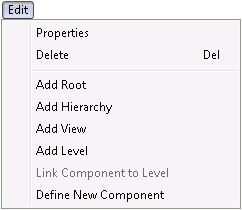
The following table lists and describes Edit menu options.
| Menu Option | Description | Context Menu? | Toolbar Button |
|---|---|---|---|
|
Properties |
Opens the properties dialog box appropriate to the selected group node. |
|

|
|
Delete |
Deletes the selected group node. |
|

|
|
Add Root |
Enables you to add a new component hierarchy root. If one already exists, this option adds another root to your group hierarchy. When you select Add Root, the Add Component Hierarchy Root dialog box appears. The default Description for the root is Component Hierarchy. Change this placeholder to suit your needs. You can add navigation hierarchies at this level; they appear as children to the Hierarchies node. |
|
- |
|
Add Hierarchy |
Enables you to add a new navigation hierarchy. If one already exists, this option adds another navigation hierarchy to your group. A navigation hierarchy is a prioritized, branching list of defined nodes. It is displayed vertically in a tree view in CygNet Group Hierarchy Manager utility. You can create multiple views in the same navigation hierarchy. You can also create multiple navigation hierarchies based on the same rules and/or components. An advantage of creating multiple views for one navigation hierarchy is when using the Group Navigation Bar Tool in CygNet Studio. View options can be selected from the drop-down menu in CygNet Studio to provide additional options for filtering and displaying data. When you select Add Hierarchy, the Add Navigation Hierarchy dialog box appears. The default Description for the additional navigation hierarchy is Navigation Hierarchy n. Change this placeholder to suit your needs. Options on the Add Navigation Hierarchy dialog box include Create Web Hierarchy and Create Additional Root for Each View.
To add a View to this navigation hierarchy, highlight the navigation hierarchy, right-click it, then click Add View. |
|
- |
|
Add View |
Enables you to add a new view. If one already exists, this option adds another view to your navigation hierarchy. Each unique hierarchy is called a view because it is one possible perspective or view of a collection of defined attributes. Multiple views may be created within a navigation hierarchy to provide different methods of filtering and displaying relevant data. Additionally, you can link views together, making one stand-alone view a child view of another stand-alone view. You have two view options: Note: Although both rule-based views and component-based views are supported by CygNet, best practice recommends using rule-based views instead of component-based views. Rules provide a more comprehensive and fine-tuned way to create views.
To add a Level to this navigation view, highlight the navigation view, right-click it, then click Add Level. |
|
- |
|
Add Level |
Enables you to add a new level. If one already exists, this option adds another level to your view. Levels are rule based or component based. The order of levels from top to bottom determines the subordination of components within the view hierarchy where top = highest priority. A level represents a prioritized node within a view. It can be defined by rules or by a component. Both rules and components cannot exist within the same level, but a navigation hierarchy can support both rule-based and component-based levels. If this level is for a rule-based view, define and add rules to suit your needs. Highlight the view and click Add Level. Then add and define rules on the Hierarchy Level dialog box. For more information, see Defining Rules. If this level is for a component-based view, add defined components to suit your needs. Highlight the view and click Add Level. Then select a defined component. You can also define components on an ad hoc basis by clicking Add on the Select Components for this Level dialog box, then defining a new component. Finally, you can link multiple components to the same level. For more information, see Defining Components. |
|
- |
|
Link Component to Level |
Enables you to link predefined components to a component-based level. Multiple components can be linked to a component-based level. |
|
- |
|
Define New Component |
Enables you to define components for use in a component-based view. DDS components are properties of a remote device that reside only in the DDS, such as device ID, device manufacturer, and device category. FAC components are the descriptive attributes of a facility. Most facility attributes are user-defined. By default, a Component list only includes facilities that have a value assigned to an attribute. However, you can include facilities that have blank values. In such cases, another placeholder labeled (blank) is included at the attribute value level. Right-click in the tree view and select Define New Component or choose from pre-defined components in the Component node. Selecting this option generates a New Component Definition Entry dialog box. For more information, see Defining Components. |
|
- |

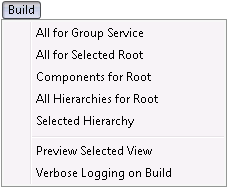
The following table lists and describes Build menu options.
| Menu Option | Description | Context Menu? | Toolbar Button |
|---|---|---|---|
|
All for Group Service |
Enables you to build all hierarchies for the selected GRP. This build option builds or rebuilds every hierarchy and component within the chosen GRP. A build is an implementation of a group hierarchy. It makes a group hierarchy available in the GRP. Perform a build after you've assembled your hierarchy, rules, and components in the Group Manager utility. |
|
- |
|
All for Selected Root |
Enables you to build all hierarchies for the selected root in a specific GRP. |
|
- |
|
Components for Root |
Enables you to build all components for a specific root in a specific GRP. |
|
- |
|
All Hierarchies for Root |
Enables you to build all hierarchies for a specific root in a specific GRP. |
|
- |
|
Selected Hierarchy |
Enables you to build a selected hierarchy in a specific GRP. |
|
- |
|
Preview Selected View |
Enables you to select a single view and to preview it in a tree format. It includes all as-built nodes subordinate to the selected view. You can export the previewed view to an .xml file. |
|
- |
|
Verbose Logging on Build |
Activate this option if you want to collect and display verbose logging for any build. The Process Status dialog box for a verbose build shows all relevant details of the build. The verbose log file (GrpMgr###.txt) typically generates in the CygNet\Utilities folder; it is useful for troubleshooting. |
|
- |
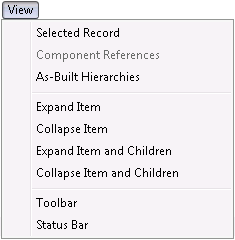
The following table lists and describes View menu options.
| Menu Option | Description | Context Menu? | Toolbar Button |
|---|---|---|---|
|
Selected Record |
Displays all fields in a group database record for a selected node. The record appears in an editable Group Node Record dialog box. |
|
- |
|
Component References |
Enables you to locate all references to a specified component. Highlight a component, right-click it, and the resulting Component References dialog box shows all places where the specified component exists in the group hierarchies. |
|
- |
|
As-Built Hierarchies |
Enables you to view, edit, and export hierarchy, component, and root node information from the Group Service Explorer dialog box. Enables viewing of your fully built hierarchies, including all associated facilities. See Group Service Explorer for more information. |
|
- |
|
Expand Item |
Expands the selected item (node). |
- |

|
|
Collapse Item |
Collapses the selected item (node). |
- |

|
|
Expand Item and Children |
Expands the selected item (node) and its children. |
- |

|
|
Collapse Item and Children |
Collapses the selected item (node) and its children. |
- |

|
|
Toolbar |
Hide or Show the toolbar. |
- | - |
|
Status Bar |
Hide or Show the status bar. |
- | - |
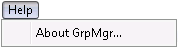
The following table lists and describes Help menu options.
| Menu Option | Description | Context Menu? | Toolbar Button |
|---|---|---|---|
|
About GrpMgr |
Displays an About CygNet Group Hierarchy Manager dialog box to view application information. Available information includes the following:
In addition to information about the application, the About box includes the following buttons:
|
- |

|
More:
|
|
|


