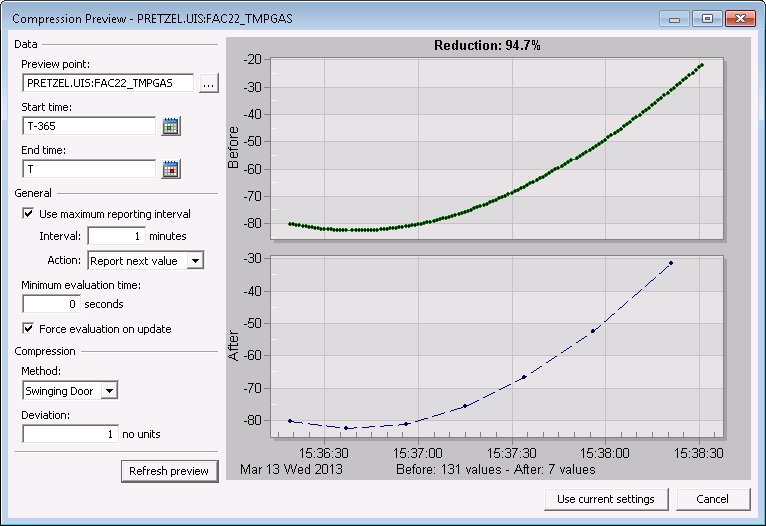
Use the Compression Preview option to graphically preview how data for an existing data point will be reduced using the currently configured compression settings. Manipulate the settings on an ad hoc basis or select a different point for which to preview compression. You can also pass any modified settings back to the dialog box that launched the preview. The Compression Preview option is accessible from three places in CygNet:
A graphical pane displays the data gathered from the VHS, the compressed data, and some statistical information about the reduction. Values are collected for the given point and date range, and the collection is handled in such a way that a partial data set can be used if desired (this is useful when collection is taking a long time).
The properties on the Compression Preview dialog box are described below.
| Property | Description |
|---|---|
| Data | |
|
Preview point |
The point being previewed. Click … to select a different point. Selecting a different point and previewing the values associated with that point does not result in the configured settings being applied to the newly selected point. The configured settings will only ever be applied to the original point for which the dialog box was first invoked. The reason you may choose to preview the values of a different point is that the original point may have just been added and therefore does not yet have historical values to preview. For reference, the original long point tag is displayed in the dialog box title. |
|
Start time |
The time when the compression will start. Click the calendar icon to open the Select Date and Time dialog box to select an absolute or relative time. |
|
End time |
The time when the compression will end. Click the calendar icon to open the Select Date and Time dialog box to select an absolute or relative time. |
| General | |
|
Use maximum reporting interval and Interval |
Specifies the maximum update time interval in minutes. When set for a point, the CVS will always report a new value to the VHS if the time interval represented by the timestamp of the last value reported to the VHS and the timestamp of the new value received by the CVS exceeds the configured maximum reporting time interval. Note: Maximum reporting interval will always default to 1 minute, even if enabled and set to 0. |
|
Action |
Specifies the action to take if the maximum reporting interval is enabled. The options include:
|
|
Minimum evaluation time |
Specifies the minimum evaluation time interval in seconds. When set for a point, the CVS will not pass a new value to the VHS unless the time interval represented by the timestamp of the last value reported to the VHS and the timestamp of the new value received by the CVS exceeds the configured minimum evaluation time. That is, all value updates with timestamps that are within the minimum time frame are dropped. However, this setting will be ignored and a new value will be sent to the VHS if the status bits have changed from one value update to the next, if the timestamp of the new value received is older than the previously received value or if the Maximum reporting interval is exceeded with the Report next value option set. |
|
Force evaluation on update |
Enables the reporting to the VHS of new updates even if the value and status of the new update is the same as the previous update. If this option is not enabled, new values are reported to the VHS only if the value or status has changed. Considerations for Maximum reporting interval, Minimum evaluation time and Compression will be evaluated before applying this setting. |
| Compression | |
|
Method |
Enables data compression (thinning) to be performed for all real-time values received by the CVS for that point before forwarding to the VHS. Compression applies only to points of Analog point data type. Considerations for Maximum reporting interval and Minimum evaluation time will be evaluated before applying this setting. Additionally, new values will always be sent to the VHS if their status bits have changed from one value update to the next, if the timestamp of the new value received is older than the previously received value or if the value received is non-numeric. Select the desired compression method:
|
|
Deviation |
Specifies the range in primary units to be used when compressing historical data.
Note: (scaled) units will be shown only if scaling is enabled for the point. |
| Buttons | |
|
Refresh preview |
Click to refresh the compression preview after changing settings. |
|
Use current settings |
Click to save the modified settings back to the dialog box that launched the preview (PNT record or VHS Data Analyzer utility). Note that the Compression Preview does not interact with a PNT record directly, it has settings passed in and it passes them back out. It collects data from the VHS and validates the point tag against the PNT, but doesn’t modify or even open the PNT header record. Note: Any changes made to the history settings are applied to the originally selected point (shown in the title bar of the dialog box) and not to any new preview point. |
The following options are available from the right-click menu in the graphical pane of the Compression Preview dialog box.
|
Option |
Description |
|---|---|
|
Undo zoom |
The Undo zoom option returns a screen to its unzoomed state; it is only enabled after you have zoomed. To zoom, left-click on a preview and continue holding down the mouse button while you draw a zoom area. Release the mouse button when you have drawn the desired zoom area. You can zoom multiple times over the same area. To unzoom, right-click on the preview and click Undo zoom; you cannot incrementally zoom out. Refreshing the preview automatically returns it to 100%, if zoomed. |
|
Mark value |
The Mark value option enables the display of a dot at each place that a plotted point occurs along a series. |

|
|
|

