Using License Manager for Activation
You can use the License Manager to request Activation (or "Site") Keys for multiple systems at the same time .
The Status column shows if the host is enabled or in trial mode. If the host is in trial mode, the Status column shows TRIAL followed by the number of days left in the trial period.
Note: CygNet hosts do not shut down automatically when they fall out of activation compliance. You will, however, receive warnings in various CygNet client applications (CygNet Explorer, CygNet Studio, CygNet Vision, and FMS Explorer) if a host is not activated. Best practice recommends using the Service Monitoring Service (SVCMON) to monitor status and set up notifications.
To Activate a Host using License Manager
Activating a host is a two-part process: 1) sending the Site Code to to obtain an Activation Key; and 2) entering the Activation Key and activating the host.
Part 1: Sending the Site Code
- Start the services.
- Using Windows Explorer, browse to the CygNet\Utilities directory on the host server.
- Open the License Manager utility by double-clicking on the program executable (LicenseManager.exe).
- Click on the Host Activation icon in the left panel.
- Select the computer for which you want to obtain an Activation Key. You can request keys for multiple computers by selecting multiple lines. If necessary, expand the dialog box or scroll to view the Computer Name column.
- Click Request Key.
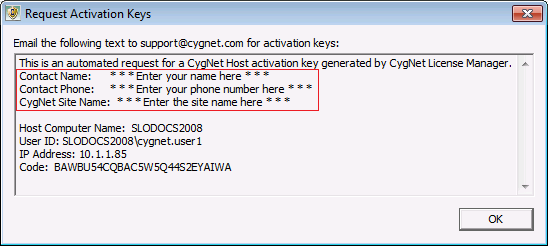
- Copy the information shown in the Request Activation Keys dialog box into an email and send it to . Replace the placeholders of Contact Name, Contact Phone, and Contact Site Name with the information for your site.
Part 2: Entering the Activation Key
- Using Windows Explorer, browse to the CygNet\Utilities folder on the host server.
- Open the License Manager utility by double-clicking on the program executable (LicenseManager.exe).
- Click on the Host Activation icon in the left panel.
- Select the Computer Name you want to activate and click Activate Host. (You may have to expand the dialog box or scroll to view the Computer Name column.)
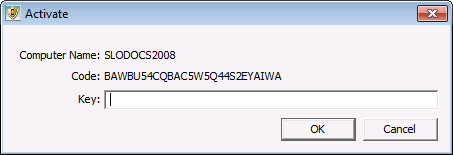
- Enter the Activation Key provided by CygNet Support. If you have requested several keys, be sure to enter the key for the selected computer.
- Click OK.
See Host Activation Verification for information about host activation errors.


