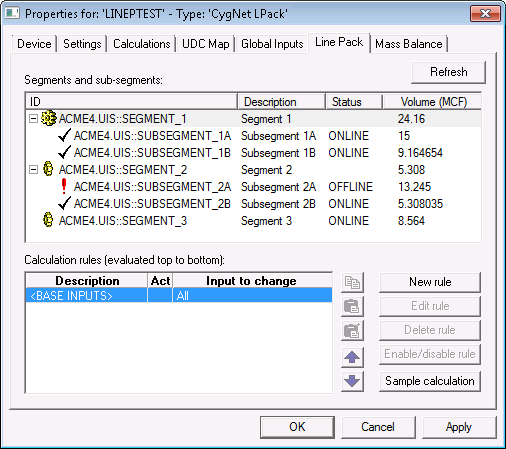
The Line Pack page displays information about pack segment facilities in an expandable tree view with their associated child pack sub-segments. If the expected facilities do not appear in this list, see Facility settings for help. If the list is completely empty, check to ensure a UIS service is configured under the Settings page.
The Line Pack page allows the volume and current status of pack segment and sub-segments to be edited. It also allows for the creation of custom calculation rules, which determine which inputs to use in the Line Pack calculation for the selected segment. All pack segments will have a Base Inputs rule by default.
Rules are evaluated if there is no value for an input. If the rule evaluates to be true, the value specified in the rule will be used as an input. If no rule evaluates to be true, the value specified by the Base Inputs rule will be used. If no value is specified in the Base Inputs rule, the Global Input value will be used as the input.
The Rule evaluation method property on the Calculations page specifies whether to evaluate all rules or only the first to validate.
Click the following image to see an enlarged sample Line Pack page:
Each pack segment in the tree control can be expanded to view its related pack sub-segments. Pack sub-segments with a checkmark next to the name indicate that the pack sub-segment is online and included in the pack calculation. A red exclamation mark indicates the pack sub-segment is offline and will not be included in the Line Pack calculation. The volume listed for the pack segments is a sum of all the volumes of its online pack sub-segments.
Click Refresh to refresh the segment list as edits are made.
The properties of pack segments and pack sub-segments can be edited by double-clicking on the name in the tree control.
Note: Volumetric input must be specified for all pack sub-segments and for any pack segment without child pack sub-segments.
To Change Properties for a Segment
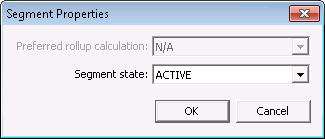
To view or edit the pack segment properties, double-click on the pack segment name. The Segment Properties dialog box allow you to edit the state for a pack segment.
| Property | Description |
|---|---|
|
Preferred rollup calculation |
Note: This option applies only to CO2. Specify the CO2 density value to use in the rollup if both values are available for a segment. Options include:
See the Overview for more information about density sources. The rollup calculation method can be overridden at the pack segment or pack sub-segment level if required. |
|
Segment state |
A pack segment can be set to either ACTIVE or DISABLED. When the pack segment is in the disabled state, its pack will not be calculated. |
To Change Properties for a Single Segment Without Child Sub-Segments
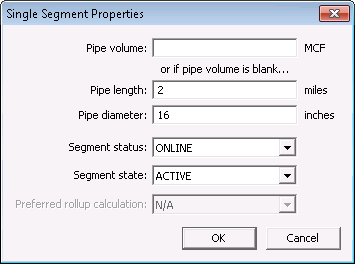
To view or edit the properties for a pack segment that has no child pack sub-segments, double-click on the pack segment name in the expanded tree view. The Single Segment Properties dialog box will allow you to edit volume, status, and state for a single pack segment.
| Property | Description |
|---|---|
|
Pipe volume |
Specify the pipe volume in MCF. |
|
Pipe length and Pipe diameter |
Or specify the dimensions of the pipe length in miles and the pipe diameter in inches. Note: If Pipe volume is omitted, the application will calculate volume from the supplied Pipe length and Pipe diameter. If a volume is specified, then the Pipe length and Pipe diameter values will be ignored. See the Pipe Volume formula for more information. |
|
Segment status |
Select the pack Segment status from the drop-down menu. The status options are configured on the Settings page. |
|
State |
A pack segment can be set to either ACTIVE or DISABLED. When a pack segment is in the disabled state, its pack will not be calculated. |
|
Preferred rollup calculation |
Note: This option applies only to CO2. Specify the CO2 density value to use in the rollup if both values are available for a segment. Options include:
See the Overview for more information about density sources. The rollup calculation method can be overridden at the pack segment or pack sub-segment level if required. |
To Change Sub-Segment Properties
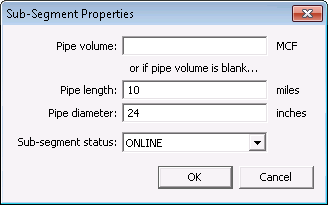
To view or edit the pack sub-segment properties, double-click on the pack sub-segment name in the expanded tree view. The Sub-Segment Properties dialog box will allow you to edit volume, and status for a pack sub-segment. The properties of a pack sub-segment are described above, since it contains properties applicable to a pack segment and pack sub-segment.
More:
 Creating Custom Calculation Rules
Running an Example Calculation

|
|
|

