The CygNet Line Pack engine can be configured to calculate real-time mass imbalance in a pipeline segment to assist pipeline controllers in detecting and localizing leaks. Mass imbalance can be calculated for any pipeline content types: natural gas, CO2, and petroleum liquids.
The CygNet Line Pack calculation uses an enhanced mass balance method based on the principle of conservation of mass. In the steady state, the mass flow entering a leak-free pipeline segment (the inlet flow rate) will balance the mass flow leaving the pipeline segment (the outlet flow rate), and any drop in mass flow leaving the segment may indicate a leak. The formula used takes into account the change rate of the mass inventory of the pipeline segment (a change in line pack mass).
Specifically, when a volume flow rate value is used for a segment’s inlet and/or outlet measurements, the segment’s material density, determined as part of the Line Pack calculations, can be used when converting the volume flow rate values to mass flow rate values.
Note: The natural gas mass balance calculation requires the calculation of some additional intermediate values. See Natural Gas UDCs for more information.
See the Mass Balance Formula for more information on the formula used to calculate the estimated mass imbalance.
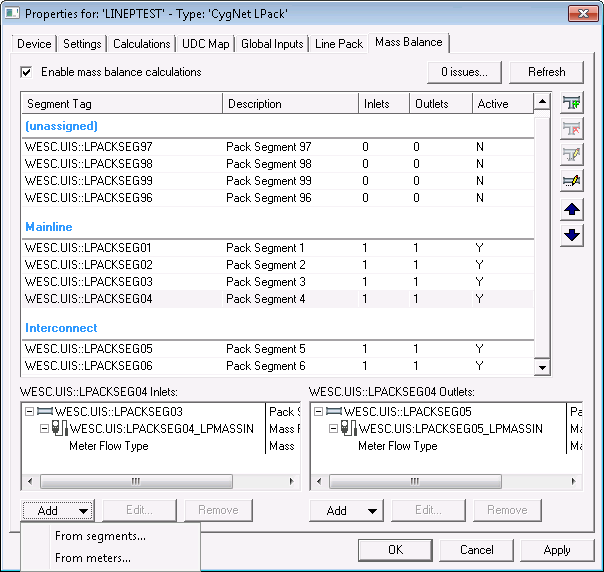
Click the following image to see an enlarged sample Mass Balance page:
See the following subsections for more information:
The Mass Balance page of the Line Pack editor is used to define segment requirements in terms of flow rate. The interface displays the same segments that are used in a line pack calculation, which must then be organized into branches (for example, interconnects or logical groupings). You then define the inlets and outlets for each segment, tying one segment to the next. Mass balance, unlike Line Pack, has a direction of flow, and the purpose of the configuration is to balance each segment, as segments flow into other segments, thus balancing a pipeline.
Notes:
Mass balance is not applicable to sub-segments, except that each line pack segment may consist of sub-segments, and the change in line pack calculation is included in the mass balance formula.
Mass balance can be calculated for disabled segments and offline sub-segments. In this case line pack will not be calculated but the mass balance calculation will run to check if inlet mass is equal to outlet mass at the flow meters.
If inlets and outlets are not configured then mass balance cannot be calculated.
A closed cycle is one that does not have a path (any path) to a stand-alone meter outlet (one that is not assigned as an inlet to another segment). Closed cycles will be reported as a warning, although the Line Pack device can be saved and calculations can occur.
To Configure Mass Balance
 to add a new branch, as necessary. Edit (
 ) or delete (
 ) branches as required.
 ) and Move down (
 ) buttons.
-OR-
Right-click each segment and select Add inlet, and then Add outlet, to configure. See Configuring Inlet and Outlet Flows below for more detail.
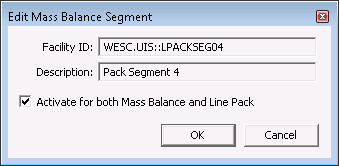
 ) to make Activate the segment, that is, to indicate whether this segment will be used in both Mass Balance AND Line Pack calculations. See Edit segment... below.
To Execute a Mass Balance Calculation
Execute a calculation by sending a UIS command of the type CALCULATE ("Calculate") to the Line Pack driver. A second UIS command VCALCULATE ("Validate and calculate") can be issued to first validate segments, facilities, and points, and then perform the Line Pack and Mass Balance calculations. The recommended configuration is to initiate the CALCULATE command, and then if you know there are changes to the system, initiate the VCALCULATE command, and then repeat once an hour to make sure the Line Pack driver has the most up-to-date database entities in its cache.
These UIS commands can be scheduled via the MSS or executed directly on the Device page of the device editor.
The upper portion of the Mass Balance page shows the target pipeline segment facilities to be analyzed for mass imbalance. Use the buttons or context menu to reorganize your branches and segments as necessary, then specify the inlets and outlets as required.
| Option | Description |
|---|---|
|
Columns |
|
|
Branch |
All segments must be assigned to a branch and configured with inlets and outlets in order for mass balance to be calculated. The default (unassigned) branch will contain any newly-added segments or segments that have been removed from the target list below. Mass balance calculations can be avoided for removed segments, although an error is displayed saying no inlets and outlets are configured and hence the mass balance calculation will failed. Also note that line pack calculations will be performed for all segments regardless of mass balance configurations. |
|
Segment Tag |
The facility tag string for the selected facility that represents a segment. |
|
Description |
The description for the selected facility. |
|
Inlets |
The number of inlet flows to the selected segment. Note: This would normally be 1, as one segment typically flows into the next, but multiple inlets/outlets are allowed in the case at the boundary of an interconnect where you might have multiple flows coming into/out of a segment. For example, you might have a split in a pipeline where segment 2 might be an inlet for both segment 3 and segment 5. The Line Pack driver allows for this type of configuration. |
|
Outlets |
The number of outlet flows from the selected segment. See the note above regarding multiple inlets and outlets. |
|
Active |
Indicates whether this segment will be used in both Mass Balance AND Line Pack calculations.
|
|
Context menu (and button) options |
|
|
Move up ( |
Move the currently selected branch or segment up the list. |
|
Move down ( |
Move the currently selected branch or segment down the list. |
|
Move to branch
|
Move the currently selected segment to another branch in the list. |
|
Edit the currently selected segment to indicate whether the segment will be used in both Mass Balance AND Line Pack calculations.
|
|
|
Add inlet Add outlet
|
Click to add an inlet or outlet to the selected segment. Two options are available:
|
|
Add branch... ( |
Add a new branch. |
|
Edit branch... ( |
Edit the currently selected branch. |
|
Delete branch ( |
Delete the currently selected branch. Any child segments in the branch will be moved to the (unassigned) branch. |
Directly below the target branches and segments list are two panes displaying the inlet and outlet flows that are assigned to each segment. Once properly configured you can easily see the complex flow relationships between segments:
Use the Add, Edit, and Remove buttons to configure the flows for each segment.
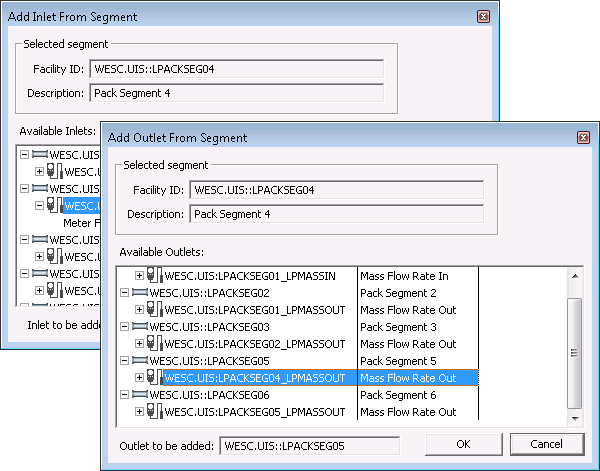
Click Add > From segments... to add an available inlet/outlet segment facility to the selected target pipeline segment. This option is provided as a convenience since segment relationships, and their configured inlet or outlet points, may be easier to identify (for example, Segment 1 flows into Segment 2) than selecting individual flow meter points.
The Add Inlet/Outlet From Segment dialog box shows the following:
Click Add > From meters... to add an inlet/outlet flow rate meter to the selected target pipeline segment. It may be more convenient to add an inlet or outlet flow rate point that has already been associated with a segment facility since segment relationships are often easy to identify (for example, Segment 1 flows into Segment 2). If so, use the Add an Inlet/Outlet from a Segment option instead.
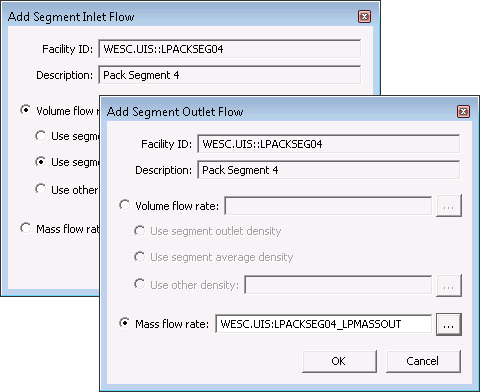
The Add Segment Inlet/Outlet Flow dialog box shows the following:
| Density Option | Description |
|---|---|
|
Use segment inlet/outlet density |
This value is calculated using the API 11.1 Base to Alternate formula with alternate temperature and pressure as inlet/outlet temperature and pressure. |
|
This value is calculated internally as part of the Line Pack calculation and written out to the Last Segment Calc: Calculated Average Density point. See this UDC on the UDC Map page (Optional Output UDCs) for each pipeline type. |
|
|
Use other density |
Select another user-defined segment density value. |
- Mass flow rate — Select a meter point UDC to use for the inlet/outlet.

|
|
|